What PixeoAi VD does for you
PixeoAi VD saves videos from the web onto your own computer so you can watch them without a connection, keep a copy of something that might disappear, or pull the sound out of a talk you want on your phone. You paste a link, choose how you want the file, and press download.
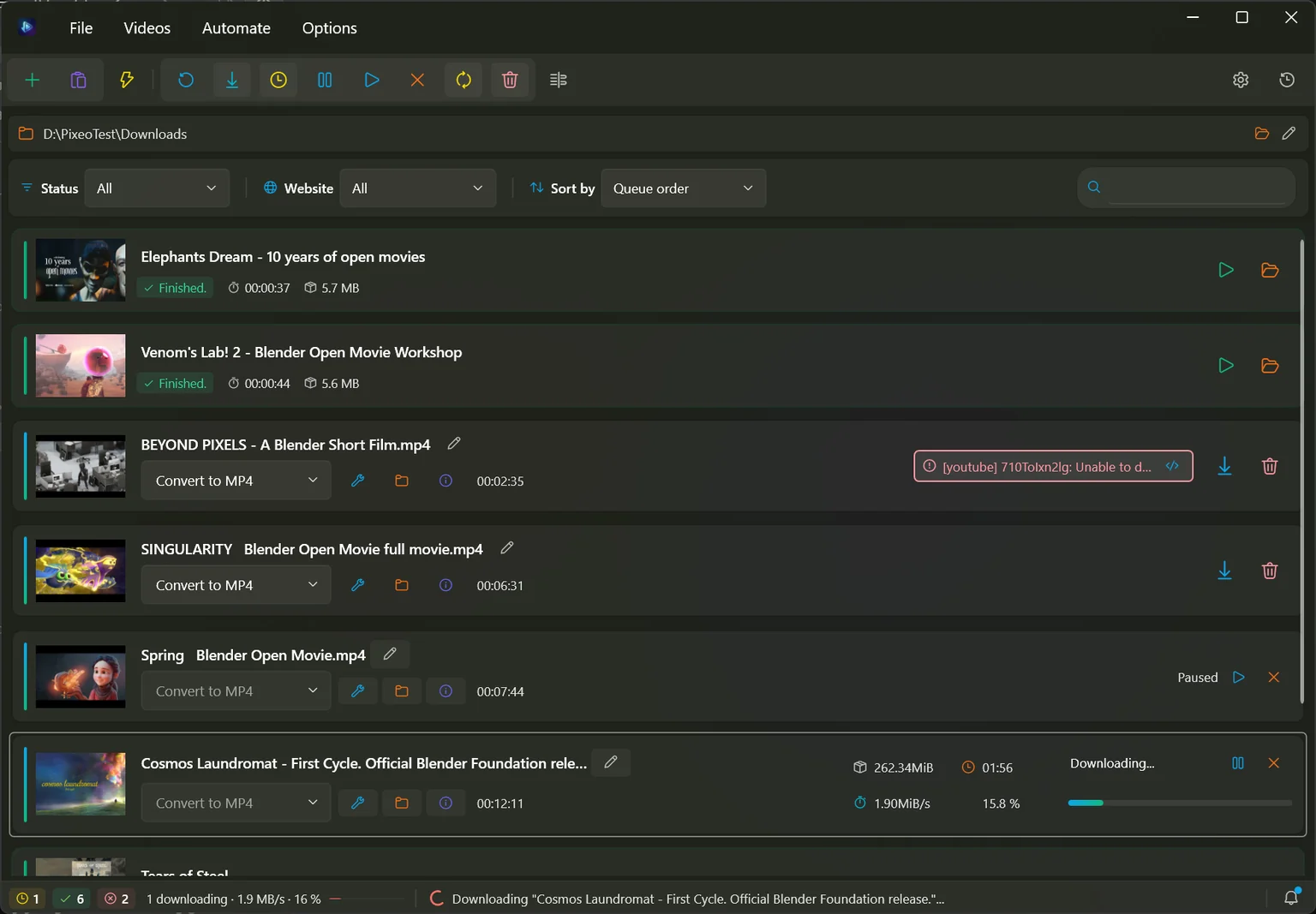
One link or hundreds
Add a single video, paste a whole list of links at once, drag them in from your browser, or hand it a playlist and pick the episodes you actually want.
You choose the quality
Take the best picture available, cap it at a resolution that suits your screen, or skip the video entirely and keep only the audio as an MP3.
It keeps working while you do
Several downloads run at once, the app keeps your computer awake until they finish, and it can start a big batch overnight and shut the machine down afterwards.
Honest about failure
When a download does not work the row tells you why in its own words, retries by itself when retrying could help, and keeps the full report for you to read.
The app will fetch whatever link you give it. Making a private copy of something you own, or of material the creator has released for reuse, is very different from redistributing someone else’s work. Check the terms of the site and the licence of the video before you share anything you saved.
What you need, and the first run
PixeoAi VD runs on 64-bit Windows 10 and Windows 11. Everything it needs to download and convert video is inside the package — there is nothing else to install afterwards.
Installer
The usual choice. It installs the app, adds it to the Start menu, and updates cleanly over an older version.
Portable
A folder you can unzip anywhere, including a USB stick. It keeps its settings and its download list beside itself instead of in your Windows profile.
Getting started
- Download the installer or the portable package from the product page.
- Run the installer, or unzip the portable package into a folder you can write to.
- Open the app. The welcome panel appears the first time only.
- Pick where your videos should be saved and which format you usually want, then choose Finish.
The welcome panel
Two questions and a health check. Download folder is where finished videos land — you can change it at any time. Default format is what new videos start as. Required tools confirms that the downloader, the converter and the small helper the app uses for some sites are all present; if one is missing there is a Download button beside it. Nothing here is permanent, and Skip is a perfectly good answer.
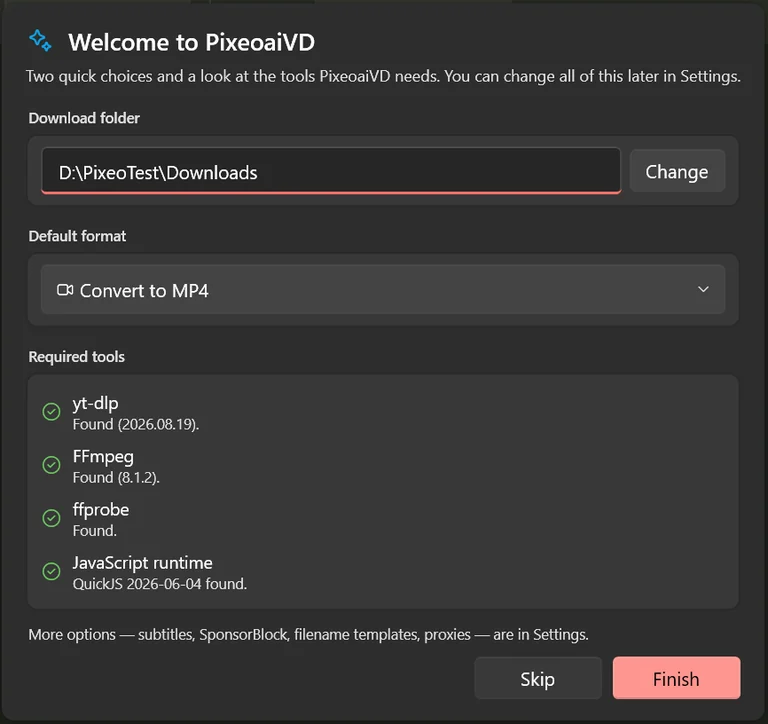
Open Options ▸ Settings, stay on the General tab and turn on Show the setup panel again at next start.
The main window
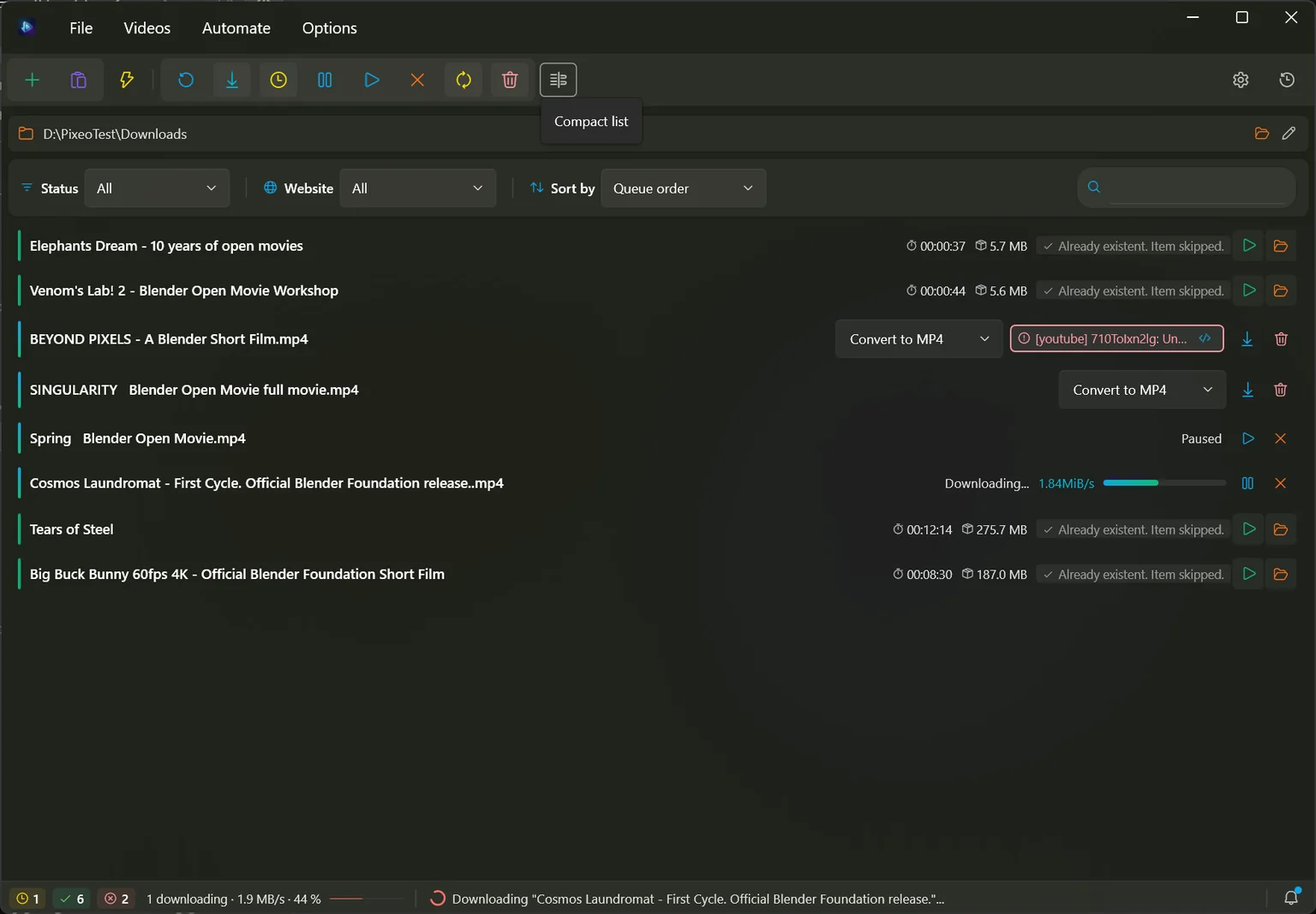
Almost everything happens in one window. Along the top are the menus and a row of buttons, under them the folder your videos go to and a bar for finding things, then the download list itself, and a status strip along the bottom.
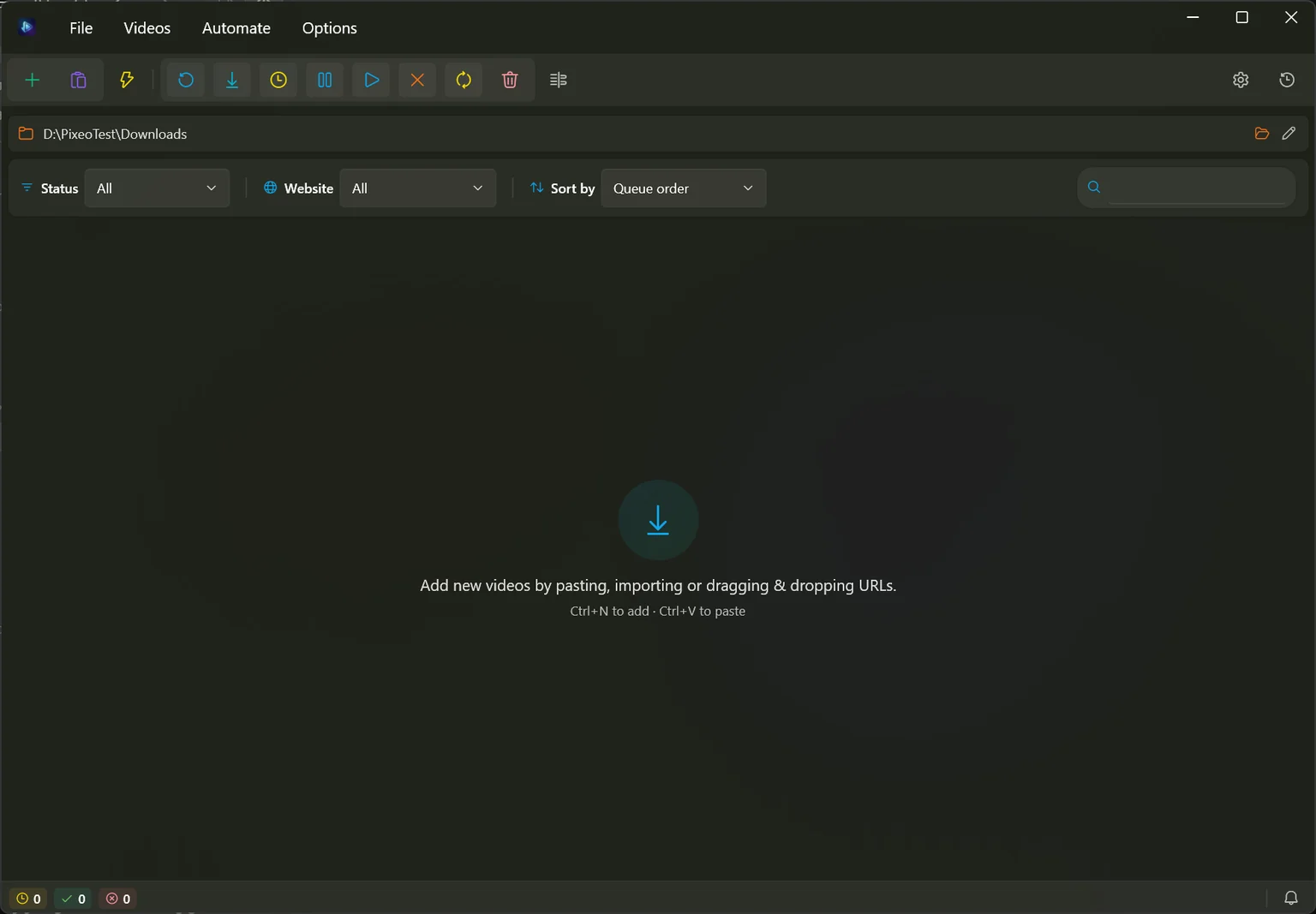
The button row
From the left: add videos, paste from the clipboard, and the clipboard watcher. Then a group that acts on the whole list — refresh everything, download everything, schedule a start, pause, resume, cancel, retry whatever failed, and empty the list. The last button switches to a denser one-line view.


Where your videos go
The bar under the buttons always shows the folder in use. The folder icon opens it in Windows, the pencil changes it. A single video can be sent somewhere else without disturbing this setting.

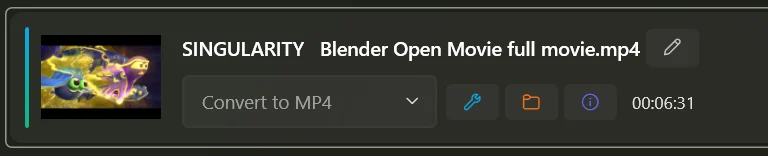
What a row tells you
Each video gets a thumbnail, the name the file will be saved under, and a drop-down for the format. The pencil renames just this one, the spanner opens the full settings for it, the folder sends it somewhere else, and the letter i shows everything the site reported about it.
The status strip
Three counters on the left: how many are working, how many succeeded, how many failed. Beside them, while anything is downloading, a single line adds up the whole queue — how many are running, their combined speed and overall progress. The bell on the right opens the list of messages the app has shown you.

A denser list
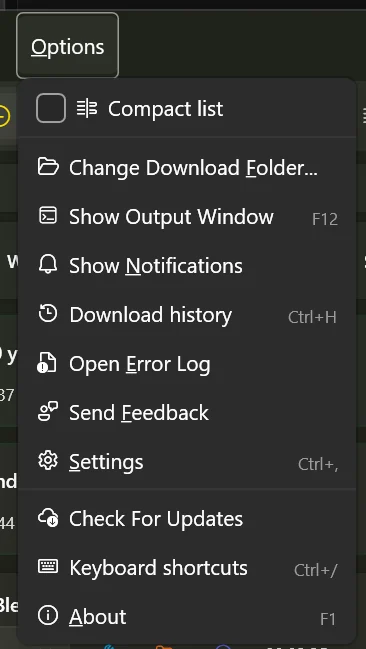
With a long queue, Options ▸ Compact list drops the thumbnails and puts each video on a single line so you can see many more at once. Everything still works the same way.
The four menus
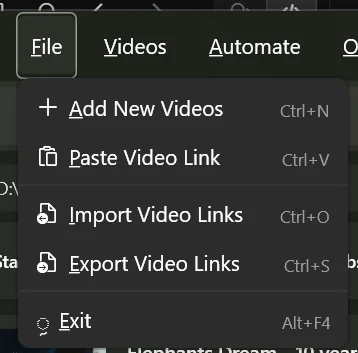
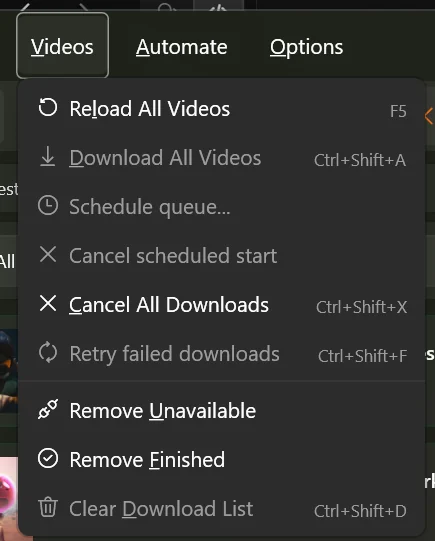
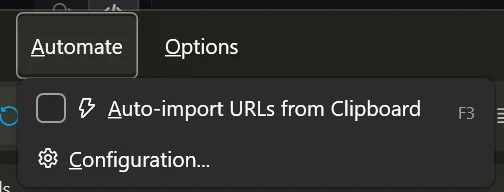
File adds and saves links. Videos acts on the whole list. Automate watches your clipboard. Options holds settings, history, logs and help.
Adding videos
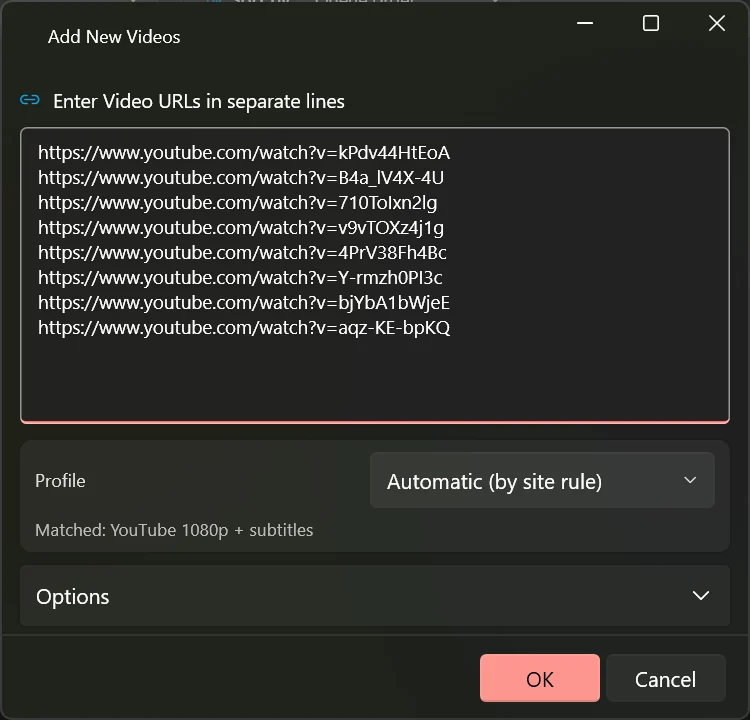
There are four ways in, and they all end up in the same list. Whichever you use, the app contacts the site first to read the title, the length, the thumbnail and the list of qualities before anything is downloaded.
The Add window
Choose File ▸ Add New Videos, the + button, or press Ctrl+N. Paste one link per line — there is no limit.
Straight from the clipboard
Copy a link in your browser and press Ctrl+V in the app, or use the clipboard button. Any links in what you copied are added.
Drag and drop
Drag a link out of your browser and drop it anywhere on the list.
From a file
File ▸ Import Video Links reads a plain text file with one link per line. Export Video Links writes your current list back out, which is handy for moving a queue to another computer.
The Options section
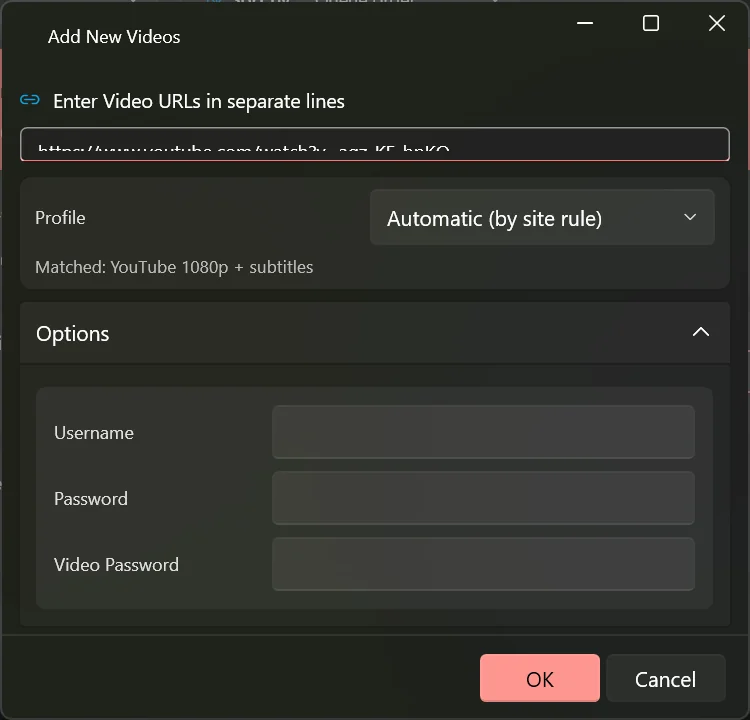
Expanding Options in the Add window reveals a user name, a password and a video password. These are for sites that ask for a login on the page itself, and for single videos protected by a password. For sites where you are signed in through your browser, see the sign-in chapter instead.
Playlists
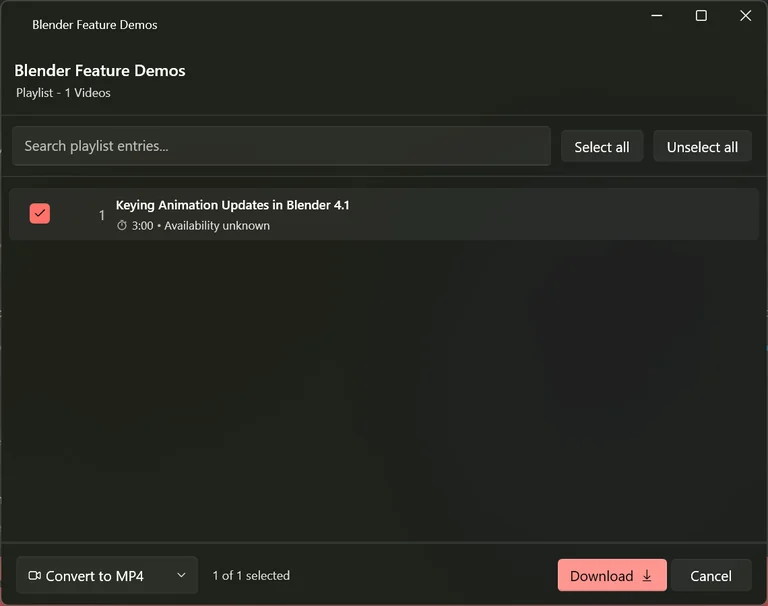
Give the app a playlist link and it becomes a single row. Open it with the i button and you get the full list of episodes with tick boxes, a search box and select-all buttons — so you can take three videos out of a hundred. Your choice is remembered, so retrying later does not start the whole playlist again.
What the site said
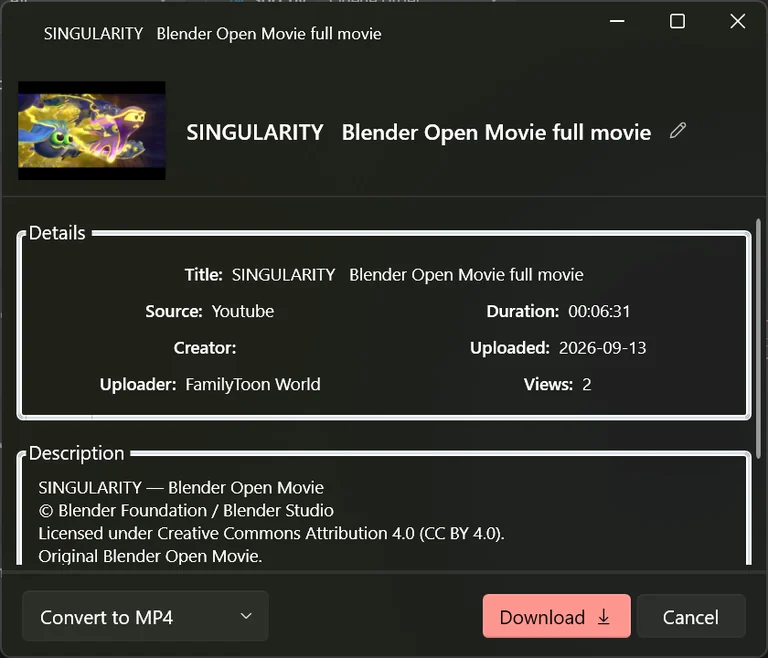
The i button on a row opens everything the app was told about the video: title, who uploaded it, when, how long it is, how many views, and the full description. It is the quickest way to check you grabbed the right thing.
Choosing quality and format
Every row has a drop-down with the common choices: convert to MP4, MKV, WebM or AVI, pull out the audio as MP3, M4A, WAV or Ogg, or take the best the site offers without converting anything. For finer control, open Configure Download with the spanner on the row.
Best, or converted?
Best Direct Download takes the file the site already has and saves it untouched — fastest, and nothing is lost. The Convert to… options re-encode afterwards so the file plays in a particular program or on a particular device. Converting costs time and a little quality; if you have no reason to convert, do not.
Preferred resolution
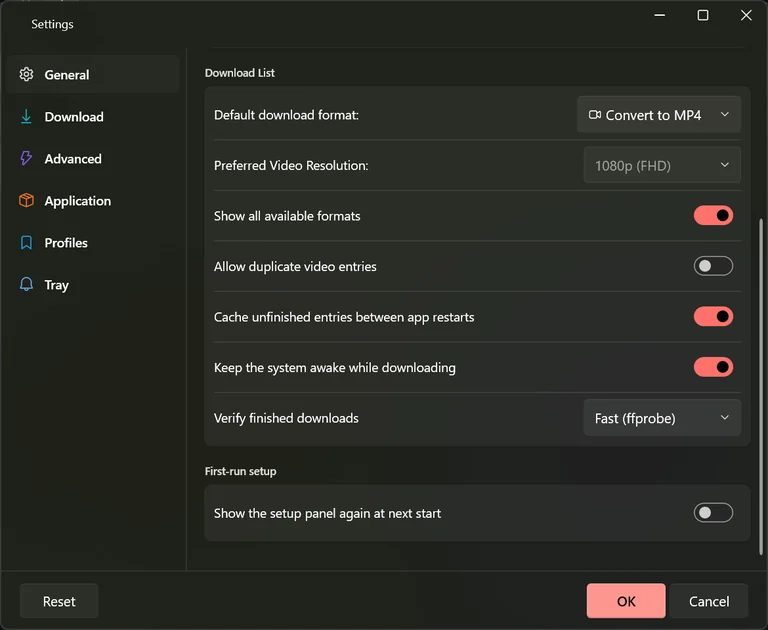
In Settings ▸ General, Preferred Video Resolution: caps how large a picture the app asks for — from 360p up to 4K, or simply the largest available. A cap is the easiest way to keep file sizes sensible without thinking about it for every video.
Show all available formats
Turn this on in Settings ▸ General and the row drop-down lists every individual stream the site offers, with its size, instead of only the friendly choices. Useful when you want one exact version; noisy otherwise.
The Configure Download window
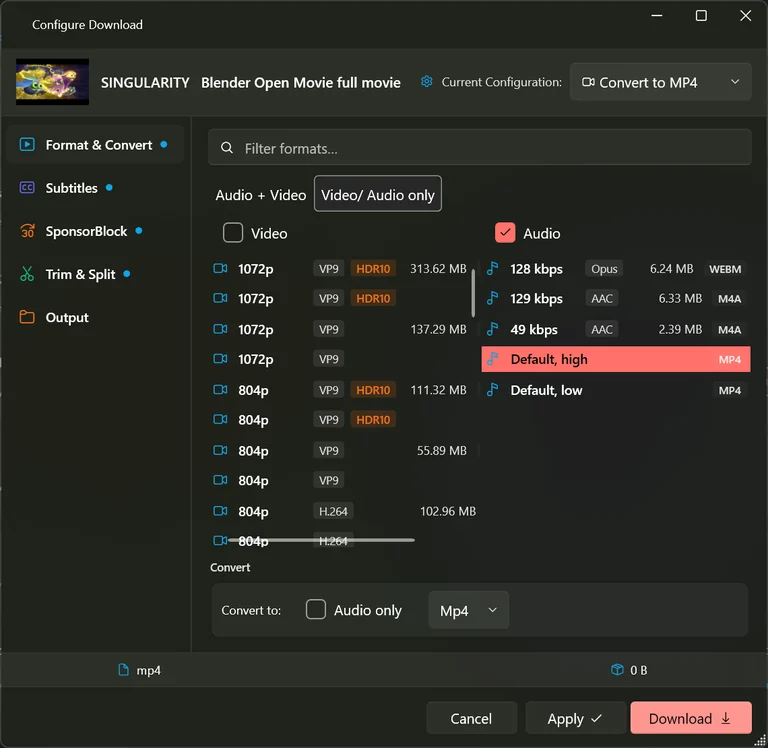
The spanner on a row opens a window with five sections down the side. Format & Convert is the first: a search box at the top filters a long list, and the two inner tabs separate combined files from the separate picture and sound tracks that most large sites use. Pick one from each column and the app joins them for you. Apply saves your choices for later; Download saves them and starts immediately.
Download best quality and convert
With this on, the app always fetches the highest quality it can and then converts down to the format you asked for, instead of picking a ready-made file that already matches. Better results, longer wait.
Faster converting
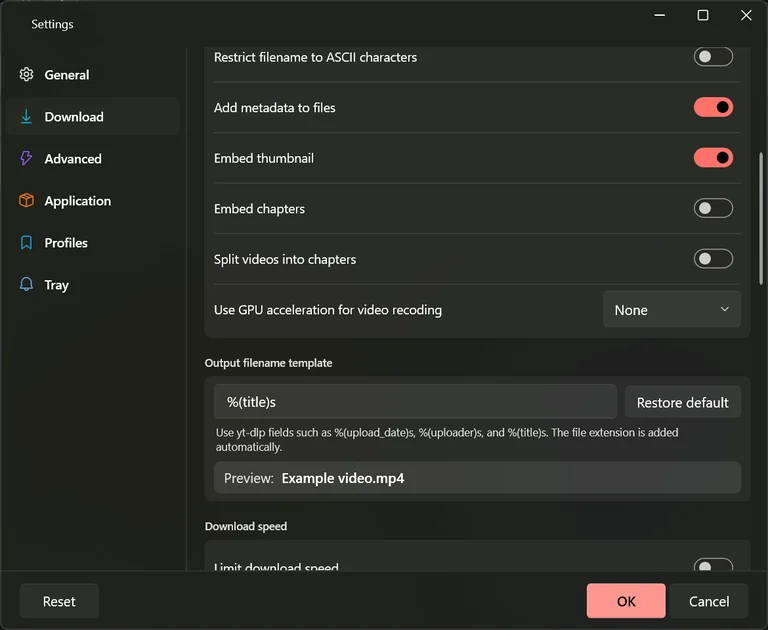
Converting is the slow part. Settings ▸ Download ▸ Use GPU acceleration for video recoding hands that work to your graphics card — choose the maker of your card. If converted files come out wrong, set it back to None; the result is then produced by the processor, which is slower but always works.
Running the queue
Press the download arrow on a row to start one video, or the download button in the toolbar to start everything. Rows move through a small number of states, and the row always shows which one it is in.
The states
Ready
Details fetched, nothing downloaded yet. This is where a video waits for you.
Downloading
The row shows how much has arrived, the speed, the time left and a progress bar.
Paused
Stopped where it was. Resuming carries on rather than starting again.
Finished
Saved and checked. The row now offers to play the file or show it in its folder.
Failed
Something went wrong. The row carries the reason and a button to read the full report.





How many at once
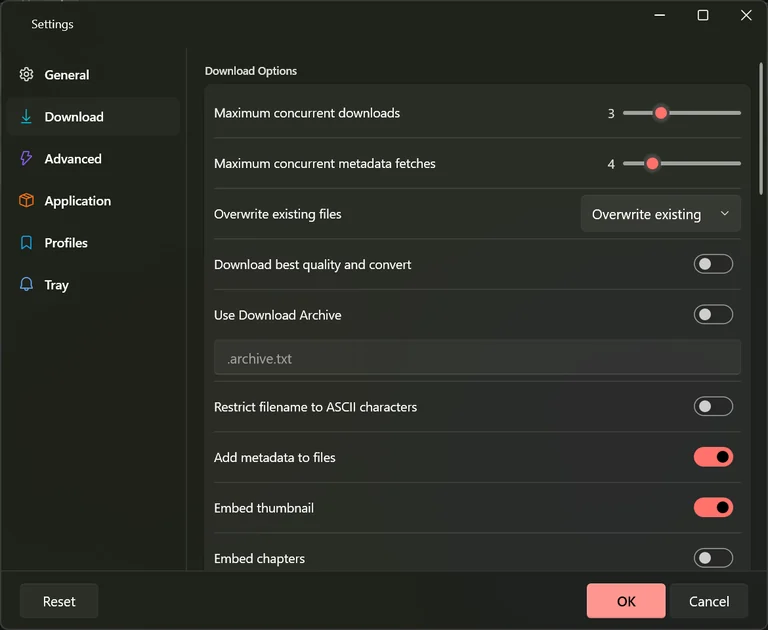
Settings ▸ Download ▸ Maximum concurrent downloads decides how many run together, from one to eight. More is not always faster: past a point they simply share the same connection. Three is a good starting point. A second slider governs how many videos have their details looked up at the same time, which is what you notice when you paste a long list.
When something fails
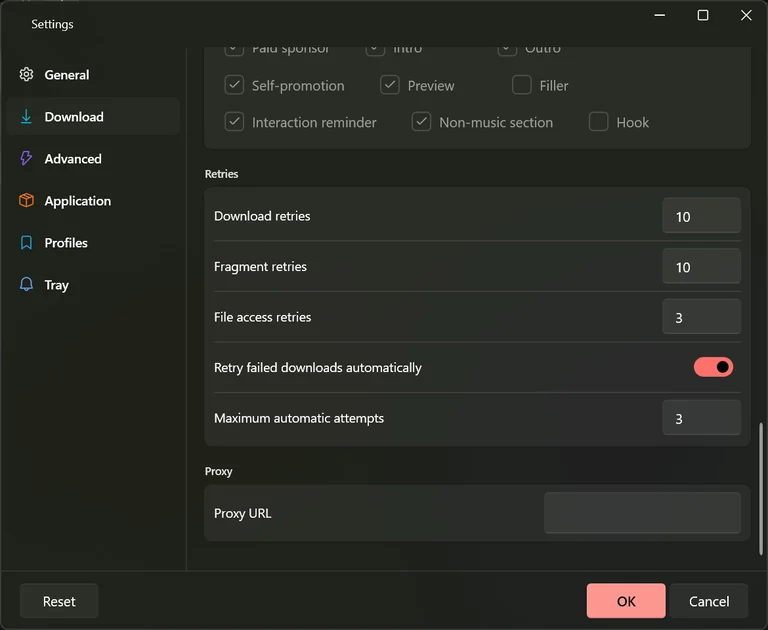
A dropped connection, a busy server or a broken piece of a file are all temporary, and the app puts the video back in the queue by itself, waiting a little longer before each attempt. The row counts the attempts down so you can see it happening. Problems another attempt cannot fix — a video that was removed, made private, restricted to a country, or that needs a sign-in — are never retried, because nothing would change.
Retry failed downloads in the toolbar or the Videos menu puts everything that failed back in the queue in one go.
Changing the order
While the list is sorted by Queue order you can drag a waiting video up or down, or select it and use Alt+Up and Alt+Down. Items already running keep their place.
The right-click menu
Right-clicking a row collects everything you can do to that one video: move it in the queue, copy its link, open it in your browser, read its log, rename it, send it to another folder, configure it, apply a profile, reload its details, remove it from the list, or delete the file it already downloaded.
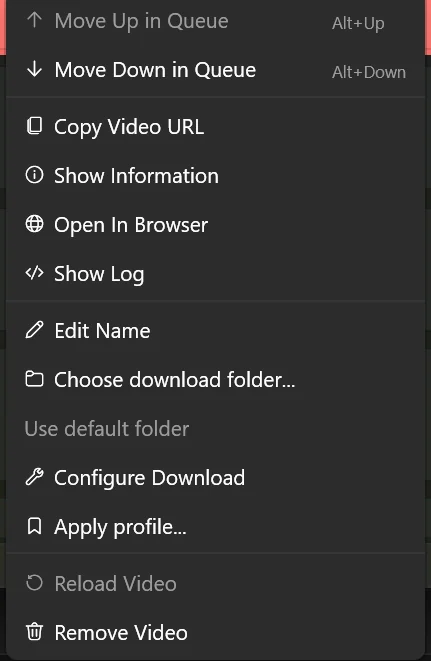
Delete downloaded files removes the saved video from your disk, not just the row from the list. The app asks first and names how many files it is about to remove. This cannot be undone.
Starting later
Videos ▸ Schedule queue… picks a date and a time for everything still waiting. Use it to move a large batch to the middle of the night. The computer has to stay on and the app has to stay open — minimising it to the notification area is fine.
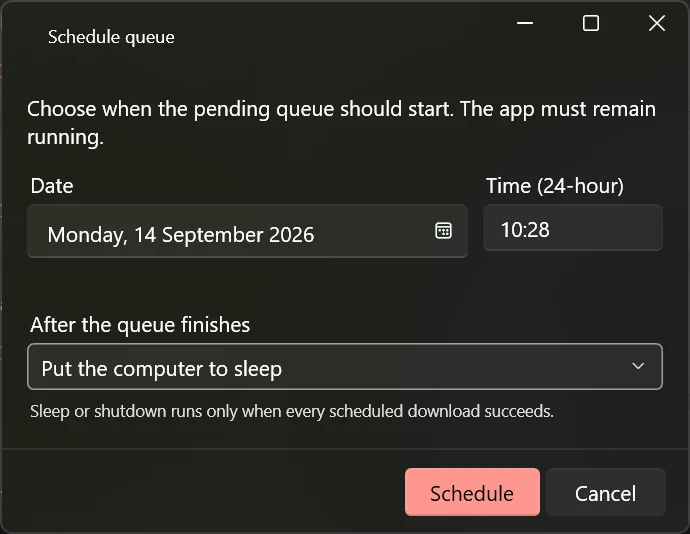
If you ask the app to sleep or shut down after a scheduled batch, it does so only when every scheduled download succeeded. If even one failed, the computer stays on and tells you why — so you never come back to a powered-off machine and a half-finished job.
Staying awake
Keep the system awake while downloading in Settings ▸ General stops Windows going to sleep in the middle of a transfer. It releases the machine as soon as the queue is idle, so normal power saving returns by itself.
Finding things, and doing them in bulk
A long list gets unwieldy. The bar above the list narrows what you see, and selecting several rows turns the app into a batch tool.
The filter bar
Status shows only what is ready, downloading, completed or unavailable. Website narrows to one site — useful when you have mixed sources. Sort by reorders by queue position, newest, oldest, name or status. The search box on the end matches the title as you type.

Acting on several at once
Click one row, then Ctrl+click others, or press Ctrl+A for all of them. A bar appears above the list saying how many are selected, with buttons to download, pause, cancel, retry, remove them, delete their files, send them to another folder, set their format, set their subtitles or apply a profile. Each button says how many of your selection it can actually act on, and quietly skips the rest rather than failing the whole batch.


Naming your files
By default a file is saved under the video’s own title. If you would rather have the date first, or the channel name in front, you can describe the pattern once and every download follows it.
Building a pattern
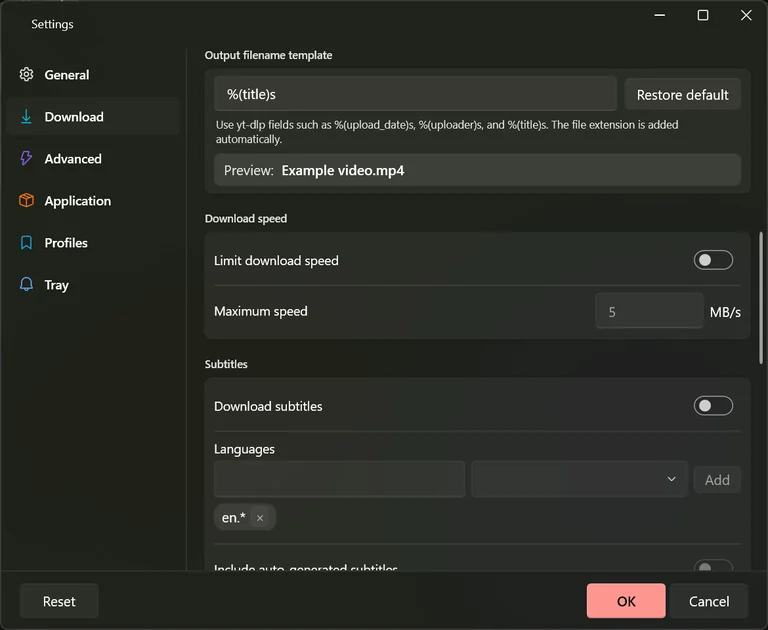
Open Settings ▸ Download and find Filename template. Type the name you want, using a placeholder wherever a piece of information from the video should go. Anything you type that is not a placeholder is kept exactly. The extension is added for you, and a Preview: line under the box shows the result as you type.
The useful placeholders
Type these exactly as shown, including the brackets and the letter at the end.
| %(title)s | The video title |
|---|---|
| %(uploader)s | Who published it |
| %(upload_date)s | The publication date, as 20260914 |
| %(id)s | The site’s own identifier for the video |
| %(ext)s | Added automatically — you never type this |
A worked example
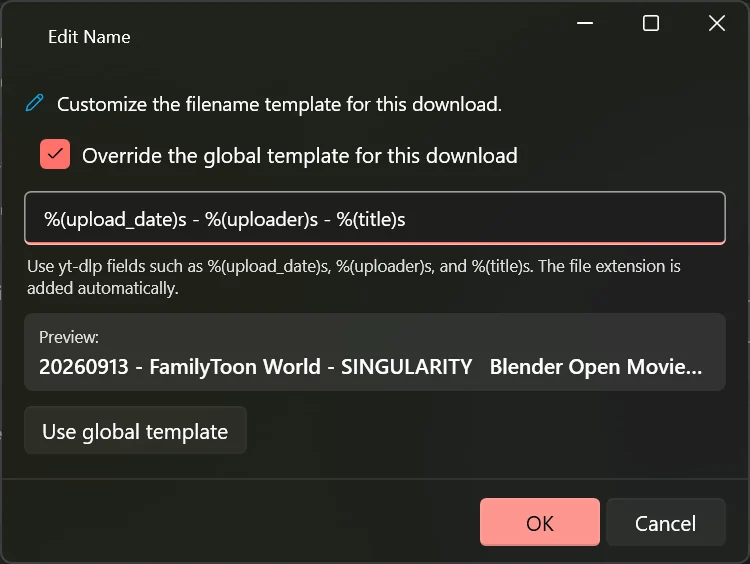
Typing a date placeholder, then a dash, then the uploader, then another dash and the title gives you files that sort themselves by date and group by channel — which is what most people want after a few hundred downloads.
%(upload_date)s - %(uploader)s - %(title)s
Renaming just one
The pencil on a row opens Edit Name. Tick Override the global template for this download, type a pattern for this video alone, and the preview updates underneath. Use global template puts it back the way it was.
Names that travel
Restrict filename to ASCII characters strips accents and non-Latin letters out of the file name. Turn it on if you move files onto older devices, car stereos or systems that mangle anything unusual.
When the name already exists
Overwrite existing files decides what happens when a file of that name is already in the folder: skip it and move on, replace it, or download it again under a new name. Skipping is the safe default when you re-run a long list.
Subtitles and skipping sponsor segments
Two separate features that often get used together: bringing the words along with the video, and cutting the parts you never watch.
Turning subtitles on
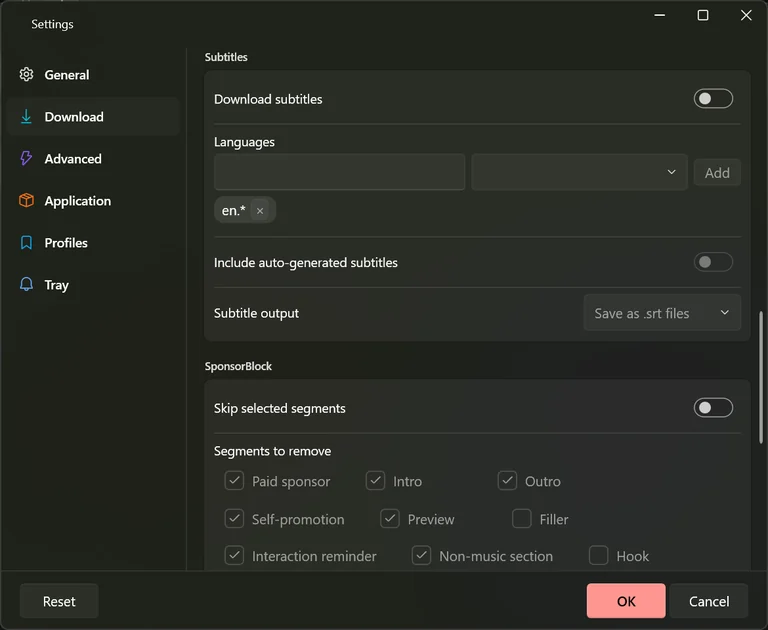
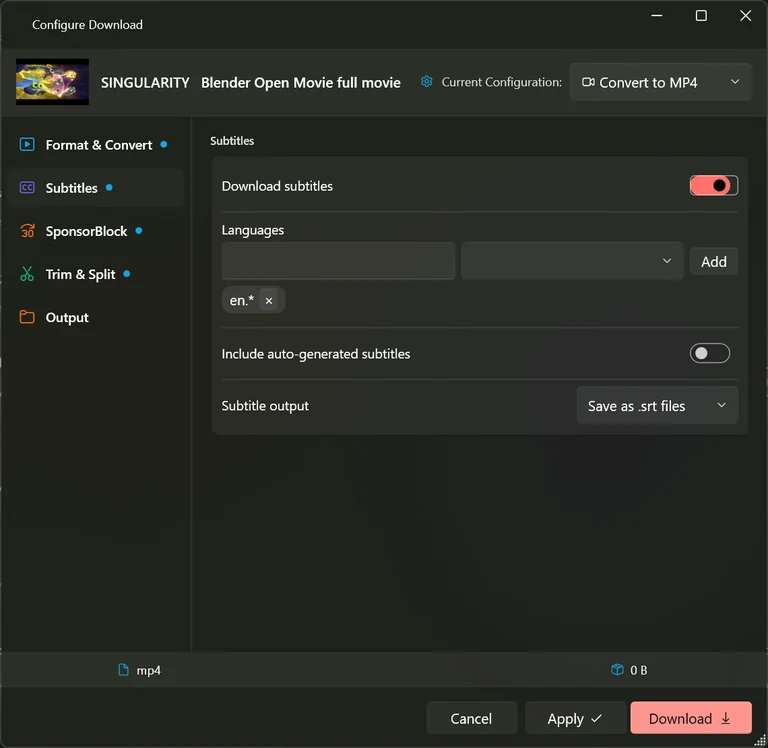
Open Settings ▸ Download and turn on Download subtitles. Under Languages, add the language tags you want — en for English, ar for Arabic. A tag ending in .* takes every variant of that language, which is usually what you want.
Automatic captions
Most videos have no subtitles the creator wrote. Include auto-generated subtitles falls back to the machine transcription, which is nearly always available but contains mistakes, has little punctuation, and sometimes hears the wrong word. Good for searching and following along; not good for quoting.
Beside the video, or inside it
Save as .srt files puts the subtitles in a separate small file next to the video. You can open it in any text editor, fix a line, retime it, or simply delete it. Embed in video puts the track inside the video file itself, so there is one file to move around and the subtitles appear in your player’s own subtitle menu.
Only some kinds of video file can carry a subtitle track. If you ask to embed into a format that cannot hold one — an audio-only file, for instance — the app tells you in advance and saves the subtitles beside the file instead. Nothing is lost; the file just does not carry them internally.
Subtitles for a whole selection
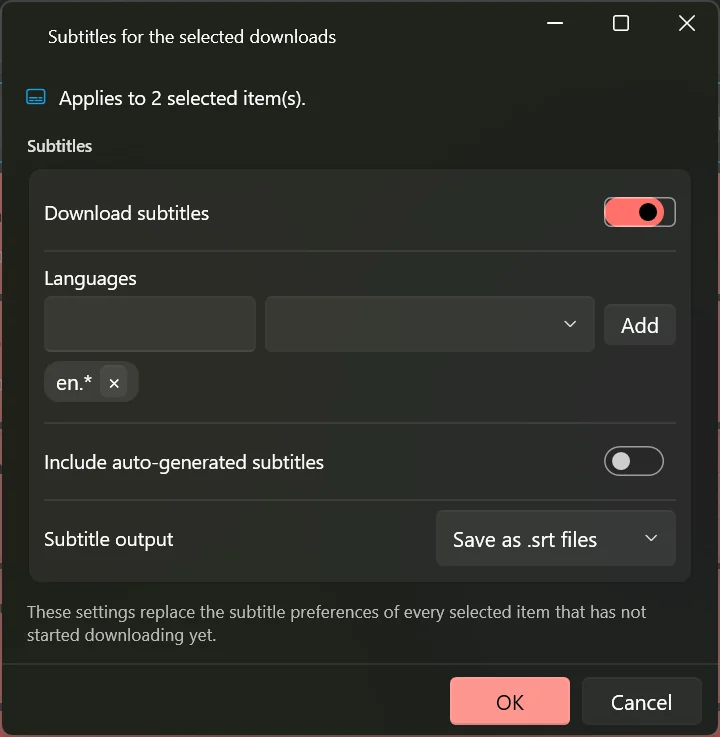
Select several rows and choose Set subtitles… from the bulk bar. It replaces the subtitle choices on every selected video that has not started yet.
SponsorBlock
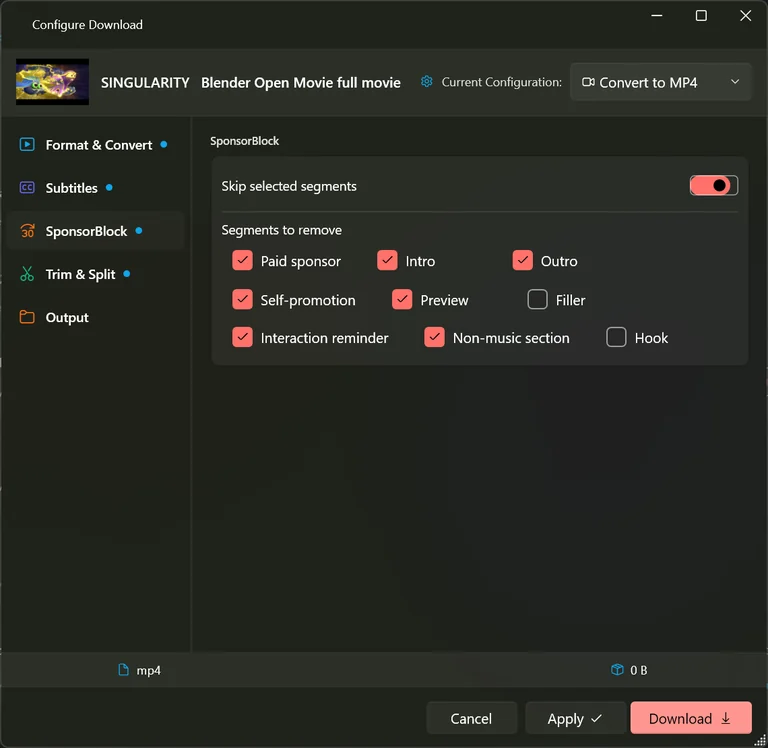
SponsorBlock is a community list of timings: viewers mark where the sponsor read, the intro, the outro and other skippable parts are, and the app uses those timings to cut them out of your file. Turn on Skip selected segments in Settings ▸ Download and tick the kinds you want gone.
Those seconds are removed from the saved file, not merely skipped during playback. A twelve-minute video with a forty-second sponsor read arrives as about eleven minutes twenty. The only way to get them back is to download the video again with this turned off.
Because the timings come from other viewers, a brand-new upload usually has none and nothing is removed. Occasionally a mark is a second or two out and clips the edge of real content. Cutting also adds a processing pass, so the download takes a little longer.
Part of a video, chapters, and speed
Three settings that change what arrives rather than how it looks. All three sit in Configure Download for one video, and the last two also have a global setting.
Just one scene
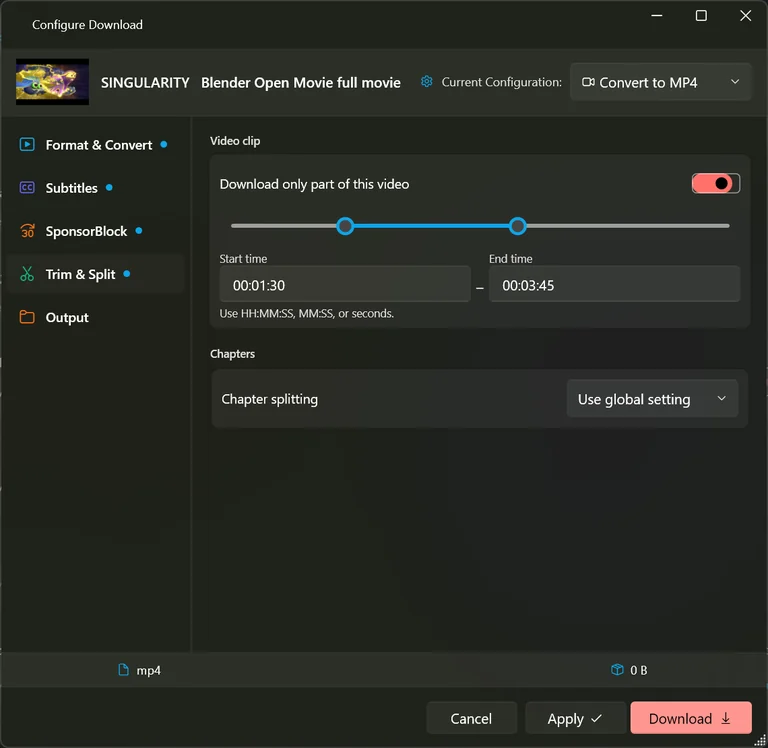
Open the spanner on a row, choose Trim & Split and turn on Download only part of this video. Drag the two handles, or type the start and end times as hours:minutes:seconds. Only that span is fetched, so it is quicker and smaller than taking the whole thing and cutting it later.
The end has to come after the start and sit inside the video’s length, and this is not available for a playlist — a timestamp means nothing across many different videos.
One file per chapter
If the creator marked chapters, Split videos into chapters saves each one as its own file, numbered and named after the chapter. A three-hour interview with twelve chapters becomes twelve files. Videos with no chapters are unaffected — you still get one file.
Chapters and artwork inside the file
Embed chapters keeps the chapter marks inside a single file so a capable player can jump between them. Embed thumbnail puts the video’s picture inside the file as its artwork, which is what makes a downloaded podcast show a cover in your music app. Add metadata to files writes the title, the creator and the date into the file’s own properties.
Not taking the whole connection
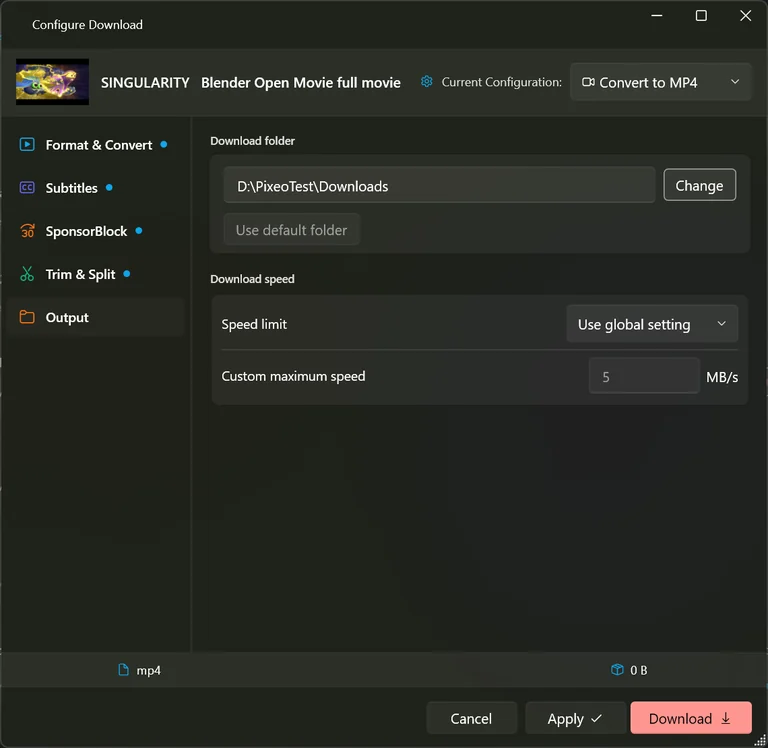
A download at full speed can make video calls stutter and games lag for everyone in the house. Limit download speed in Settings ▸ Download sets a ceiling in megabytes per second. The download takes longer, and everything else keeps working.
A single video can ignore the ceiling or set its own: open its Configure Download, go to Output, and change Speed limit from Use global setting to Unlimited or Custom limit. Handy when one file is urgent and the rest can wait.
Download profiles
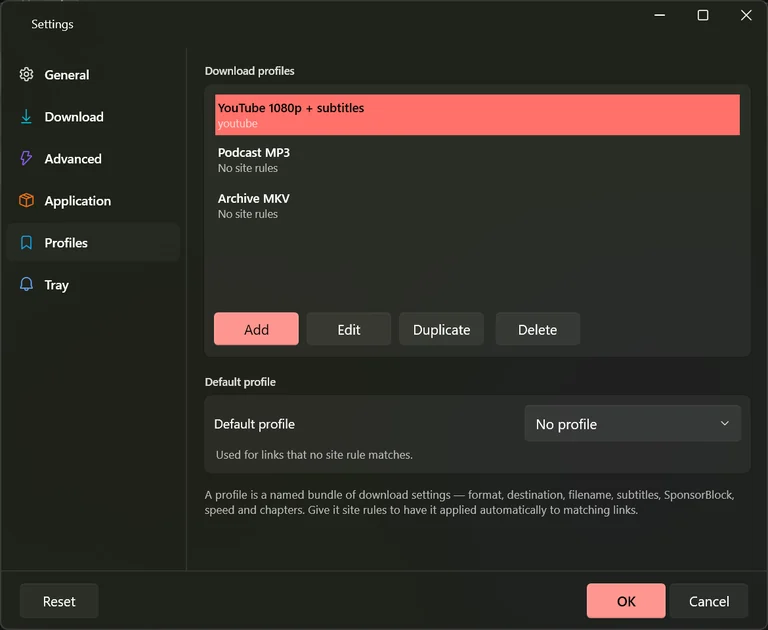
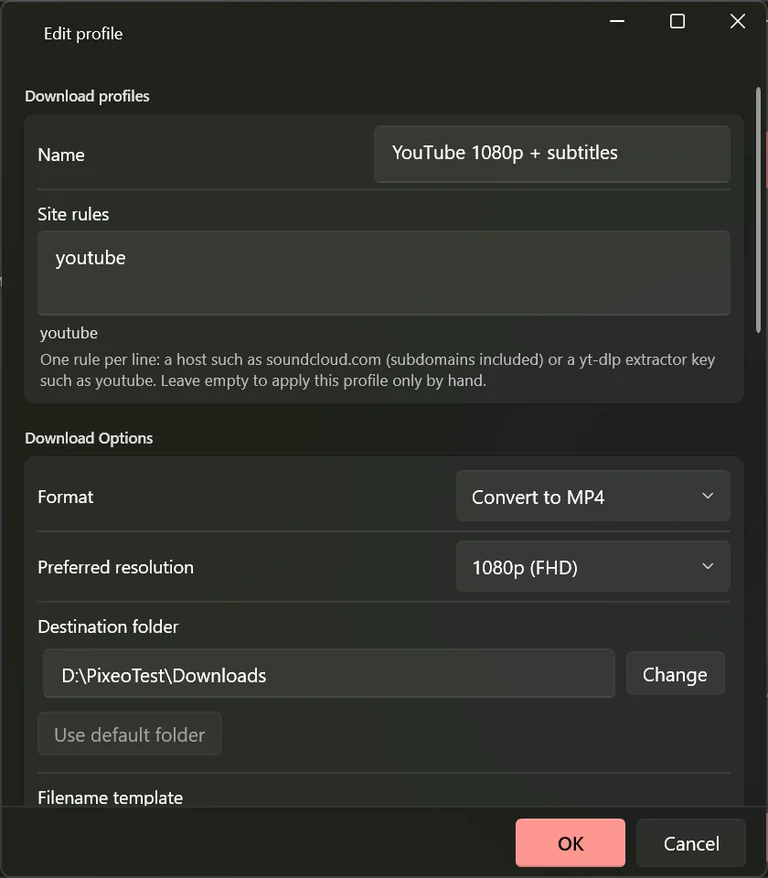
A profile is a named bundle of the choices you would otherwise make again and again — format, resolution, destination, file name, subtitles, SponsorBlock, speed and chapters. Give it a site rule and it applies itself the moment you paste a matching link.
The three that come with the app
YouTube 1080p + subtitles
MP4 capped at 1080p, English subtitles saved beside the file, and sponsor segments removed. Matches YouTube links automatically.
Podcast MP3
Audio only as MP3, with the artwork and chapter marks kept inside the file and chapter splitting deliberately off so you get one continuous episode.
Archive MKV
The largest picture available in MKV, with every subtitle language embedded — for when you are keeping something properly.
Making your own
- Open Options ▸ Settings and choose the Profiles tab.
- Press Add, or select one that is close and press Duplicate.
- Give it a name you will recognise in a list six months from now.
- Set the format, the resolution, and anything else you want fixed. Leave the destination and the file name empty to keep using your normal ones.
- Add site rules if you want it applied automatically, then press OK twice.
Site rules
One rule per line. Write the address of a site — soundcloud.com — and it covers that site and anything under it. The most specific rule wins, so a rule for a single section of a site is never overruled by a broader one. Leave the box empty and the profile is only ever applied by hand.
The default profile
Default profile at the bottom of the tab decides what happens to links that no site rule matches. Leave it on Automatic (by site rule) to apply nothing extra, or name a profile to have it cover everything else.
Applying one by hand
Right-click a row and choose تطبيق ملف تعريف..., or select several and use Apply profile on the bulk bar. The window tells you how many videos it will change before you confirm.
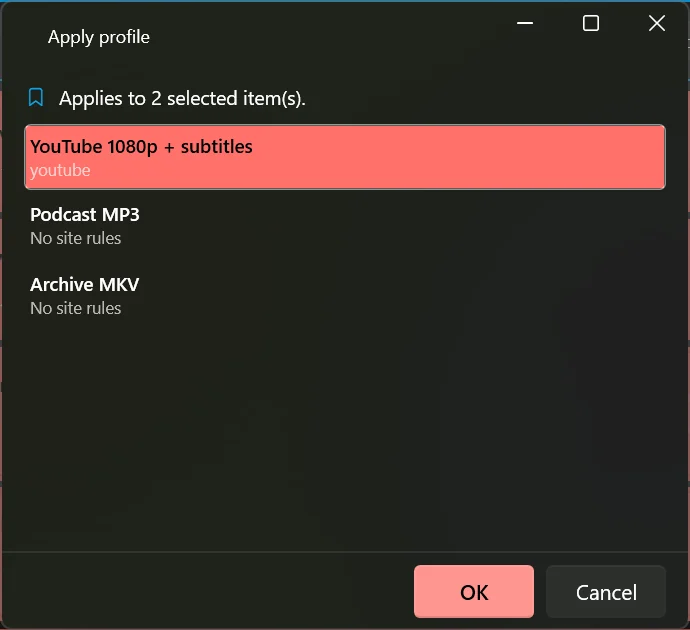
Applying a profile sets every field it covers, so the result is the same no matter what the video was set to before. That is what makes it predictable — but it also means a profile will undo a one-off change you made to that video a minute ago.
Videos that need you to be signed in
Some videos are only visible to a signed-in account: age-restricted ones, members-only posts, private uploads someone shared with you. The app cannot sign in for you, but it can borrow the proof that your browser is already signed in.
Where the setting lives
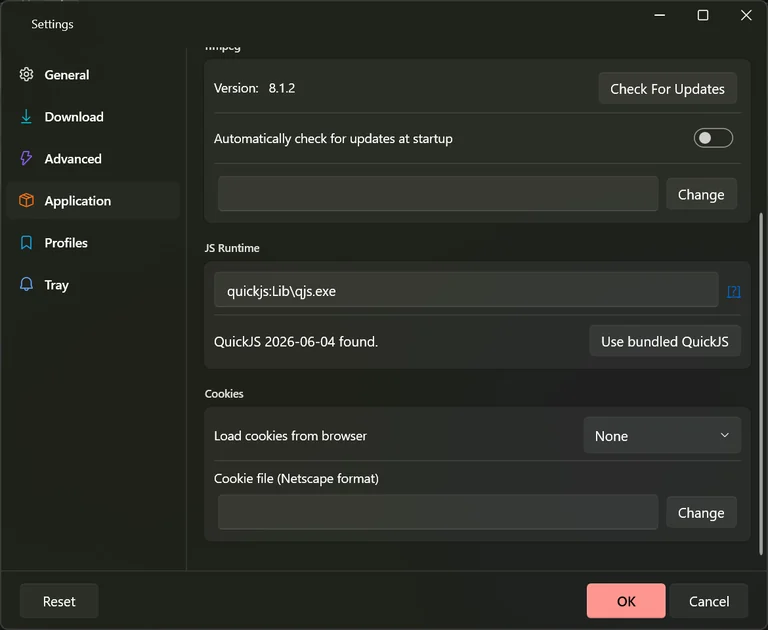
Open Options ▸ Settings and choose the Application tab. Scroll to the bottom and you will find Cookies.
Borrowing from your browser
Set Load cookies from browser to the browser you are signed in with. Brave, Chrome, Chromium, Edge, Firefox, Opera, Safari, Vivaldi and Whale are offered. Close that browser before you download — it holds the file open while it is running.
If Chrome or Edge refuses
Recent versions of Chrome and Edge encrypt this information so strongly that another program cannot read it, and you will see a decryption error. The app warns you about this as soon as you pick one of them. Close the browser and try again; if it still fails, use a cookie file instead.
Using a cookie file
A browser extension can export your signed-in state to a small text file. Set Load cookies from browser back to None, then point Cookie file (Netscape format) at that file with Change. The app reads it instead of touching your browser at all.
Anyone who gets that file can open your accounts without ever needing your password, and without the sign-in code you normally receive. Never email it, never post it in a support thread or a chat, never put it in a shared drive, OneDrive, Google Drive, Dropbox or any folder that synchronises to the cloud, and never include it in a backup you share. Keep it in a folder only you can reach, and delete it when you are finished. If you think it has been seen by anyone else, sign out of all devices on that site straight away, which makes the file useless.
Signing in only proves who you are. It does not grant permission to redistribute anything you can now reach, and paid or members-only material stays the creator’s to licence.
Automation and convenience
If you collect a lot of links, the app can meet you halfway: watch your clipboard, answer a keyboard shortcut from any program, and tell you when something finished.
Watching the clipboard
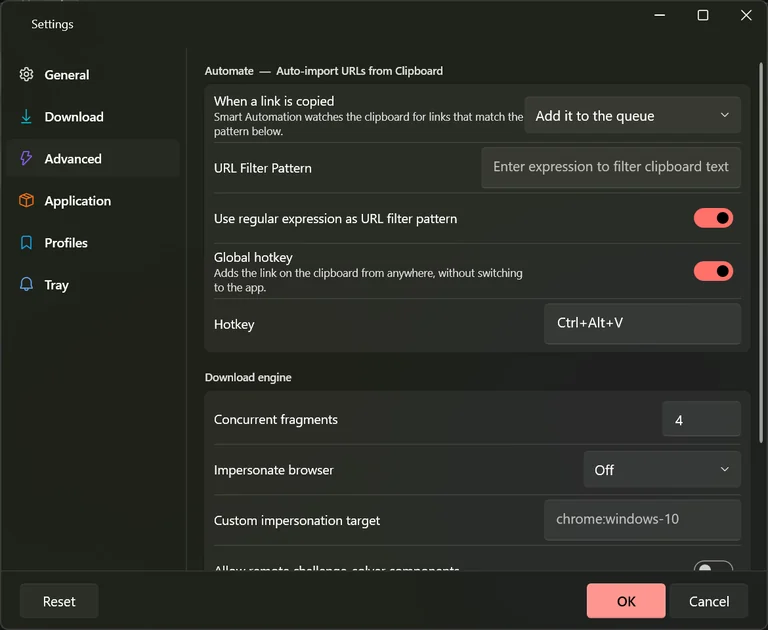
Turn on Automate ▸ Auto-import URLs from Clipboard, or press F3, and the app notices when you copy a link. What it then does is up to Settings ▸ Advanced ▸ When a link is copied.
Add it to the queue
The link appears in the list with its details fetched, but nothing starts. You review and press download yourself. The safe choice.
Add it and start downloading
Fastest, but it will also start downloading a link you only copied to paste into a message.
Ask me with a notification
Nothing touches the list. A desktop notification offers Add & download, Add only and Ignore, so you decide for each link.
Only the links you mean
URL Filter Pattern narrows what counts. Leave it empty and every link you copy is picked up. Type part of an address and only links containing it are considered. An empty filter with the watcher on is the most common cause of links appearing that you did not want.
The system-wide shortcut
With Global hotkey on, pressing Ctrl+Alt+V anywhere in Windows sends whatever link is on your clipboard to the app, without bringing its window to the front. Click the Hotkey box and press a different combination to change it. If another program already owns that combination the app tells you and carries on without it.
Desktop notifications
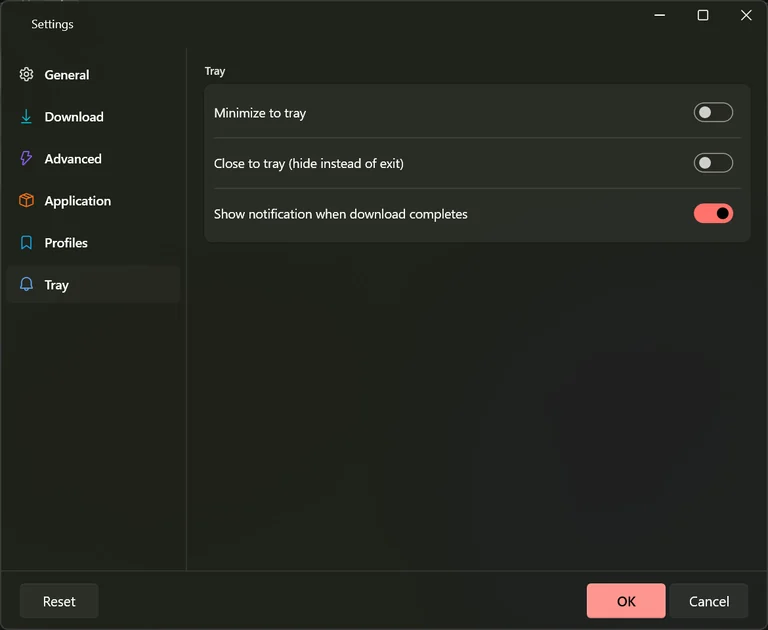
With Show notification when download completes on in Settings ▸ Tray, Windows tells you when a video finishes, with buttons to Open folder or Play it. A failure offers Show log. If Windows is set to Do Not Disturb, or notifications for the app are switched off in Windows settings, the messages are collected quietly in the notification centre instead of appearing on screen.
Out of the way
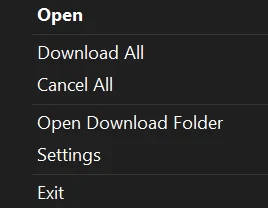
The Tray tab can send the app to the notification area instead of the taskbar when you minimise it, and keep it running there when you close the window. Right-clicking its icon gives you Open, Download All, Cancel All, Open Download Folder, Settings and Exit.
Going through a proxy
If your network needs one, put its address in Proxy URL at the bottom of Settings ▸ Download. Leave it empty otherwise — a proxy address that is wrong or unreachable makes every download fail.
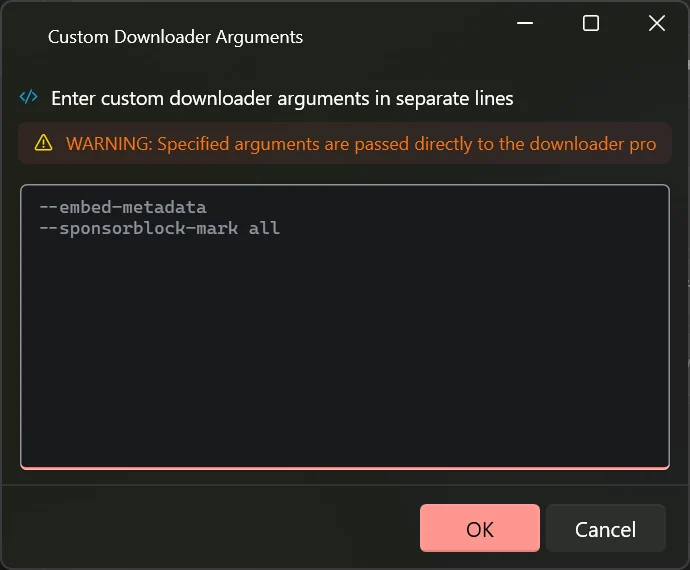
Custom Downloader Arguments
At the bottom of Settings ▸ Advanced, Change opens a box where you can type instructions that are passed straight to the download engine, one per line. It exists for the handful of cases the windows do not cover.
What you type in this box wins over every choice you made in Settings and in Configure Download. If you write an instruction about subtitles here, the subtitle settings are ignored for good. It is also the first thing to empty when downloads start failing for no obvious reason.
Keeping it working
Video sites change how they work, often without warning. The part of the app that talks to them is updated far more frequently than the app itself, and you can refresh it in a couple of clicks.
The downloader
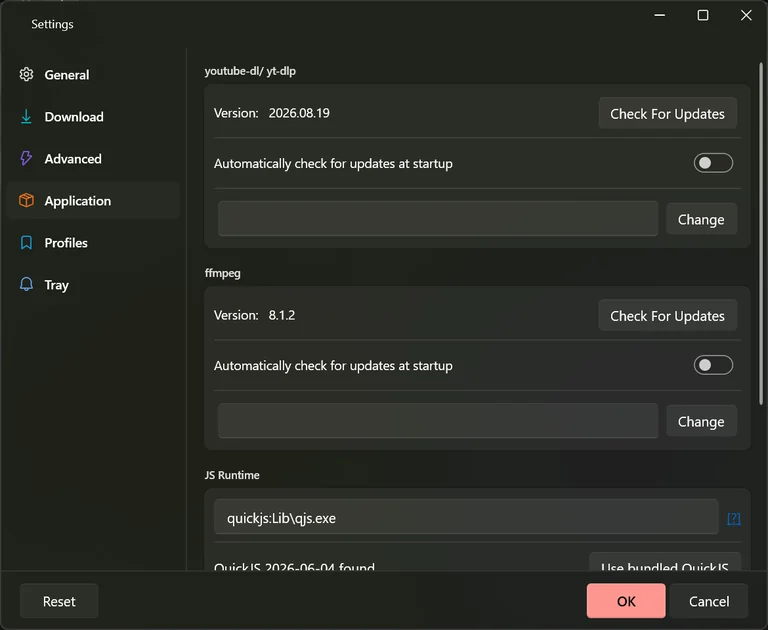
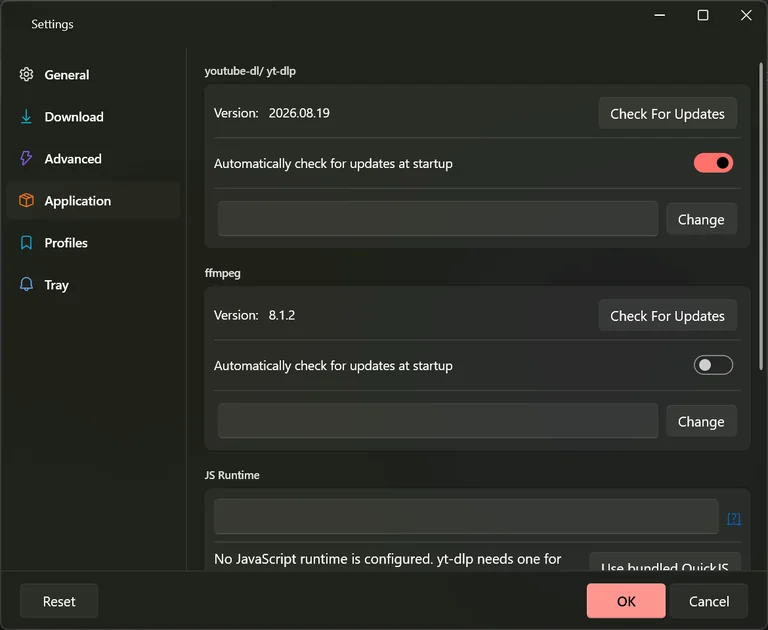
Open Settings ▸ Application. The first section shows the version of the downloader in use and a Check For Updates button. If a site that used to work suddenly stops, this is the first thing to try: a newer downloader usually already knows about the change. Leaving Automatically check for updates at startup on keeps it current without you thinking about it.
The converter
The second section is the tool that joins picture and sound, converts between formats and cuts segments out. It changes much less often, and its update check works the same way.
The small helper for some sites
A few large sites, YouTube among them, protect their videos with a puzzle that has to be solved before a download can start. The app carries a small tool for that. JS Runtime shows whether it is working. If the line reads that no runtime is configured, that it cannot be found, or that the one you have is too old, press Use bundled QuickJS — one click, and the status turns green.
Checking the file really plays
Verify finished downloads in Settings ▸ General opens each finished file and confirms it has the picture and sound it should and runs for about the right length before the app calls it a success. Fast is the sensible setting. Deep decodes the whole file, which is thorough and slow. A file that fails the check is kept, not deleted, so you can look at it yourself.
Never downloading the same thing twice
Use Download Archive keeps a record of everything you have already taken. On the next run, anything in that record is skipped. It is what makes "download this channel again and only get the new episodes" work.
History, logs and getting help
Clearing the download list does not lose the record of what you did. Four separate windows keep track, and one of them sends a message to the people who make the app.
Download history
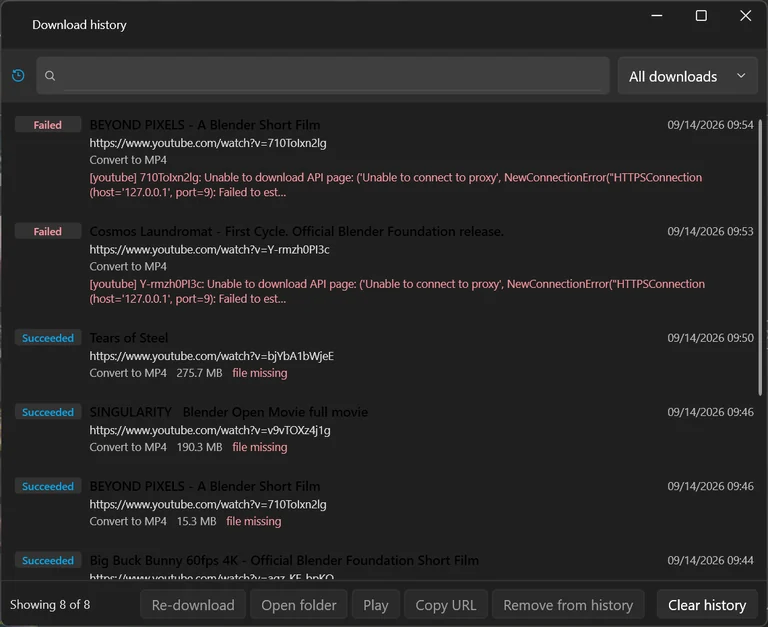
Press Ctrl+H or choose Options ▸ Download history. Every finished download is here, succeeded or failed, with the date, the link, the size and the reason for any failure. Search by title, link or file path, or narrow it to just the successes or just the failures. Each entry offers to download it again, open its folder, play it, copy the link or drop it from the record. If the file has since been moved or deleted, the entry says so.
The output window
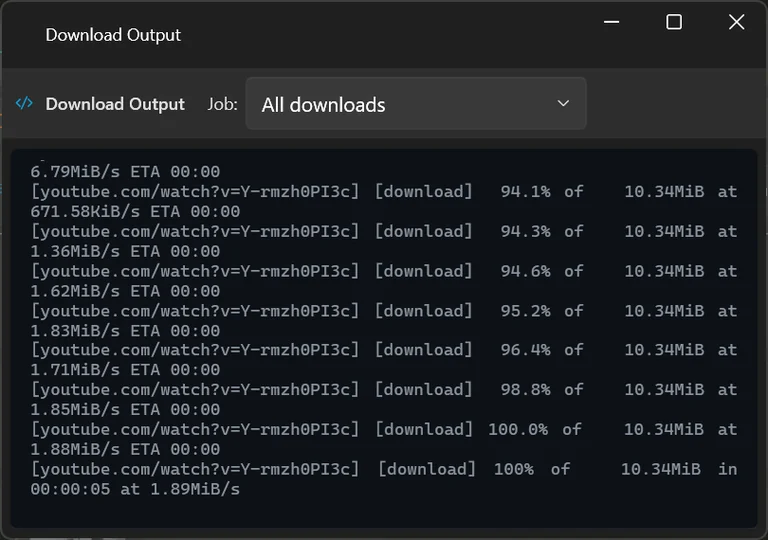
Press F12, or use Show Log on a row. This is the running commentary from the download engine itself — the raw report of what it asked for and what came back. You do not need to understand it, but copying it into a support message is the single most useful thing you can do when reporting a problem.
Notifications
The bell at the right of the status strip, or Options ▸ Show Notifications, collects the messages the app has shown you so you can read one you missed.
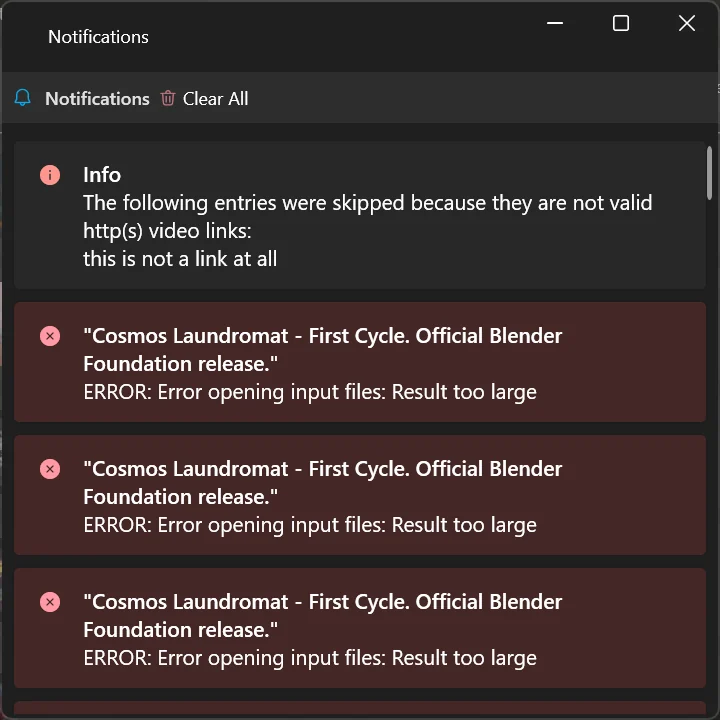
The error log
Options ▸ Open Error Log keeps a running diary of problems the app ran into. It is there for when someone helping you asks for it.
Sending feedback
Options ▸ Send Feedback opens a short form: what it is about, a rating, a subject and the details. You can leave your name and an email if you would like a reply, and both are optional. There is a tick box to attach technical details about your setup — worth including for a bug report, and easy to leave off otherwise.
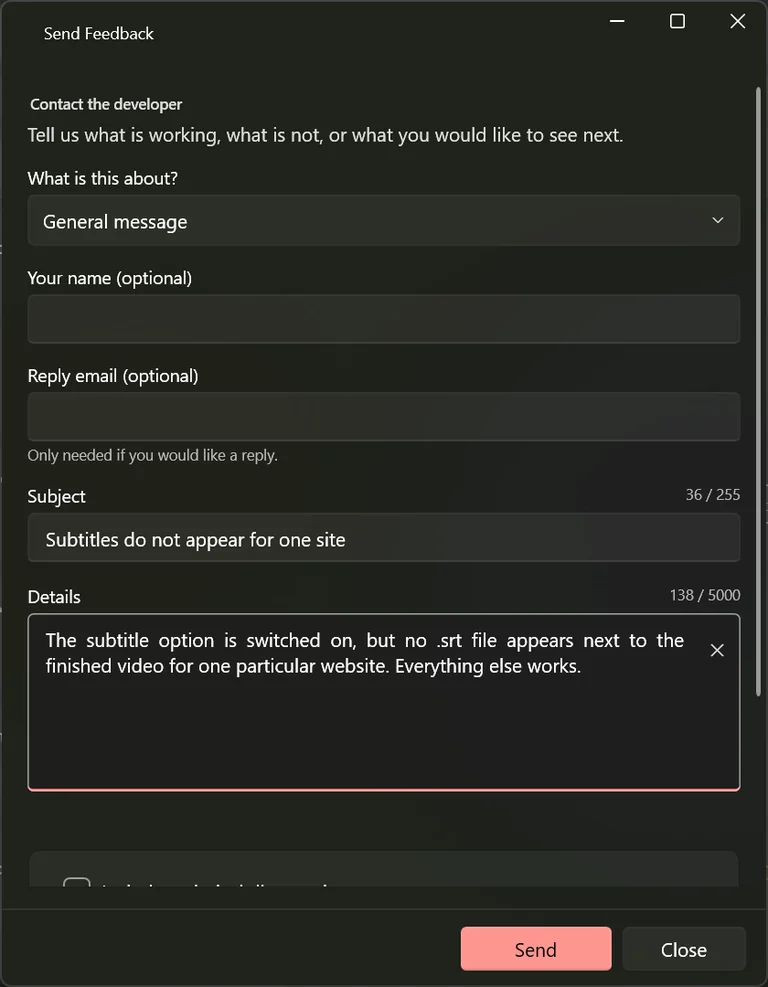
Appearance and language
Both live at the top of Settings ▸ General, and both take effect the moment you press OK.
Light, dark or automatic
Application Theme: offers a light look, a dark one, or Auto (Windows), which follows whatever Windows itself is set to — so the app turns dark in the evening along with everything else if that is how your computer is configured.
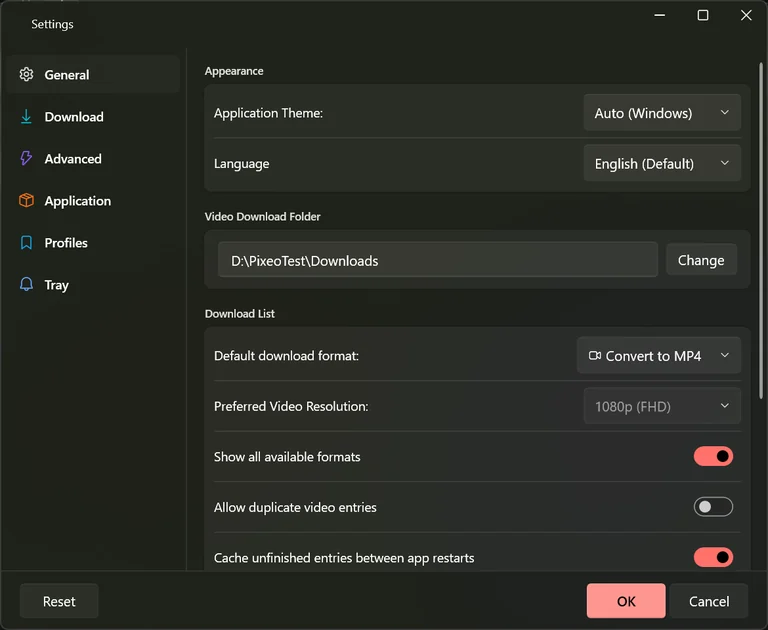
Sixteen languages
The Language list holds English, Arabic, Welsh, German, Spanish, French, Hebrew, Hungarian, Italian, Japanese, Korean, Dutch, Polish, Portuguese, Russian, Swedish and Chinese. Choosing Arabic or Hebrew also flips the whole window: menus, buttons, the list and the status strip all move to the other side, so the layout reads naturally from right to left. File paths, filename templates and keyboard shortcuts stay left to right, because that is how they are written.
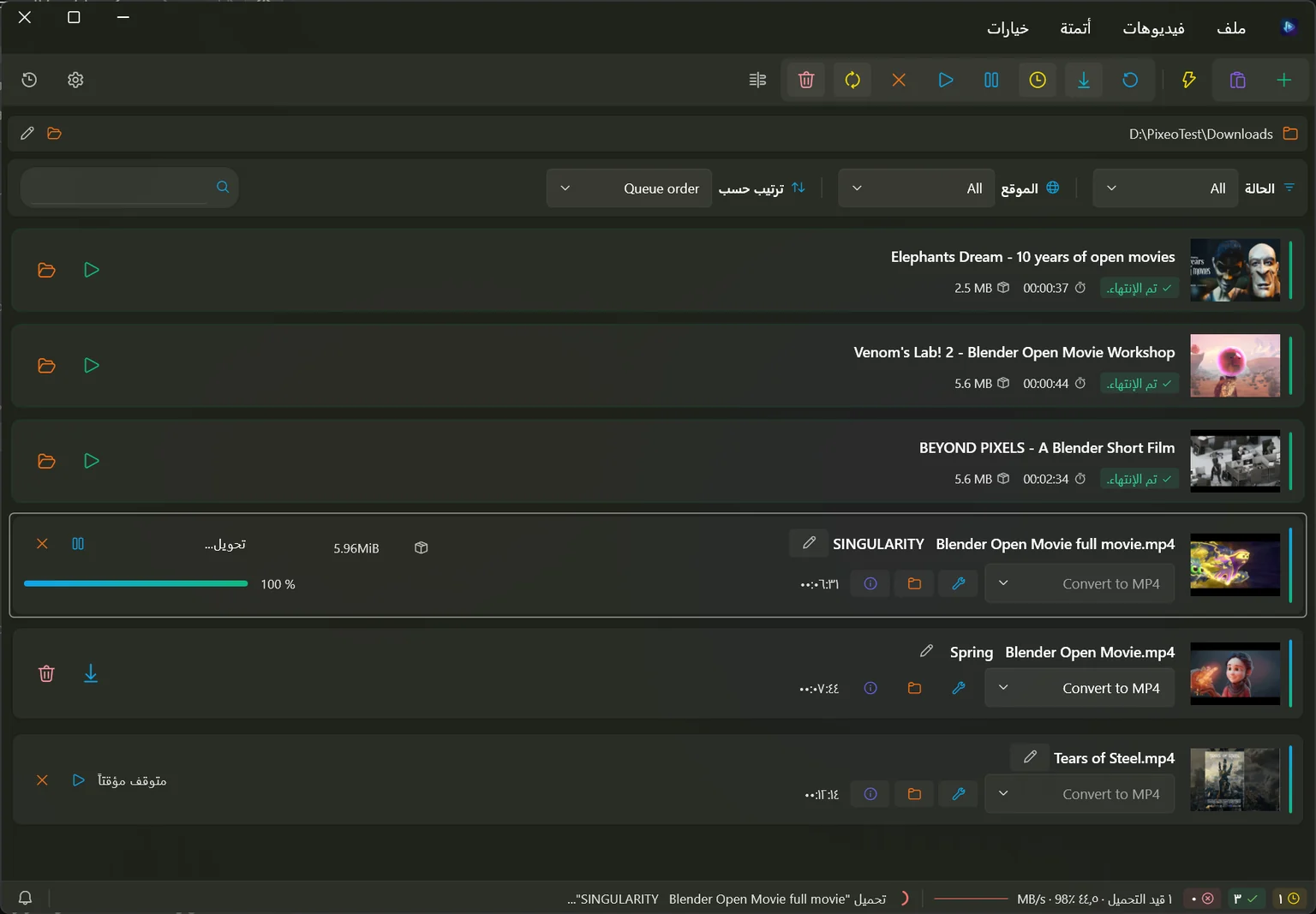
The Settings window works on a copy. You can change the theme and the language and watch them change while the window is open, then press Cancel, or Esc, or close the window, and everything goes back exactly as it was. Only OK commits, and it checks the whole set first — if something cannot be applied it tells you which setting and leaves the window open.
Keyboard shortcuts
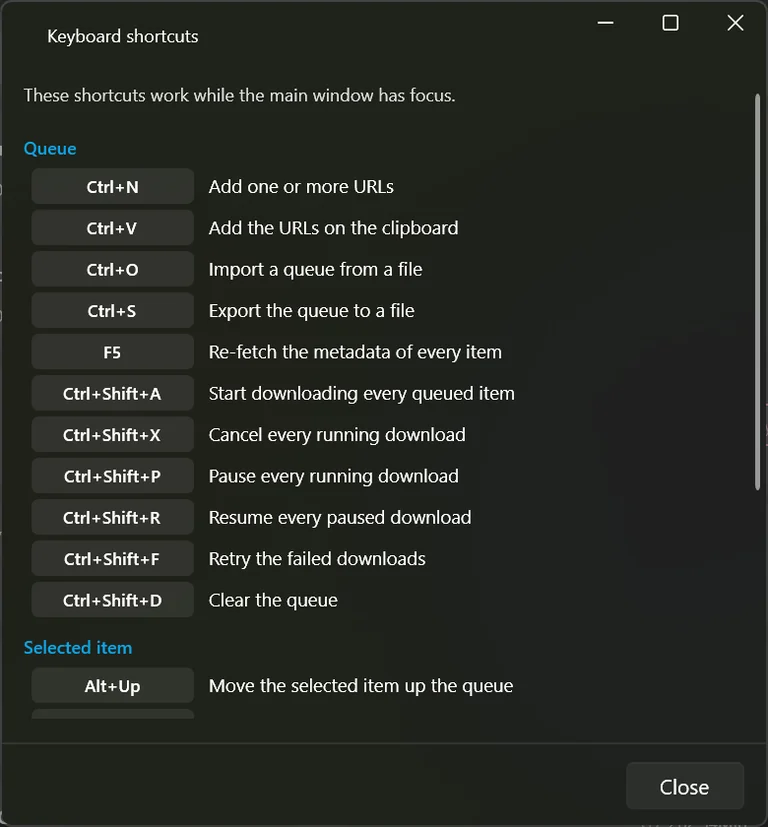
These work whenever the main window has focus. The app keeps its own copy of this list — press Ctrl+/ to see it without leaving the app.
| Keys | What it does |
|---|---|
| The list | |
| Ctrl + N | Add one or more links |
| Ctrl + V | Add the links on the clipboard |
| Ctrl + O | Import a list from a file |
| Ctrl + S | Export the list to a file |
| F5 | Fetch the details of every item again |
| Ctrl + Shift + A | Start downloading everything |
| Ctrl + Shift + X | Cancel every running download |
| Ctrl + Shift + P | Pause every running download |
| Ctrl + Shift + R | Resume every paused download |
| Ctrl + Shift + F | Retry the failed downloads |
| Ctrl + Shift + D | Empty the list |
| The selected video | |
| Alt + ↑ | Move the selected video up the list |
| Alt + ↓ | Move the selected video down the list |
| General | |
| F3 | Turn clipboard watching on or off |
| Ctrl + , | Open Settings |
| Ctrl + H | Open the download history |
| Ctrl + Alt + V | Send the clipboard link to the app from any program |
| Help and diagnostics | |
| F12 | Show the output window |
| Ctrl + / | Show this shortcut list |
| F1 | About the app |
Supported sites
PixeoAi VD does not have a fixed list of sites built into it. It asks its downloader, and that downloader knows how to read a very large number of them. The list below was read from the exact downloader that ships with the app.
Some you will recognise
No site in the list matches that.
#
- 10play
- 17live
- 1News
- 1tv
- 23video
- 24tv.ua
- 3qsdn
- 3sat
- 4tube
- 56.com
- 7plus
- 9c9media
- 9gag
- 9News
- 9now.com.au
A
- abc.net.au
- abcnews
- abcotvs
- AbemaTV
- AbemaTVTitle
- AcademicEarth
- acast
- AcFunBangumi
- AcFunVideo
- ADN
- adobetv
- AdultSwim
- aenetworks
- AeonCo
- agalega
- AitubeKZVideo
- Alibaba
- AliExpressLive
- AlJazeera
- Allocine
- Allstar
- AlphaPorno
- altcensored
- Alura
- AmadeusTV
- Amara
- AmazonMiniTV
- AmazonReviews
- AmazonStore
- AMCNetworks
- AmericasTestKitchen
- AmHistoryChannel
- anderetijden
- Angel
- AnimalPlanet
- ant1newsgr
- antenna
- Anvato
- APA
- Aparat
- apple
- archive.org
- ArcPublishing
- ARDAudiothek
- ARDMediathek
- Art19
- arte.sky.it
- ArteTV
- asobichannel
- AsobiStage
- AtresPlayer
- AtScaleConfEvent
- AudiMedia
- AudioBoom
- Audiodraft
- audiomack
- Audius
- AZMedien
B
- BaiduVideo
- BanBye
- Bandcamp
- Bandlab
- BannedVideo
- bbc
- bbc.co.uk
- BBVTV
- BBVTVRecordings
- BeaconTv
- Beatport
- Beeg
- BerufeTV
- Bet
- bfmtv
- bibeltv
- Bigo
- Bild
- BiliBili
- Bilibili category extractor
- BilibiliAudio
- BiliBiliBangumi
- BiliBiliBangumiMedia
- BilibiliCheese
- BilibiliCollectionList
- BiliBiliDynamic
- BilibiliFavoritesList
- BiliBiliPlayer
- BilibiliSeriesList
- BilibiliSpaceAudio
- BilibiliSpaceVideo
- BilibiliWatchlater
- BiliIntl
- BiliLive
- BioBioChileTV
- Biography
- BitChute
- Bitmovin
- BlackboardCollaborate
- BlackboardCollaborateLaunch
- blerp
- Blob
- blogger.com
- Bloomberg
- Bluesky
- BongaCams
- Boosty
- BostonGlobe
- Box
- BoxCastVideo
- Bpb
- BrainPOP
- BrainPOPELL
- BrainPOPEsp
- BrainPOPFr
- BrainPOPIl
- BrainPOPJr
- BravoTV
- BreitBart
- brightcove
- Brilliantpala
- bt
- BTVPlus
- Bundesliga
- Bundestag
- BunnyCdn
- BusinessInsider
- BuzzFeed
C
- Caltrans
- CAM4
- CamFMEpisode
- CamFMShow
- CamModels
- Camsoda
- CamtasiaEmbed
- Canal1
- CanalAlpha
- canalc2.tv
- Canalplus
- Canalsurmas
- CaracolTvPlay
- cbc.ca
- CBSLocal
- CBSLocalArticle
- cbsnews
- CCMA
- CCTV
- CDA
- CDAFolder
- Cellebrite
- CeskaTelevize
- CGTN
- CharlieRose
- Chaturbate
- Chilloutzone
- chzzk
- cielotv.it
- CinetecaMilano
- Cineverse
- CineverseDetails
- CiscoLiveSearch
- CiscoLiveSession
- ciscowebex
- CJSW
- Clipchamp
- CloudflareStream
- CloudyCDN
- Clyp
- CNBCVideo
- CNN
- CNNIndonesia
- ComedyCentral
- CommonMistakes
- CondeNast
- CookingChannel
- Corus
- Coub
- CozyTV
- cp24
- cpac
- Cracked
- Craftsy
- croatian.film
- CrooksAndLiars
- CrowdBunker
- Crtvg
- CSpan
- CSpanCongress
- CtsNews
- CTVNews
- cu.ntv.co.jp
- CultureUnplugged
- curiositystream
- Cybrary
D
- DacastPlaylist
- DacastVOD
- DagelijkseKost
- DailyMail
- dailymotion
- DailyWire
- damtomo
- dangalplay
- daum.net
- daystar
- DBTV
- DctpTv
- democracynow
- DestinationAmerica
- DetikEmbed
- DeuxM
- DeuxMNews
- DigitalConcertHall
- Digiteka
- Digiview
- DiscogsReleasePlaylist
- DiscoveryLife
- DiscoveryNetworksDe
- DiscoveryPlus
- DiscoveryPlusIndia
- DiscoveryPlusItaly
- Disney
- dlf
- dlive
- Douyin
- DouyuShow
- DouyuTV
- DPlay
- DRBonanza
- DRM
- Dropbox
- Dropout
- DrTalks
- DrTuber
- drtv
- Dumpert
- Duoplay
- dvtv
- dzen.ru
E
- EbaumsWorld
- Ebay
- egghead
- eggs
- EinsUndEinsTV
- EinsUndEinsTVRecordings
- ElementorEmbed
- Elonet
- ElPais
- ElTreceTV
- Embedly
- EMPFlix
- Epicon
- EpidemicSound
- eplus
- Epoch
- Eporner
- Erocast
- EroProfile
- ERRArhiiv
- ERRJupiter
- ertflix
- ertwebtv
- ESPN
- ESPNArticle
- ESPNCricInfo
- EttuTv
- EuroParlWebstream
- EuropeanTour
- Eurosport
- EUScreen
- EWETV
- EWETVRecordings
- Expressen
F
- FacebookPluginsVideo
- FacebookRedirectURL
- Fathom
- Faulio
- faz.net
- fc2
- Fczenit
- Fifa
- FilmArchiv
- filmon
- Filmweb
- FiveThirtyEight
- FiveTV
- Flickr
- Floatplane
- FoodNetwork
- FootyRoom
- Formula1
- FOX
- FOX9
- FOX9News
- foxnews
- FoxSports
- fptplay
- FrancaisFacile
- FranceCulture
- franceinfo
- francetv
- Freesound
- freespeech.org
- freetv
- FreeTvMovies
- FrontendMasters
- FrontendMastersLesson
- Funk
- Funker530
- Fux
- FuyinTV
G
- Gab
- Gaia
- GameDevTVDashboard
- GameJolt
- GameJoltCommunity
- GameJoltGame
- GameJoltGameSoundtrack
- GameSpot
- GameStar
- Gaskrank
- GBNews
- GediDigital
- gem.cbc.ca
- generic
- Genius
- GeniusLyrics
- Germanupa
- GetCourseRu
- GetCourseRuPlayer
- Gettr
- GiantBomb
- GlattvisionTV
- GlattvisionTVRecordings
- Glide
- GlobalPlayerAudio
- GlobalPlayerAudioEpisode
- GlobalPlayerLive
- GlobalPlayerVideo
- Globo
- GloboArticle
- glomex
- GMANetworkVideo
- Go
- GoDiscovery
- GodResource
- Golem
- goodgame
- GoogleDrive
- GoPro
- GoToStage
- Graspop
- Gronkh
- Groupon
H
- Harpodeon
- hbo
- HearThisAt
- Heise
- HellPorno
- hetklokhuis
- hgtv.com
- HGTVDe
- HGTVUsa
- HiDive
- HistoricFilms
- history
- HitRecord
- HollywoodReporter
- Holodex
- hotstar
- HotStarPrefix
- href.li
- hrfernsehen
- HRTi
- HSEProduct
- HSEShow
- html5
- Huajiao
- HuffPost
- Hungama
- HungamaAlbumPlaylist
- huya
- Hypem
- Hytale
I
- Icareus
- IdagioAlbum
- IdagioPersonalPlaylist
- IdagioPlaylist
- IdagioRecording
- IdagioTrack
- iflix
- ign.com
- IGNArticle
- IGNVideo
- iheartradio
- IlPost
- Iltalehti
- imdb
- Imgur
- Ina
- Inc
- IndavideoEmbed
- InfoQ
- InstagramIOS
- Internazionale
- InvestigationDiscovery
- IPrima
- IPrimaCNN
- iq.com
- iqiyi
- IslamChannel
- IsraelNationalNews
- ITProTV
- ITV
- ITVBTCC
- ivi
- ivideon
- Ivoox
- iwara
- Ixigua
J
- Jamendo
- jiosaavn
- Joj
- Jove
- JStream
- JTBC
- JWPlatform
K
- Kakao
- Kaltura
- Kenh14Playlist
- Kenh14Video
- khanacademy
- kick
- Kicker
- KickStarter
- Kika
- KinoPoisk
- Kommunetv
- KompasVideo
- KTH
- Ku6
- KukuluLive
L
- la7.it
- laracasts
- LastFM
- LaXarxaMes
- lbry
- LCI
- Le
- LearningOnScreen
- Lecturio
- LecturioDeCourse
- LeFigaroVideoEmbed
- LeFigaroVideoSection
- LEGO
- Lemonde
- Liability
- Libsyn
- life
- likee
- Liputan6
- ListenNotes
- LiTV
- Livestreamfails
- Lnk
- loc
- Locipo
- Loco
- loom
- LoveHomePorn
- LRTRadio
- LRTStream
- LRTVOD
- LSMLREmbed
- LSMLTVEmbed
- LSMReplay
- Lumni
M
- maariv.co.il
- MagellanTV
- MagentaMusik
- mailru
- MainStreaming
- mangomolo
- MangoTV
- ManyVids
- MaoriTV
- massengeschmack.tv
- Masters
- MatchiTV
- MatchTV
- mave
- MBN
- MDR
- MedalTV
- media.ccc.de
- Mediaite
- MediaKlikk
- Medialaan
- Mediaset
- Mediasite
- MediasiteCatalog
- MediasiteNamedCatalog
- MediaStream
- MediaWorksNZVOD
- Medici
- megaphone.fm
- megatvcom
- Meipai
- mellowfan
- MelonVOD
- Metacritic
- mewatch
- MicrosoftBuild
- MicrosoftEmbed
- MicrosoftLearnEpisode
- MicrosoftLearnPlaylist
- MicrosoftLearnSession
- MicrosoftMedius
- minds
- mir24.tv
- mirrativ
- MirrorCoUK
- mixch
- mixcloud
- Mixlr
- MixlrRecoring
- MLB
- MLBArticle
- MLSSoccer
- MNetTV
- MNetTVRecordings
- MochaVideo
- Mojevideo
- Monstercat
- monstersiren
- MovieFap
- moviepilot
- MovingImage
- MSN
- mtg
- mtv
- MujRozhlas
- Murrtube
- MuseAI
- MuseScore
- Mux
- Mx3
- Mx3Neo
- Mx3Volksmusik
- mxplayer
- MySpace
- MySpass
- MyVideoGe
- MyVidster
- Mzaalo
N
- n-tv.de
- N1Info
- N1InfoAsset
- NascarClassics
- Nate
- NationalGeographicTV
- Naver
- NBC
- NBCNews
- nbcolympics
- NBCStations
- ndr
- nebula
- NekoHacker
- Nest
- NetAppCollection
- NetAppVideo
- netease
- NetPlusTV
- NetPlusTVRecordings
- Netzkino
- Newgrounds
- NewsPicks
- Newsy
- Nexx
- nfb
- NFHSNetwork
- nfl.com
- NhkForSchoolBangumi
- NhkForSchoolProgramList
- NhkForSchoolSubject
- NhkRadioNewsPage
- NhkRadiru
- NhkVod
- nhl.com
- nick.com
- niconico
- NiconicoChannelPlus
- nicovideo
- NinaProtocol
- Nintendo
- Nitter
- njoy
- NobelPrize
- NoicePodcast
- NonkTube
- NoodleMagazine
- NOSNLArticle
- Nova
- NovaPlay
- NowCanal
- nowness
- npo
- npo.nl
- Npr
- NRK
- NRKRadioPodkast
- NRKSkole
- NRKTVDirekte
- NRKTVEpisode
- nts.live
- ntv.ru
- NubilesPorn
- Nuvid
- NYTimes
- NYTimesArticle
- NYTimesCookingGuide
- NYTimesCookingRecipe
- nzherald
- NZOnScreen
- NZZ
O
- ocw.mit.edu
- Odnoklassniki
- OfTV
- OlympicsReplay
- Omnyfm
- on24
- OnDemandChinaEpisode
- OnDemandKorea
- OneFootball
- OnePlacePodcast
- onet.pl
- onet.tv
- OnetMVP
- onsen
- Opencast
- orf
- OsnatelTV
- OsnatelTVRecordings
- OutsideTV
- OwnCloud
P
- PacktPub
- PalcoMP3
- PandaTv
- Panopto
- ParamountPressExpress
- Parler
- parliamentlive.tv
- Parlview
- parti
- patreon
- pbs
- PBSKids
- PearVideo
- PeekVids
- peer.tv
- PeerTube
- peloton
- PerformGroup
- periscope
- PGATour
- PhilharmonieDeParis
- phoenix.de
- Photobucket
- PiaLive
- Piapro
- picarto
- Piksel
- Pinkbike
- Piracy
- Platzi
- play.tv
- player.sky.it
- PlayerFm
- PlaySuisse
- PlayVids
- pluralsight
- PlyrEmbed
- PodbayFM
- Podchaser
- PokerGo
- PolsatGo
- PolskieRadio
- Popcorntimes
- PopcornTV
- Pornbox
- PornerBros
- PornFlip
- PornHub
- PornHubPagedVideoList
- PornHubUserVideosUpload
- Pornotube
- PornTop
- PornTube
- Pr0gramm
- PrankCast
- PrankCastPost
- PremiershipRugby
- PressTV
- PRXAccount
- PRXSeries
- prxstories
- PRXStory
- puhutv
- Pyvideo
Q
- QDance
- QingTing
- qqmusic
- QuantumTV
- QuantumTVRecordings
R
- Radiko
- Radio1Be
- radiocanada
- radiofrance
- RadioFranceProgramSchedule
- radiokapital
- RadioRadicale
- RadioZetPodcast
- radlive
- Rai
- RaiCultura
- RaiNews
- RaiPlay
- RaiPlaySound
- RaiSudtirol
- RayWenderlich
- RbgTum
- RbgTumNewCourse
- RCS
- RCSEmbeds
- RCSVarious
- RCTIPlus
- RedBull
- RedBullTVRrnContent
- RedGifs
- RedTube
- ReverbNation
- RideHome
- RinseFM
- RinseFMArtistPlaylist
- Rokfin
- RoosterTeeth
- RottenTomatoes
- RoyaLive
- Rozhlas
- RozhlasVltava
- RTDocumentry
- rte
- rtl.lu
- rtl.nl
- RTLLuLive
- RTLLuRadio
- Rtmp
- RTNews
- RTP
- RTRFM
- RTVCKaltura
- RTVCPlay
- rtve.es
- rtvslo.si
- RudoVideo
- Rule34Video
- Rumble
- Ruptly
- rutube
- Ruv
- ruv.is
S
- S4C
- safari
- SAKTV
- SAKTVRecordings
- SaltTV
- SaltTVRecordings
- SampleFocus
- Sangiin
- SangiinInstruction
- Sapo
- SaucePlus
- SBS
- sbs.co.kr
- schooltv
- ScienceChannel
- Screen9
- Screencast
- Screencastify
- ScreencastOMatic
- ScreenRec
- ScrippsNetworks
- Scrolller
- Sen
- senate.gov
- Servus
- SeznamZpravy
- SeznamZpravyArticle
- Shahid
- SharePoint
- ShemarooMe
- Shiey
- showroom
- ShugiinItvLive
- ShugiinItvLiveRoom
- ShugiinItvVod
- SibnetEmbed
- simplecast
- Sina
- Skeb
- sky
- sky.it
- SkyNewsAU
- Slideshare
- SlidesLive
- Slutload
- smotrim
- SnapchatSpotlight
- SoftWhiteUnderbelly
- Sohu
- SohuV
- SonyLIV
- soop
- soundcloud
- soundgasm
- southpark.cc.com
- southpark.de
- southpark.lat
- southparkstudios.co.uk
- southparkstudios.com.br
- southparkstudios.nu
- SovietsCloset
- SpankBang
- Spiegel
- Sport5
- sporteurope
- Spreaker
- SproutVideo
- sr
- SRGSSR
- SRGSSRPlay
- StacommuLive
- StacommuVOD
- StagePlusVODConcert
- startrek
- startv
- Steam
- SteamCommunity
- SteamCommunityBroadcast
- StoryFire
- Streaks
- Streamable
- StreamCZ
- StreetVoice
- Stripchat
- stv
- stvr
- Subsplash
- Substack
- SunPorno
- sverigesradio
- svt
- Syfy
- SztvHu
T
- TapTapApp
- TapTapAppIntl
- TapTapMoment
- TapTapPostIntl
- tarangplus
- TBS
- TBSJPEpisode
- TBSJPPlaylist
- TBSJPProgram
- Teamcoco
- TeamTreeHouse
- techtv.mit.edu
- TedEmbed
- TedPlaylist
- TedSeries
- TedTalk
- Tele13
- Tele5
- TeleBruxelles
- TelecaribePlay
- Telecinco
- Telegraaf
- telegram
- TeleQuebec
- TeleQuebecEmission
- TeleQuebecSquat
- Telewebion
- TennisTV
- TestURL
- TF1
- theatercomplextown
- TheChosen
- TheGuardianPodcast
- TheHighWire
- TheIntercept
- ThePlatform
- TheStar
- TheSun
- TheWeatherChannel
- ThisAmericanLife
- ThisOldHouse
- ThisVid
- ThisVidMember
- ThreeSpeak
- TikTok
- TLC
- TMZ
- TNAFlix
- TNAFlixNetworkEmbed
- toggle
- toggo
- tokfm
- ToonGoggles
- tou.tv
- toutiao
- TravelChannel
- TrtCocukVideo
- TrtWorld
- TrueID
- TruNews
- Truth
- ttinglive
- TubeTuGraz
- tubitv
- Tumblr
- tunein
- tv.dfb.de
- TV2
- TV2Article
- TV2DK
- TV2DKBornholmPlay
- tv2play.hu
- tv2playseries.hu
- TV4
- TV5MONDE
- tv5unis
- tv8.it
- TVANouvelles
- TVANouvellesArticle
- tvaplus
- TVC
- TVCArticle
- TVer
- tvigle
- TVIPlayer
- tvnoe
- TVO
- tvopengr
- tvp
- TVPlayHome
- tvw
- Tweakers
- TwitCasting
- twitch
- Txxx
U
- udemy
- UDNEmbed
- UFCTV
- UlizaPlayer
- UlizaPortal
- umg
- UnicodeBOM
- Unistra
- UnitedNationsWebTv
- uol.com.br
- uplynk
- URPlay
- USANetwork
- USAToday
- ustream
- ustudio
V
- Vbox7
- Veo
- Vevo
- vh1.com
- vhx
- Videa
- video.arnes.si
- video.google
- video.sky.it
- VideoKenPlayer
- VideoPress
- Vidflex
- Vidio
- VidioPremier
- VidLii
- Vidly
- vids.io
- Vidyard
- viewlift
- ViewSource
- Viidea
- vimeo
- ViMP
- Viously
- Visir
- Viu
- ViuOTTIndonesia
- vk
- VKPlay
- vm.tiktok
- Vocaroo
- VODPlatform
- volejtv
- VoxMedia
- VoxMediaVolume
- vpro
- vqq
- vrsquare
- VRT
- vrtmax
- VTM
- VTV
- VTVGo
- VTXTV
- VTXTVRecordings
W
- WalyTV
- WalyTVRecordings
- washingtonpost
- wat.tv
- WatchESPN
- WDR
- WDRElefant
- web.archive
- Webcamerapl
- Webcaster
- WebOfStories
- wetv
- Weverse
- WeverseMedia
- WeverseMoment
- WeVidi
- Whyp
- wikimedia.org
- Wimbledon
- WimTV
- WinSportsVideo
- Wistia
- wnl
- wordpress
- WorldStarHipHop
- wppilot
- wrestleuniverse
- WSJ
- WSJArticle
- WWE
- wyborcza
- wykop
X
- XboxClips
- XHamster
- XiaoHongShu
- ximalaya
- Xinpianchang
- XNXX
- XVideos
- XXXYMovies
Y
- yahoo
- YandexDisk
- yandexmusic
- YandexVideo
- yfanefa
- YleAreena
- YouJizz
- youku
- YouNowChannel
- YouNowLive
- YouNowMoment
- YouPorn
- YouPornStar
- YouPornTag
- YouPornVideos
- youtube
- YoutubeLivestreamEmbed
- YoutubeYtBe
Z
- Zaiko
- ZaikoETicket
- zan
- Zapiks
- Zattoo
- ZattooMovies
- ZattooRecordings
- zdf
- ZenPorn
- ZetlandDKArticle
- Zhihu
- zingmp3
- zoom
- Zype
Updating the downloader from Settings ▸ Application can add sites that are not on this page, and can repair ones that stopped working. If a site you need is missing, update first and try again. Always-current reference list.
Sites change, and some fight being read at all. A name here means the downloader knows how to approach that site, not that every video on it will work — and material that needs a paid account, or that the site has locked down, may not be reachable at all.
When something goes wrong
Most problems have one of a small number of causes. Find what you are seeing in the first column.
| What you see | Why | What to do |
|---|---|---|
| A site that worked yesterday now fails on everything | The site changed how it serves video. | Settings ▸ Application ▸ Check For Updates on the downloader, then retry the failed items. |
| YouTube downloads fail or only offer poor quality | The small helper that solves the site’s puzzle is missing or too old. | Settings ▸ Application ▸ Use bundled QuickJS, then retry. |
| Every download fails immediately | A proxy address is set that does not work, or a custom instruction is breaking things. | Empty Proxy URL on the Download tab, and empty the Custom Downloader Arguments box on the Advanced tab. |
| A message about not being able to decrypt browser data | Recent Chrome and Edge versions lock their stored sign-in data away from other programs. | Close the browser and try again; if it still fails, export a cookie file and point the app at that instead. |
| The video says it is unavailable, private or removed | It genuinely is. Retrying cannot change that, and the app will not keep trying. | Check the link opens in your browser. If it needs an account, set up cookies first. |
| Nothing downloads, but nothing fails either | The queue has a scheduled start time, or every item is paused. | Look at the middle of the status strip for a scheduled time, and use Cancel scheduled start or the resume button. |
| Downloads are far slower than your connection | A speed limit is set, or too many are running at once and sharing the line. | Turn off Limit download speed, and lower Maximum concurrent downloads to about three. |
| The download finishes quickly, then sits at 100 per cent | It is converting, which happens after the transfer and can take a while on a long or high-resolution video. | Wait. To avoid it in future, choose Best Direct Download instead of a Convert option. |
| The subtitles did not appear | That video has none written by its creator, or the format you chose cannot hold them inside. | Turn on Include auto-generated subtitles, or switch the subtitle output to separate .srt files. |
| Videos you never asked for keep appearing in the list | Clipboard watching is on with no filter, so every link you copy is picked up. | Press F3 to turn it off, or set a URL Filter Pattern on the Advanced tab. |
| The file will not play in your player | The format you saved is not one that player understands. | Download it again as Convert to MP4, which nearly everything can play. |
| You cannot find the finished file | It went to the download folder, or to a folder set for that one video. | Use Show In Folder on the row, or the folder button in the download folder bar. |
Open the output window with F12, or Show Log on the row that failed, and copy what it says into Options ▸ Send Feedback. That report says far more than a description of the symptom.
Privacy, responsible use and credits
Your downloads stay yours
The app talks to the sites you give it and to its own update service. Your list of videos, your history and your settings are stored on your computer, and nothing about what you download is sent anywhere. The feedback form is the one place you deliberately send something, and it only sends what you typed plus the technical details you chose to attach.
Download what you have the right to keep
Keeping a private copy of your own material, of something released for reuse, or of a video you are entitled to watch offline is a different thing from republishing someone else’s work. Check the site’s terms and the video’s licence, credit the creator when a licence asks you to, and do not re-upload or sell what you saved.
About the pictures in this guide
Every screenshot on this page was taken from the app itself while it really was downloading. The videos in them are open films published under a Creative Commons Attribution licence, which permits reuse with credit:
- “Big Buck Bunny 60fps 4K — Official Blender Foundation Short Film” — Blender
- “Elephants Dream - 10 years of open movies” — Blender
- “Venom’s Lab! 2 - Blender Open Movie Workshop” — Blender
- “BEYOND PIXELS - A Blender Short Film” — Ockert Cronjé
- “SINGULARITY — Blender Open Movie full movie” — FamilyToon World
- “Spring — Blender Open Movie” — Blender Studio
- “Cosmos Laundromat - First Cycle” — Blender
- “Tears of Steel” — Blender
- “Blender Feature Demos” playlist — Blender
All are licensed under Creative Commons Attribution (CC BY). The Blender open movies are © Blender Foundation / Blender Studio.
Ready to download something?
Get PixeoAi VD for Windows, paste a link, and this guide will be here when you need the rest of it.