What VPD Gallery is
VPD Gallery is a free Windows app for browsing a very large catalogue of photos: about 9.4 million pictures in some 530,000 photo galleries, gathered from public photo sites, plus a short list of videos that refreshes itself each time the app starts. Its Web Videos page adds a live search of seven video sites at once. The catalogue shows as pages of thumbnails you can search and filter; you keep what you like — favourites, star ratings, your own tags and albums — and download pictures and videos to your own folders.
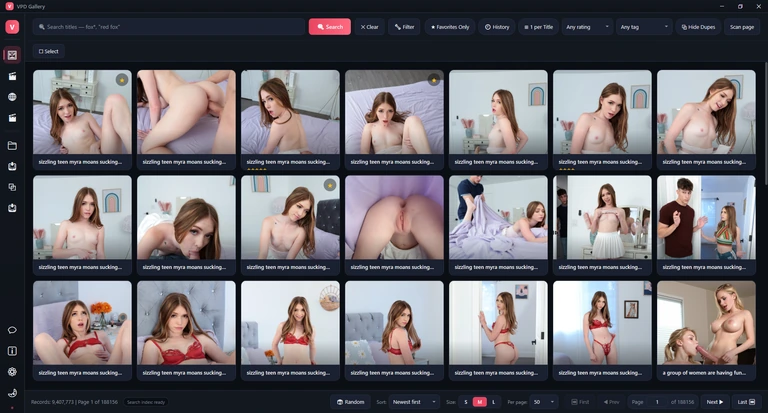
Browse and search
Millions of pictures and a short list of videos, with search by title, filters by tags, categories, models and channels, sorting, random picks and a full-screen viewer with a slideshow — and a live search of seven video sites on the Web Videos page.
Keep what you like
Favourites, one-to-five star ratings, your own tags and named albums. They are stored on your computer, apart from the catalogue, so a new catalogue never touches them.
Download pictures and videos
Save single pictures, a whole selection or an album. Download videos you find on the Web Videos page or from a web address you paste; finished videos join your Library, with their own player.
Keep it private
A PIN lock, automatic locking, a panic shortcut that hides every window at once, blurred thumbnails and clean-up when the app closes.
The catalogue and the video sites are explicit adult material, and this manual shows the app as it really looks, so its screenshots are explicit too. Use the app only where you are of legal age and it is lawful to view such content.
Chapters follow the order in which you meet the app: installing, the main window, then the pages of the rail one by one (Web Videos has three chapters: the page, its player and downloading), Settings, and finally privacy, shortcuts, backups, updates and troubleshooting. Names in bold are exactly what the app shows on screen. Click any screenshot that shows a magnifier to see it at full size.
Install and first start
VPD Gallery runs on 64-bit Windows 10 and Windows 11. It needs an internet connection, because the pictures and videos stay on their sites and are loaded as you browse.
Install the app
- On this site's VPD Gallery page, press Download (or Download Mirror, when that second link is offered). You get a compressed archive.
- Open the archive with WinRAR (free to try from its official site). When it asks for a password, type 123.
- Double-click the setup program inside the archive and follow the installer. Keep the internet connected: if Windows is missing two free Microsoft components the app needs — the .NET Desktop Runtime and the WebView2 Runtime — the installer downloads them for you.
- When setup has finished, start the app from its VpdGallery shortcut on the desktop or in the Start menu.
A new program downloaded from the internet can trigger a blue Microsoft Defender SmartScreen notice. Choose More info, check that the file came from this site, then Run anyway.
The first start: download the catalogue
A small splash screen appears while the app starts. The very first time, there is no catalogue on your computer yet, so instead of the galleries the app opens its Database page. Pick Small Database to try the app quickly, or Full Database for everything, and press Download. When it finishes, the galleries load by themselves.
Right after that, the app builds a search index in the background, so that searching millions of titles becomes near-instant. You can browse while it works; the footer of the Images page shows Search index: building …% and then Search index: ready. With the full catalogue the index takes about 2.2 GB of disk space.
The first time you download a video, the app also fetches the two free download tools it uses, yt-dlp and ffmpeg. You will see Installing yt-dlp… in that download's row; nothing else is needed from you.
What the app puts on your computer
Your settings and favourites (web-video favourites included) go into a VpdGallery folder inside your user profile's roaming application-data folder; thumbnails, the search index, your albums, ratings and library go into a VpdGallery folder in the local application-data folder; downloaded pictures go to Pictures › VpdGallery and videos to Videos › VpdGallery. Settings › Where your data lives opens the first two folders for you. The catalogue itself, the biggest of them all, is kept in the folder the app is installed in: right-click the app's shortcut and choose Open file location to see it.
Removing the app
Uninstall it from Windows Settings › Apps, where it is listed as VPD. That removes the program but keeps your settings, favourites, albums, library and downloaded files, and usually the downloaded catalogue in the program's folder too, so a reinstall picks up where you left off. To remove everything, first make a backup if you want one (Back up and restore). Then, before uninstalling, open Settings › Where your data lives and open the two VpdGallery data folders from there, and find the program's folder (right-click the app's shortcut › Open file location); close the app, delete both data folders and uninstall. Finally, delete the program's folder if it is still there, and Pictures › VpdGallery and Videos › VpdGallery if you no longer want the downloaded files.
The window at a glance
Every page of the app lives in one window: a slim title bar at the top, a rail of icons down the side, and the current page filling the rest. Small notifications appear in the top corner and fade away by themselves.
Title bar
The title bar shows the app's “V” logo, the name VPD Gallery and the usual three buttons: Minimize, Maximize (or Restore Down when the window is maximised) and Close. Double-click an empty part of the bar to maximise or restore. Press F11 for full screen, which hides the title bar and the taskbar; press F11 or Esc to come back. Closing the window quits the app — it does not keep running in the background. The app remembers its size and position for next time.

Navigation rail
The column of icons switches pages. Hover an icon to see its name. From the top: Images, Videos, Web Videos (the globe), Library, Albums, Downloads, Duplicates and Database; at the bottom: Send Feedback, About, Settings and a sun-and-moon button, Toggle Dark/Light Theme, that swaps the colour scheme at once. The page you are on is highlighted. While anything is downloading, a number on the Downloads icon counts the unfinished downloads.
From the keyboard: Ctrl1 opens Images, Ctrl2 opens Videos, Ctrl3 opens Web Videos and Ctrl, opens Settings.

Notifications
Short notices confirm what just happened — Copied image URL, a picture added to an album, a finished download — in the top corner of the window. They disappear after a few seconds; click one to dismiss it sooner. Some carry a button that takes you straight on: Resume for downloads left unfinished last time, Open folder, Play, Show in library or Re-download. When the app starts and its video list has grown, a notice says how many new videos were added.
Images
The Images page shows the catalogue's pictures a page at a time, newest first. The toolbar at the top searches and filters, the bar at the bottom sorts and turns pages, and each card can be previewed, opened full screen, rated, tagged, added to an album or downloaded. Open it from the first icon of the rail, or with Ctrl1. Once a catalogue is installed the app starts here; after that it reopens whichever of Images, Videos or Web Videos you used last, unless you choose a page under Open on startup in Settings › Behaviour.
Search by title
Type in the search box and press Enter or Search; the results start again at page 1. The box searches picture titles. Every word you type must appear, and a word also finds longer words that start with it: fox finds “fox” and “foxglove”. Put words in quotes to find them side by side in that order: "red fox". Upper and lower case do not matter. Clear empties the box.

This fast word search needs the search index, which the app builds after the first start. Until the footer says Search index: ready, the box does a slower search for the exact text you typed anywhere in the title, and quotes are not understood yet.
Quick filters
The rest of the toolbar row narrows the page with one click each. The filters combine with each other and with the search.

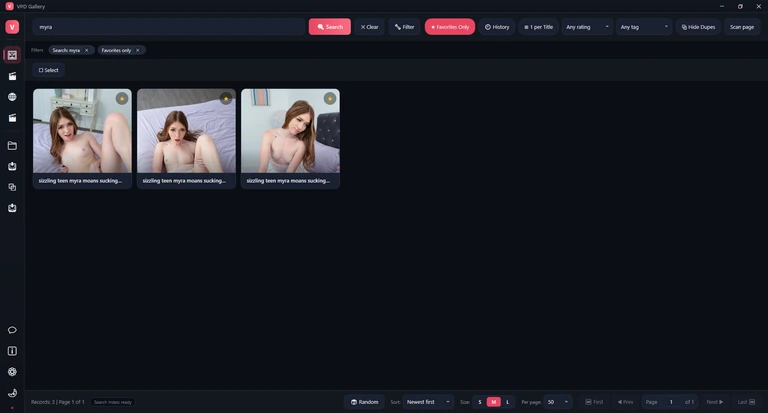
- Favorites Only — only the pictures you marked with the star.
- History — only pictures you have opened in the full-screen viewer (the most recent 2,000). Opening a picture in the Preview panel does not count.
- 1 per Title — many pictures share a title (a photo gallery usually has one); this keeps only the newest of each.
- Any rating — choose ★★★ and up, ★★★★ and up or ★★★★★ only to see pictures by your own star ratings.
- Any tag — lists the tags you added yourself, most used first, with how many pictures carry each; pick one to see those pictures.
- Hide Dupes — hides near-identical copies found by the last scan on the Duplicates page, keeping one of each. It does nothing until you have scanned, and scan results are forgotten when the app closes.
- Scan page — opens the Duplicates page and immediately checks the pictures of the page you are on.
The Filters row
Whenever something narrows the page, a Filters row lists it as chips — Search: …, Favorites only, History, 1 per title, Album: …, a rating, a tag, or each advanced-filter condition such as Prompt: blonde. Click the ✕ on a chip to remove just that filter. The footer's Records count tells you how many pictures are left.

Sorting and turning pages
The bar at the bottom of the page controls what you see and how much of it. On its left it shows the Records count and the search index status.


- Random shows a random selection from whatever your filters match. It becomes Reshuffle for a new draw; changing the sort, the search or a filter leaves random mode.
- Sort: Newest first, Oldest first, Title A–Z or Title Z–A. “Newest” means most recently added to the catalogue.
- Size: S, M or L changes how big the thumbnails are, on every gallery page.
- Per page: 25, 50 (the default), 100, 200 or 500 cards. Bigger pages mean fewer page turns but a slower first display.
- First, Prev, Next and Last turn pages. To jump, type a page number in the box and press Enter. Page Up, Page Down, Home and End do the same from the keyboard, and F5 reloads the page.
Working with the cards
- Click a card to show it in the Preview panel on the side.
- Double-click (or press Enter) to open it in the full-screen image viewer.
- The star in the card's corner appears when you point at it; click it to add or remove a favourite. Your star rating, if you gave one, shows under the title.
- Right-click for the card menu. Ctrl+click or Shift+click starts selection mode.
- Drag a card out of the window onto a folder or another program to drop the picture there as a file. If a thumbnail fails to load, the card says Couldn't load and offers Retry.
From the keyboard, the arrow keys move a highlight ring between cards, Space previews the highlighted card and F makes it a favourite. Esc steps back one level at a time: it closes the Preview, then the Tags panel, then the filter panel, then clears the search, then leaves selection mode.
When nothing matches, the page says No results and offers Clear filters and Browse tags (the Filter Browser).
The Preview panel
A single click on a card (or Preview in its menu) opens the Preview panel beside the grid. It loads the full-size picture, so you can look closely, rate and tag without leaving the page.
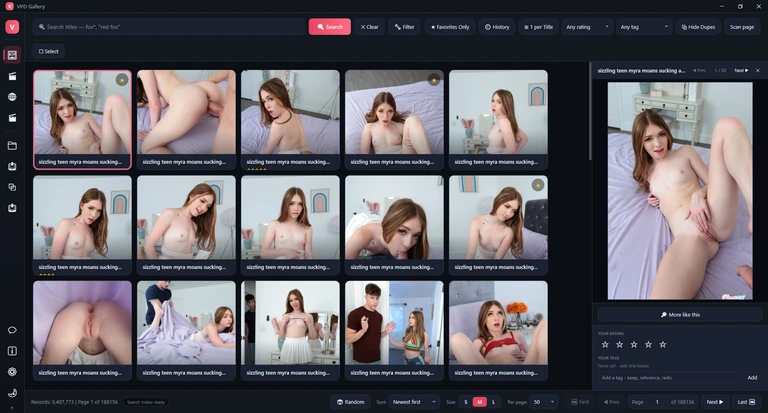
- YOUR RATING — click a star to rate from one to five; click the same star again to clear the rating.
- YOUR TAGS — words of your own, such as “keep” or “reference”. Type one and press Add or Enter; click ✕ on a tag to remove it. Tags are saved in lower case, up to 40 characters; a comma does not split them, so add tags one at a time. They feed the Any tag filter.
- More like this replaces your filters with this picture's rarest tags and its models, channels and category, to find similar pictures.
- Prev and Next in the panel's header step through the cards of the current page; the counter between them shows where you are. Close the panel with its ✕ or Esc. For the full-screen viewer, double-click the card.
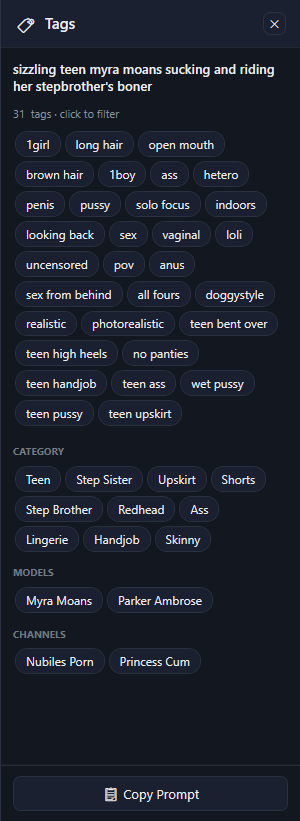
The Tags panel
Show Tags in a card's menu opens the Tags panel: the picture's title, its tags — the descriptive words that make up its prompt — and its CATEGORY, MODELS and CHANNELS. Clicking any chip adds it as a condition to the advanced filter, in the group for that field (a group is made if there is none) — press Apply there to run it. Copy Prompt copies the whole list of tags to the clipboard. To see another picture's tags, choose Show Tags on its card.
The Advanced Filter
Filter in the toolbar opens the Advanced Filter panel beside the grid, for precise filters built from groups of conditions. Close it with its ✕, with Filter again or with Esc; closing the panel keeps the filter.
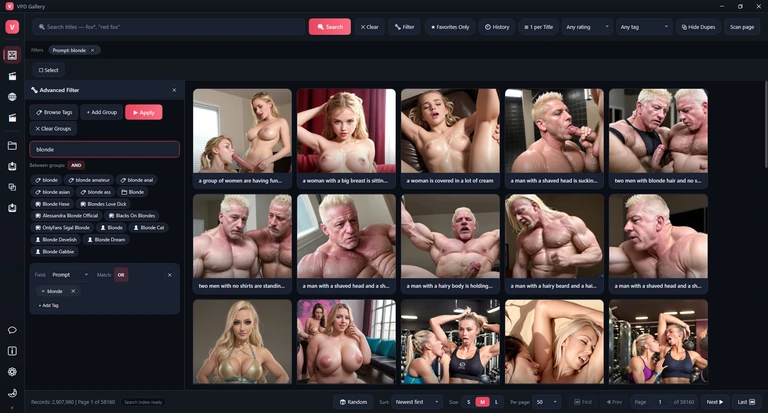
- Press + Add Group to add a group. Choose its Field: Prompt, Title, Category, Models or Channel.
- Type a word into the condition, or type in Type to search tags... at the top and click one of the suggestions: up to five each of tags, categories, channels and models, told apart by their icons. A suggestion goes into the group for its field, and a new group is made if there is none. + Add Tag adds another condition to a group.
- Decide how conditions combine. Match: OR (any condition in the group) or AND (all of them). Between groups: AND (every group must match) or OR (any group). The = button on a condition switches it to ≠, “does not contain”.
- Press Apply (or Enter in the tag search box). Nothing changes until you do. Clear Groups removes every group; ✕ on a group or a condition removes just that one.
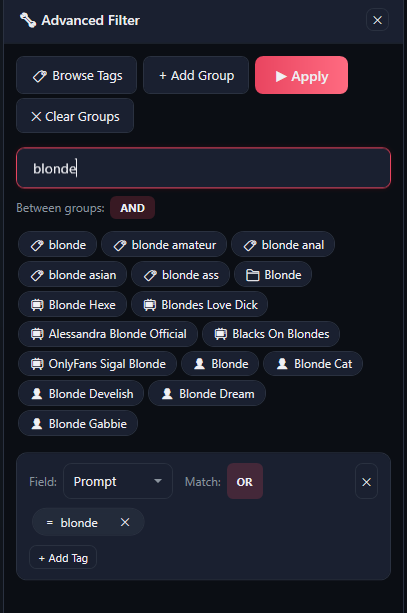
Category, Models and Channel conditions match anywhere in the text: “red” matches “Redhead”. Title and Prompt conditions normally match whole words and word beginnings, like the search box. A Prompt condition needs the search index and cannot be turned into ≠; if the app says part of the filter could not be applied, that is why.
The Filter Browser
Browse Tags in the filter panel opens the Filter Browser, a separate window headed Browse Filter Suggestions that lists every term you can filter on — about 81,800 of them. The tabs All, Tags, Category, Channel and Models show one kind at a time, each with its count. Type in Filter tags... to narrow the list, and switch the order between Popularity and A–Z. MOST USED shows the thirty commonest terms of the tab, bigger for more use; each item in the list shows how many pictures carry it. Click an item to add it to the advanced filter, in the group for its field, then press Apply in the main window. The list shows 200 items a page, with its own pager.
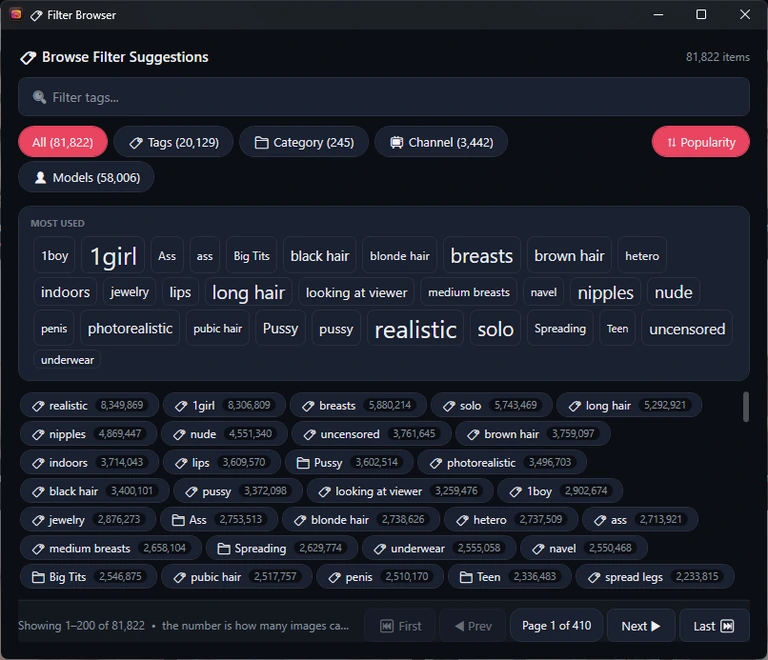
Counts and the popularity order appear once the app has finished counting in the background; this can be switched off under Settings › Search index.
Selecting several pictures
Selection mode lets you act on many pictures at once. Press Select in the bar under the toolbar (or Ctrl+click a card, or choose Select in its menu). A tick box appears on every card, the button becomes Cancel Selection, and the selection buttons appear in the same bar.
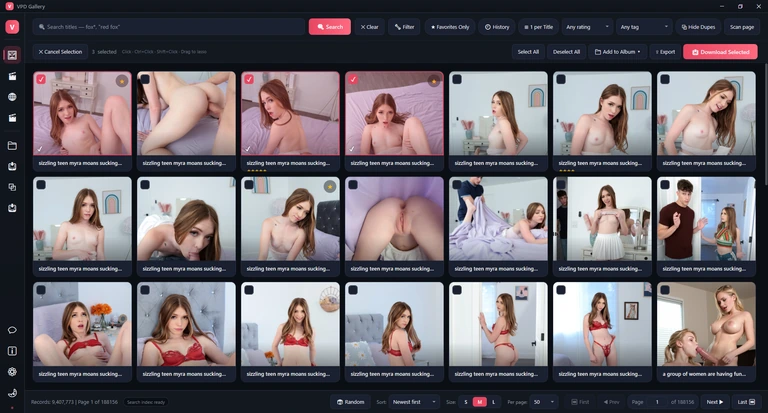

Click picks one card only; Ctrl+click adds or removes a card; Shift+click picks a run of cards; dragging across empty space draws a box around cards. Select All and Deselect All (or CtrlA) work on the current page — turning the page clears the selection.

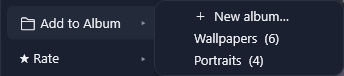
- Add to Album files the ticked pictures into an album, or choose New album… to name a new one (Create & Add).
- Export writes a list of the ticked pictures to a file you name: a CSV spreadsheet that opens in Excel, or a structured data file for other programs (the second file type in the Save dialog). Each row holds the picture's number, title, picture and page addresses, prompt, category, models and channels, and your favourite mark, rating, tags and albums.
- Download Selected opens the Download options window and queues the pictures on the Downloads page.
- Cancel Selection or Esc leaves selection mode.
The picture card menu
Right-click any picture card for this menu. In selection mode, Add to Album acts on every ticked picture, not just the one you clicked.
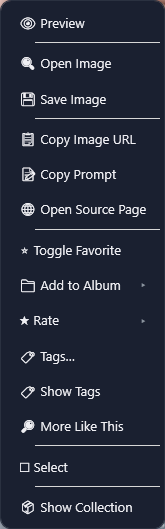
| Menu item | What it does |
|---|---|
| Preview | Opens the picture in the Preview panel, like a single click. |
| Open Image | Opens the picture in the full-screen image viewer. |
| Save Image | Asks where to save it (Windows' Save dialog), then downloads it through the Downloads page. |
| Copy Image URL | Copies the web address of the full-size picture. |
| Copy Prompt | Copies the prompt, the picture's list of descriptive tags. Greyed out when there is none. |
| Open Source Page | Opens the page the picture came from in your web browser. |
| Toggle Favorite | Adds the picture to your favourites, or removes it. |
| Add to Album | A submenu: New album… and each album with its picture count. |
| Rate | A submenu from ★ to ★★★★★, and Clear rating. |
| Tags… | Opens the Preview panel with the cursor in the tag box, to add your own tags. |
| Show Tags | Opens the Tags panel with the picture's tags, category, models and channels. Greyed out when the picture has no prompt. |
| More Like This | Clears your filters and shows pictures sharing this one's rarest tags, models, channels or category. If the app says part of the filter could not be applied, the tags were left out (they need the search index) and the match is on models, channels and category only. |
| Select | Starts selection mode with this card ticked. |
| Show Collection | Shows every picture with exactly the same title — usually the rest of its photo gallery — ignoring your filters. A banner offers Exit Collection to go back. |
The image viewer
The viewer shows one picture at a time, full size, in its own maximised window. Open it by double-clicking a card, with Enter on a highlighted card or with Open Image in the card menu. The window title is the picture's title; the top bar shows the zoom level and a counter such as 2 / 50+ — the “+” means more pages of results are waiting, and the viewer loads them as you go.
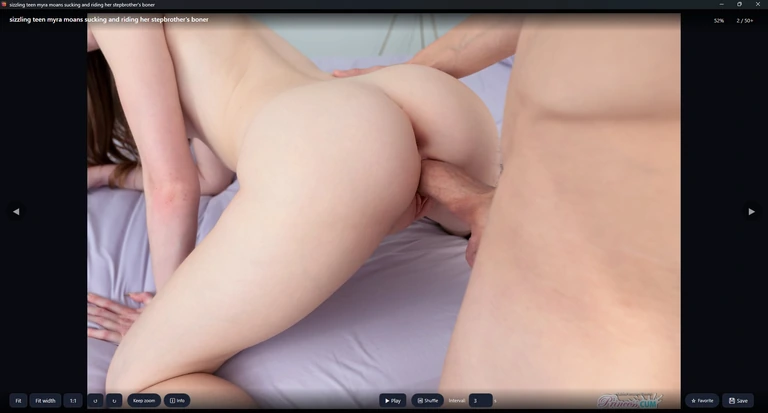
Moving and zooming
◀ and ▶ (or ← and →) go to the previous and next picture; at the end of the page the next page of results loads by itself. Home and End jump to the first and last picture loaded. The mouse wheel also changes picture, unless you have zoomed in or hold Ctrl — then it zooms around the pointer. Drag to move a zoomed picture, and double-click to switch between the whole picture and its real pixels.

The buttons at the bottom left: Fit shows the whole picture (0); Fit width fills the width; 1:1 shows one picture pixel per screen pixel; ↺ and ↻ rotate left and right (ShiftR and R); Keep zoom holds the zoom and rotation when you move to the next picture; Info opens the details panel (I). + and - zoom in and out.
Slideshow

Play starts a slideshow (it becomes Pause; Space does the same). Shuffle plays the pictures in random order without repeats. Type the number of seconds per picture in Interval — anything from half a second to ten minutes; the default is 3. The slideshow carries on into the next pages of results.
At the bottom right, Favorite adds or removes the picture from your favourites. Save (CtrlS) asks where to save the picture with Windows' Save dialog, suggesting its title as the file name; the file is then downloaded on the Downloads page, the viewer shows Queued, and a notification with Open folder appears when it is done.
The details panel
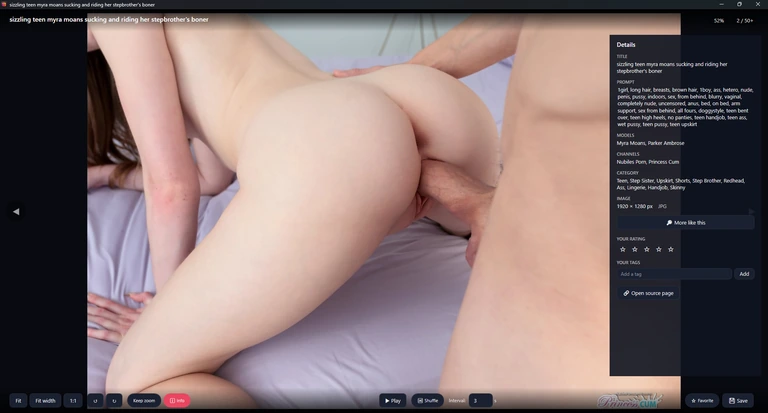
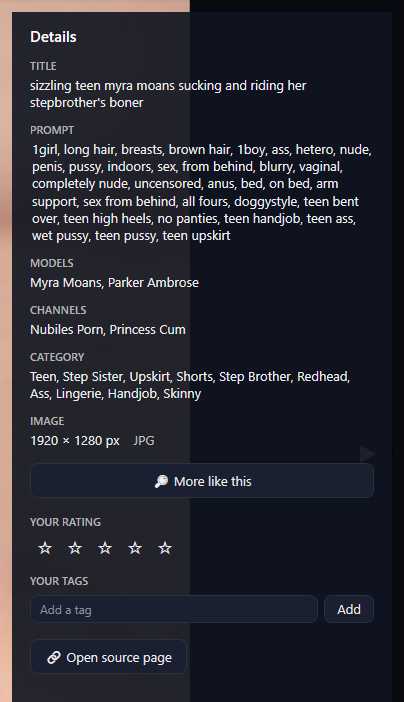
Info (or I) opens the Details panel beside the picture with its TITLE, PROMPT — its list of descriptive tags (select it to copy part of it) — MODELS, CHANNELS, CATEGORY and IMAGE, its size in pixels and file type. Rows with nothing to show are hidden. Below them you can press More like this (closes the viewer and filters the gallery to similar pictures), rate the picture, add or remove your own tags, or press Open source page to see where the picture came from in your browser.
Press Esc or the window's Close to return to the gallery. While a text box in the panel has the cursor, keys type into it; only Esc still works.
Videos
The Videos page lists the catalogue's videos. It is a short list — a few dozen — and every video is hosted on the same video site. The list keeps itself up to date: each time the app starts, it asks that site for new videos, and a notification such as 5 new videos added tells you when some arrive. Open the page from the second icon of the rail or with Ctrl2. Searching, sorting, card size and turning pages work as on the Images page, but there are fewer tools: no rating or tag filters, no duplicates and no selection mode. These videos are for watching only — they cannot be downloaded. To keep videos on your computer, use Web Videos.
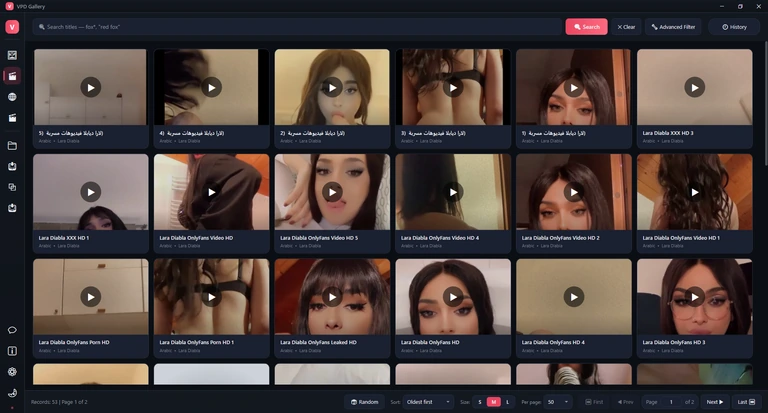

The search box looks in the titles, with the same rules as on the Images page; press Search or Enter. Clear empties the search and removes the filters. Advanced Filter opens a filter row above the grid, and the button becomes Hide Filter while it is open. It works like the Images page's advanced filter, with four fields: Prompt, Title, Category and Actor. History shows only the videos you have opened, together with the search and any other filter. The app also has a Favorites Only switch for this page, but in the current version it sits hidden behind History and cannot be clicked.
Each card shows the poster, the title, and the category and actor. A star in the corner marks a favourite; point at any card to see its star, and click it (or press F) to add or remove the favourite. Click a card once — or press Space — to preview it in the side panel; double-click it or press Enter to open it in the player window. Drag a card out of the window to drop its poster picture as a file.

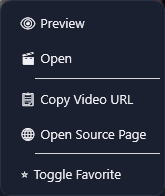
The video card menu
Right-click a video card for these items. There is no download item: catalogue videos can only be watched.
| Menu item | What it does |
|---|---|
| Preview | Opens the video in the side panel, like a single click. |
| Open | Opens the video in the player window, like a double-click. |
| Copy Video URL | Copies the video's web address; a notification confirms Copied video URL. |
| Open Source Page | Opens the video's page on the hosting site in your web browser. |
| Toggle Favorite | Adds the video to your favourites, or removes it. |
The side panel and the player
A single click on a card, Space, or Preview in its menu opens a side panel beside the grid that plays the video from the hosting site's page, so it needs an internet connection. Its header shows the title, then Prev, a counter and Next to move through the videos of the current page, and ✕ to close it; its footer shows the category and actor. Every video you open, here or in the player, is added to History.

Double-click a card, press Enter, or choose Open in its menu, and the video opens in a player window of its own, maximised and titled with the video's name. The window shows the hosting site's own player, so it too needs an internet connection; if the site opens a pop-up, it goes into a separate minimised window titled Popup on the taskbar, which you can simply close. A floating bar at the bottom centre holds the controls:

- Prev, a counter and Next — step through the videos of the current gallery page (← and → too).
- The full-screen button (Toggle Fullscreen) or F11 fills the whole screen; the bar hides while you are in full screen. Esc leaves full screen, or closes the player when you are not in full screen.
- The button with the downward arrow is Open in browser: it opens the video's page in your web browser. Despite its look it downloads nothing — catalogue videos cannot be downloaded.
- Favorite adds the video to your favourites or removes it — the same favourite as the star on its card.
On some computers, Microsoft Defender SmartScreen — the protection built into Windows — blocks the site that hosts these videos. The side panel or the player then shows a red page saying the site has been reported as unsafe, and the video does not play. That is Windows' decision, and the app cannot change it. You can still press Open in browser on the player's bar to open the video's page in your web browser, where you decide for yourself whether to go on.
Web Videos: search seven sites at once
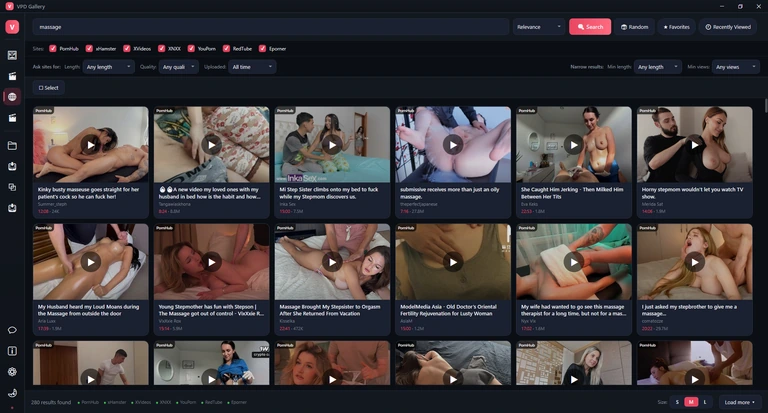
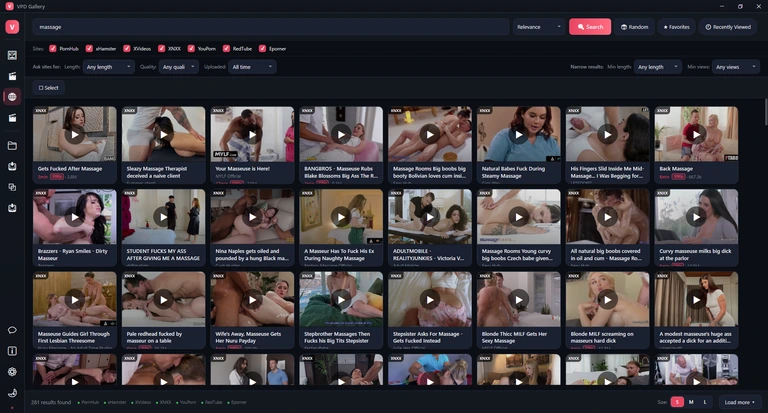
The Web Videos page (the globe, third icon on the rail, or Ctrl3) searches seven video sites at the same time — PornHub, xHamster, XVideos, XNXX, YouPorn, RedTube and Eporner — and shows every answer in one grid. Nothing here comes from the app's catalogue: the results are the sites' own, fetched live, so they change from one search to the next. You can preview a clip by resting the pointer on it, watch it in a player that fits the site, keep favourites, and download what you like into your Library.
Search
Type a few words and press Enter. Each site that is ticked is asked at once; its results join the grid as soon as it answers.
Watch
One click opens a side panel, a double-click a full player window with three ways to play — see The web video player.
Keep
Star favourites, find what you watched in Recently Viewed, and download videos into your Library — see Downloading web videos.
Searching and browsing
The first time you open the page it browses by itself with an empty search box: each site shows its own listing in the chosen order (its newest or most popular videos, depending on the site), and the footer says Browsing the sites' own listings. Type words in Search online videos… and press Enter or Search to search instead. While the sites are asked, the grid shows Searching sites… and a Cancel button appears in the bar. As you type, a list suggests terms from the app's own catalogue; clicking one fills the box without searching.

- Search asks every ticked site. CtrlF puts the cursor in the box; Esc closes the suggestions and then empties the box (without searching again).
- Random picks a term from the app's catalogue and searches for it — handy when you just want to look around.
- Favorites swaps the grid for the videos you starred — see Favourites and history.
- Recently Viewed shows the web videos you opened, newest first.
Choosing the sites
The Sites: row has one tick box per site. Untick a site to leave it out of your next search (unticking does not search again by itself). With every site unticked a search finds nothing. Results are not re-sorted across sites: each site's batch is added in the order the site gave it, whichever site answers first shows first, and a video a site lists twice is shown once. A site that has not answered after 30 seconds is given up on.

These ticks are remembered between runs and are the same switches as Sites searched by default in Settings › Web videos.
Sorting and filters
There are two kinds of filter, and the difference matters. Ask sites for: filters — like the sort box in the top bar — are sent to the sites, so changing one starts a new search at once; not every site supports every choice. Narrow results: filters only hide results that are already loaded: no site is asked again, and setting one back to Any length or Any views shows the hidden videos instantly. A result whose site gives no length or no view count is never hidden by them.


| Filter | Choices | What it does |
|---|---|---|
| Ask sites for — sent to the sites; a change searches again | ||
| Sort (top bar) | Relevance (default), Most Recent, Most Viewed, Top rated, Longest | Asks each site for that order. A site that lacks the order uses its own default instead: RedTube knows only Most Recent and Longest, XNXX only Most Viewed and Top rated (Top rated only with an empty search box). Because sites are never mixed, Longest means longest within each site's block. |
| Length | Any length, Under 10 min, 10-20 min, Over 20 min | All seven sites accept it; XNXX applies it only to a typed search, not to browsing with an empty box. |
| Quality | Any quality, HD, 4K | Ignored by PornHub and YouPorn; XNXX applies it to typed searches only. For 4K some sites give their nearest choice: XVideos and XNXX ask for 1080p and up, RedTube for HD. |
| Uploaded | All time, Today, This week, This month, This year | Ignored by YouPorn. PornHub applies it only with Top rated or Most Viewed; XNXX has only month and year, for typed searches; XVideos treats This year as the last six months; RedTube offers only week and month. |
| Narrow results — hide loaded results; nothing is fetched | ||
| Min length | Any length, 1 min +, 5 min +, 10 min +, 20 min + | Hides loaded videos shorter than that. Works on every site that publishes lengths. |
| Min views | Any views, 1K +, 10K +, 100K +, 1M + | Hides loaded videos watched fewer times than that. |
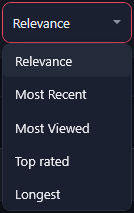
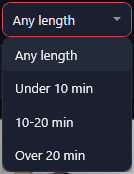
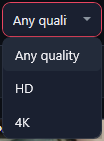
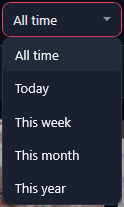
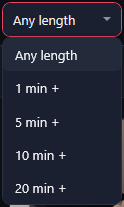
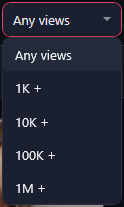
If your choices cannot be honoured by every ticked site, an amber chip says Applies on 4 of 7 sites (for example). Rest the pointer on the site names in the status strip to see what each one ignored. When the filters leave nothing on screen, the grid says Nothing matches these filters and Clear filters sets all five back to their first choice (Any length, Any quality, All time, Any views).
The status strip and the footer
Under the grid, the status strip tells you how the last search went: first the number of results, then one mark and name per site. Rest the pointer on a site to see its own count or what went wrong.

- 280 results found counts what is loaded. With a Narrow results filter on it reads like 120 of 280 results shown; while working, Searching… or Loading page 2….
- A green dot (ok): the site answered; its tooltip gives its count.
- A half-filled amber mark: partly honoured — the site answered but ignored part of your request (it shows its default order, or has no length, HD or date filter) — or no duration data, meaning Min length cannot narrow its results.
- An empty grey circle: no results — the site had nothing for this search. A grey dot: off — you unticked it in the Sites row. A dotted circle: still searching….
- A red cross: failed — the site did not answer. A notification also names every site that failed (No results from …). See When a site returns nothing.
The footer's right side holds the thumbnail size (S, M, L) and Load more. There are no page numbers here: scrolling to within about two rows of the bottom loads the next page from every ticked site by itself, and Load more — or Page Down or End — does it on demand. It reads Loading more… while it works and No more results when a page brought nothing new. Home or F5 starts the search again from the first page.

Video cards
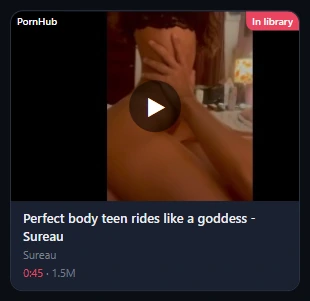
- Each card shows the site's badge (top corner), the title, the uploader when the site gives one, the length, a quality badge when the site labels one, and the number of views. A thumbnail that fails to load says Couldn't load with its own Retry.
- Click opens the video in the side panel. The star that appears in the corner on hover adds or removes a favourite.
- Double-click opens it in the web video player window.
- Right-click opens the card menu. You can also drag a card out of the window to drop its poster picture elsewhere.
- With the keyboard: the arrow keys move the highlight, Enter opens the player, Space the side panel, F toggles the favourite.
A red In library badge marks a video you have already downloaded; it appears the moment a download finishes. Its card menu then offers Play from library and Show in library, and downloading it again is refused with This video is already in your library.
Thumbnail size
S, M and L in the footer set how big the cards are — from eight cards per row down to four on a Full HD screen. The size is shared with the other galleries, and changing it reloads the pictures from the cache, not from the sites.
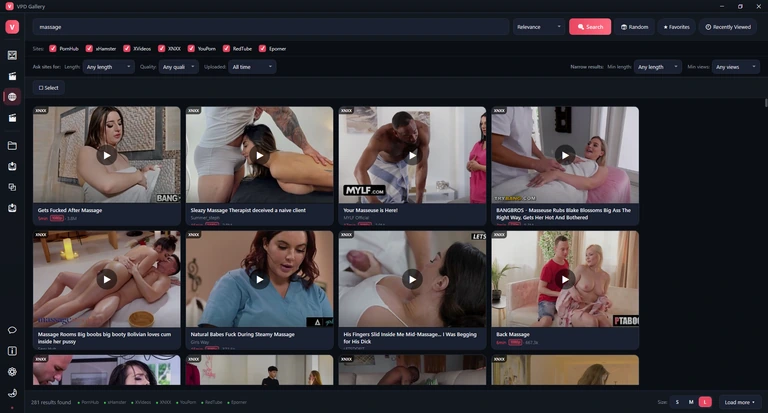
Hover previews
Rest the pointer on a card for half a second and it plays the short preview clip the site itself published for that video, over the thumbnail — muted and looping, never with sound. Sweeping the pointer across cards starts nothing, and the clip stops when you leave the card, scroll, search, switch pages or the window loses focus. Cards whose site offers no clip simply stay pictures. With Blur thumbnails until hovered on, the hovered card is shown clearly.
To turn previews off — on a slow connection, for instance, since each clip is fetched from the site — go to Settings › Web videos and switch off Hover video preview. It takes effect at once.

The side panel
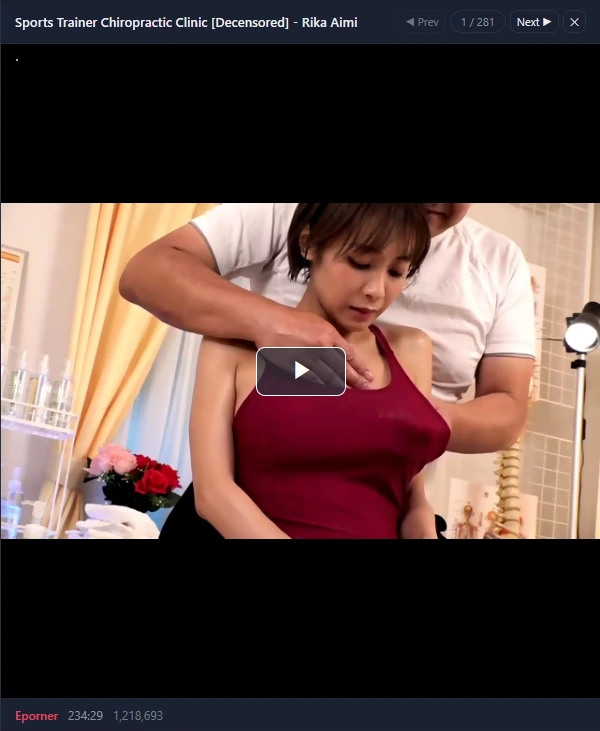
A single click opens the video in a panel beside the grid, so you can watch and keep browsing. Opening a video here (or in the player) adds it to Recently Viewed.
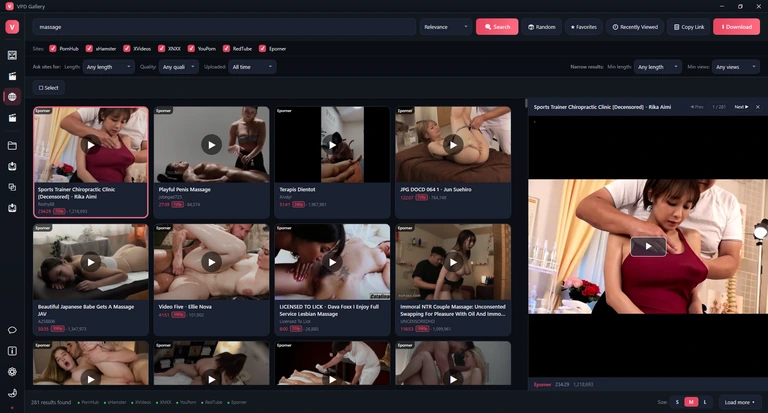
- The panel plays the site's own page with its player enlarged, or the site's embed player if your player setting is Embed. It never uses the Direct player; pop-up windows (usually adverts) are blocked.
- Prev and Next step through the results; the counter shows where you are, such as 1 / 281.
- The footer names the site and gives the length and views.
- The ✕ or Esc closes the panel.
While the panel is open, the top bar offers Copy Link (the site page's address, confirmed by Copied video link) and Download for that video — plus a PixeoaiVD button when PixeoaiVD is installed.
The web video card menu
Right-click a card. Some items appear only when they apply: Download with PixeoaiVD only when PixeoaiVD is installed, and Play from library and Show in library only on a video you have downloaded.
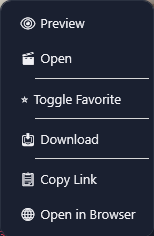
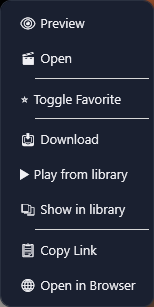
| Menu item | What it does |
|---|---|
| Preview | Opens the video in the side panel, like a single click. |
| Open | Opens the web video player window, like a double-click. |
| Toggle Favorite | Adds the video to your web favourites or removes it. |
| Download | Downloads the video with your preferred downloader — see Downloading web videos. |
| Download with PixeoaiVD | Hands the video to PixeoaiVD, whatever your preferred downloader. Only when PixeoaiVD is installed. |
| Play from library | Plays your downloaded copy in the app's own player. Only on downloaded videos. |
| Show in library | Switches to the Library with that video in view. Only on downloaded videos. |
| Copy Link | Copies the address of the video's page on its site. |
| Open in Browser | Opens the video's page in your usual web browser. |
Favourites and history
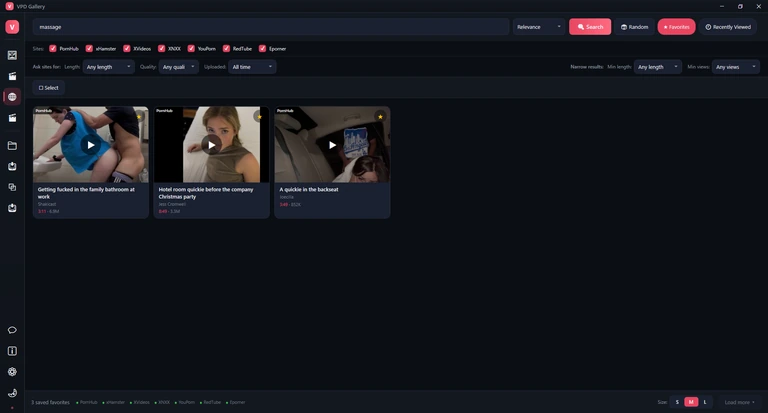
Star a web video with the star on its card, Toggle Favorite in its menu, F, or Favorite in the player. Favorites in the top bar then replaces the grid with everything you starred; the footer counts them (3 saved favorites). Un-starring a video there removes it at once. Web favourites are kept on your computer, separately from image and video favourites.
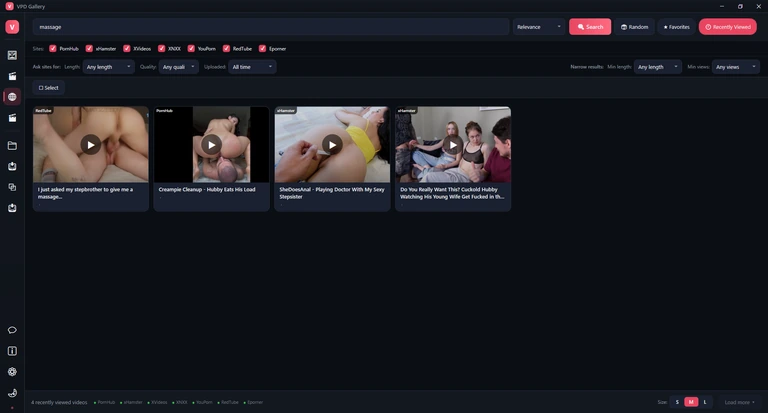
Recently Viewed lists each video you opened in the side panel or the player, newest first (moving on with Prev and Next, or into a related video, is not recorded). Only the title and the picture are kept, so these cards show no length or views. Favorites and Recently Viewed exclude each other; the filters still apply to both, and switching them off returns to an empty page that asks you to search.
To erase the history, use Clear history now under Viewing history in Settings › Privacy — it clears image, video and web-video history together — or have it erased every time the app closes with Clear traces when the app closes. Your search words are not stored: the suggestions under the search box come from the app's catalogue, not from what you typed.
Selecting several videos
To download many videos in one go, press Select in the top bar. It turns into Cancel Selection, each card gets a tick box, and the bar counts your choice.
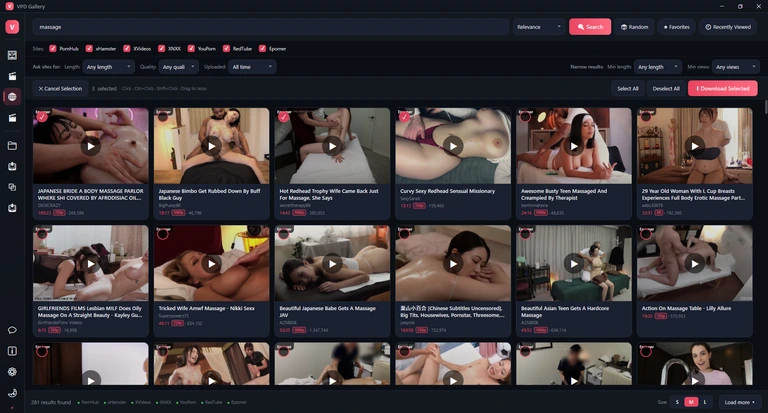


- Click a card to tick it, Ctrl+click to add one, Shift+click to take a whole run, or drag a lasso around several. Select All and Deselect All do what they say.
- Download Selected downloads them all. Videos already in your Library are skipped, and a notification says how many. Then it follows your settings: straight into the queue with Quick download on, otherwise through the Download video window.
- Selected with PixeoaiVD (only when PixeoaiVD is installed) hands every selected video to PixeoaiVD, including ones already in your Library.
- Cancel Selection or Esc leaves selection mode.
When a site returns nothing
The results come live from other people's websites, so now and then one of them has nothing to give. First look at the status strip: an empty grey circle (no results) means the site answered but found nothing for this search; a red cross (failed) means it did not answer at all. The usual reasons are a site that is down or blocked where you live, a network or VPN problem, filters that are too narrow, or a site that has changed its pages so the app can no longer read them. Then work down this list:
- Press Search again, or F5. There is no separate retry button; a new search asks every ticked site afresh.
- Set the filters back to their first choice, such as Any length (or press Clear filters) and read the amber marks' tooltips: a site may be ignoring or refusing your choice.
- Try other words. Some sites answer an empty box with their own listing but return nothing for a rare term.
- Open the site in your browser. If it does not load there either, the site is down or blocked on your network; a VPN may help where that is lawful.
- If one site keeps failing while others work, untick it in the Sites row so it stops slowing your searches, and check for an app update: a site that changed its pages needs a new version of the app.
No results with every site marked off means nothing is ticked in the Sites row. Nothing matches these filters means results were found but your Narrow results filters hide all of them.
The web video player
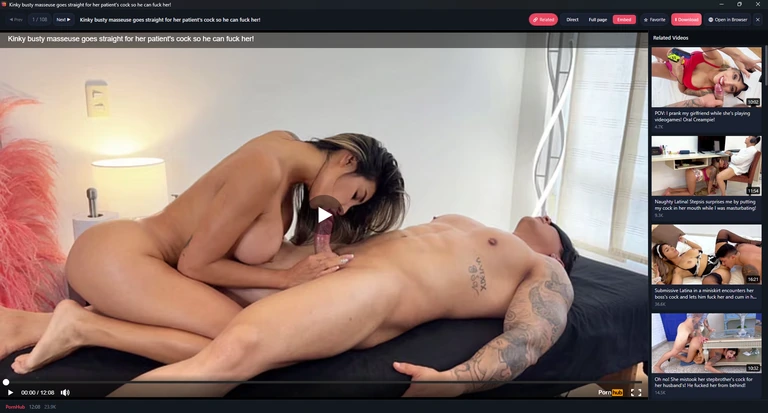
Double-click a card, choose Open in its menu or press Enter, and the video opens in a window of its own, titled with the video's name. The player can show the video in three ways, because the seven sites differ: some publish plain video links, others only their own player.
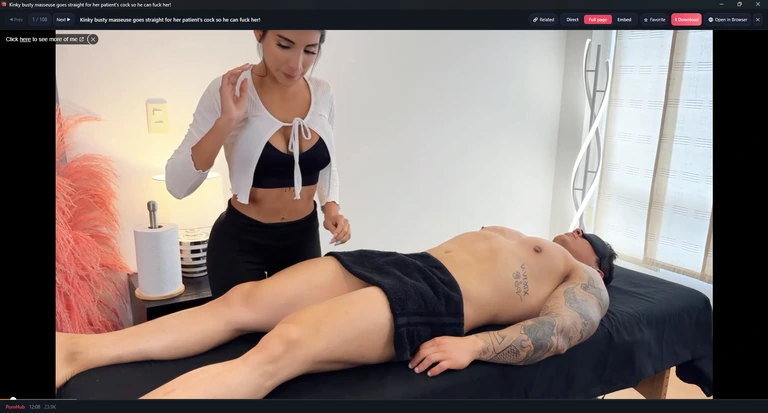
Three ways to play
The three buttons Direct, Full page and Embed switch the mode for this window only. The mode every new window starts in is set by Web video player in Settings › Web videos; Full page is the default.
Direct
The app reads the real video links from the site and plays the best one in its own clean player — no page, no adverts — with a quality list. Works for PornHub, XVideos, XNXX, YouPorn, RedTube and Eporner; xHamster always falls back to its page.
Full page
The site's own video page, rearranged so its player fills the window. You get the site's player with its own quality menu and its best resolution, and its related videos stay clickable — but also its adverts, and a heavier page.
Embed
The site's embed player — the one other websites use to show its videos. Lighter and quieter, with fewer adverts, but often softer: some sites cap it at a lower resolution (XVideos, for example, gives it standard definition only).
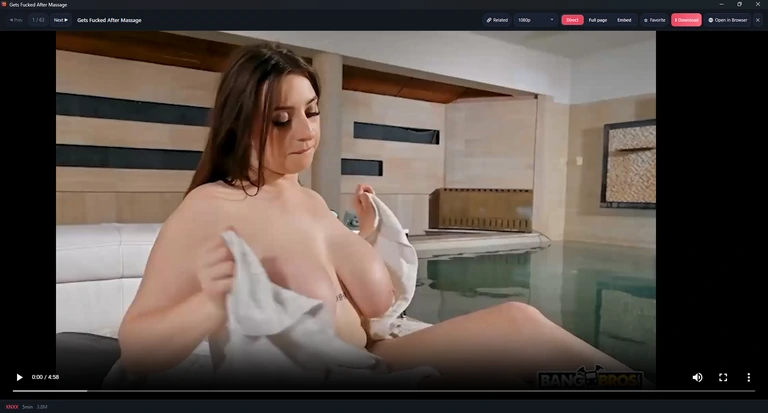
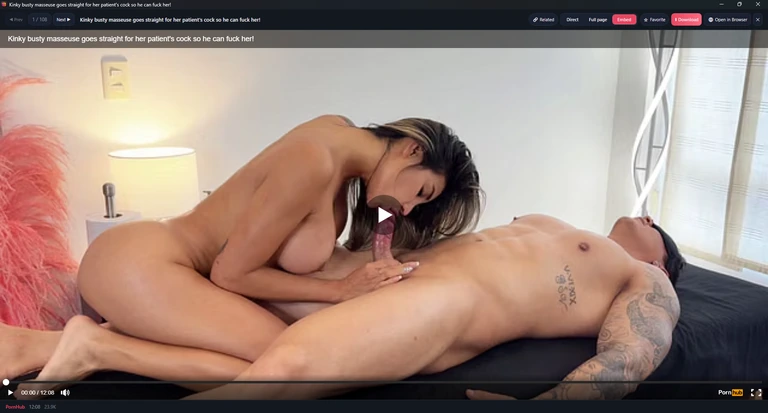
| Compared | Direct | Full page | Embed |
|---|---|---|---|
| Picture quality | The site's best stream, chosen from a list (up to 2160p on Eporner, 1080p on most others) | The site's best, from the site's own menu | Often lower |
| Adverts | None | The site's own | Usually fewer |
| Weight | Lightest: only the video is loaded | Heaviest: the whole page | Light |
| Sites | All but xHamster | All seven | All seven |
| Related videos | Through the Related column | The site's own links, plus the Related column | Through the Related column |
| If it cannot play | Shows the site's page instead, with a notification; the window stays in Direct for the next video | — | — |
Choose Direct for a clean, advert-free picture at a resolution you pick — the best everyday choice on the six sites that support it. Choose Full page when you want everything the site offers, or when Direct shows This site publishes no direct video links; showing its page instead. (always the case on xHamster) or The direct stream would not play; showing the site's page instead. Choose Embed on a slow connection or an older computer, when a light player matters more than sharpness.
The player's buttons
The bar across the top of the window holds everything you can do with the video. The footer names the site and shows the length and views.

| Menu item | What it does |
|---|---|
| Related | Opens a Related Videos column read from the site's page; click one to play it in this window. |
| Direct / Full page / Embed | Switch the mode for this window. In Direct mode a quality list sits beside them. |
| Favorite | Adds the video to your web favourites, or removes it. |
| Download / Play in library | Downloads the video (see Downloading web videos). For a video you already have it reads Play in library and plays your copy. A PixeoaiVD button joins it when PixeoaiVD is installed. |
| Open in Browser | Opens the video's page in your usual browser. |
| ✕ | Closes the player window. |

- Prev and Next (top left) move through the results as they were when you opened the window; the counter shows your place.
- In Direct mode, the quality list offers the resolutions the site publishes, such as 1080p, and sometimes Auto, High or Low. Switching keeps your place in the video.
- Keys: ← and → for the previous and next video, F11 for full screen (the site player's own full-screen button does the same), Esc to leave full screen or close the window.
- A site may ask a first-time visitor to confirm their age, or to accept cookies. The app never answers for you; answer it yourself once and the site usually remembers.
Related videos
Related opens a column on the side of the window. It shows Loading… while it reads the site's page, then a list of similar videos; clicking one plays it here without leaving the window. Press Related again to close the column.
Downloading web videos
Any web video can be saved to your computer: from its card menu, from Download while the side panel shows it, from the player's Download button, or many at once with Download Selected. Two programs can do the work, and Preferred downloader in Settings › Video downloads decides which one a Download action uses.
Built-in (the default)
VPD Gallery downloads the video itself, with the free tools yt-dlp and ffmpeg. Progress shows on the Downloads page, and the finished video joins your Library with its poster, ready for the app's player.
PixeoaiVD
A separate download program from the same publisher — the Video Downloader on this website. VPD Gallery just hands it the video's address and PixeoaiVD does the rest in its own window. Those downloads do not appear in VPD Gallery's Downloads page or Library.
Download with the built-in downloader
- Right-click the video's card and choose Download (or use the side panel's or the player's Download).
- The Download video window reads the video's page, then shows its poster, title, length and site. Check the choices (described below) and press Download.
- The video joins the queue on the Downloads page, and a badge on the rail's Downloads icon counts what is running. The very first time, the app fetches its download tools first (Installing yt-dlp…).
- When it finishes, a notification says Added to library, the card gets its In library badge, and the file is in Videos\VpdGallery, in a subfolder named after the site, as “title [id].mp4”.
With Quick download on, the window in step 2 is skipped: the video goes straight into the queue with your saved choices and a notification says Added to the download queue. A video already in your Library is not downloaded twice — you are told This video is already in your library. and offered Play.
The Download video window
Titled Download options, it says how many videos will join the queue, previews the video (the channel appears only when the site names one) and offers:
- Quality — Best, 2160p (4K) down to 360p, or sound only as Audio (m4a) or Audio (mp3). It is a ceiling: the app takes the best version at or below your choice. Audio only switches to sound in one click.
- Container — MP4 (plays inside the app), MKV (needs another player; the window warns you) or Whatever the site serves.
- Subtitles — None, Save beside the video or Embed in the video.
- Save to with Browse… (the folder you pick becomes your new default), and A folder for each site, which adds a subfolder named after the website.
- Collection — file the finished video straight into a Library collection, or make one with New….
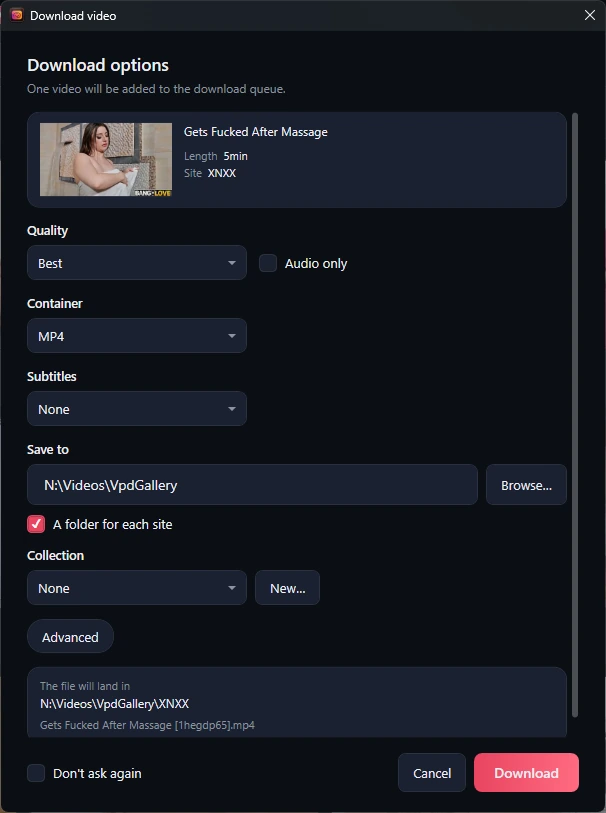
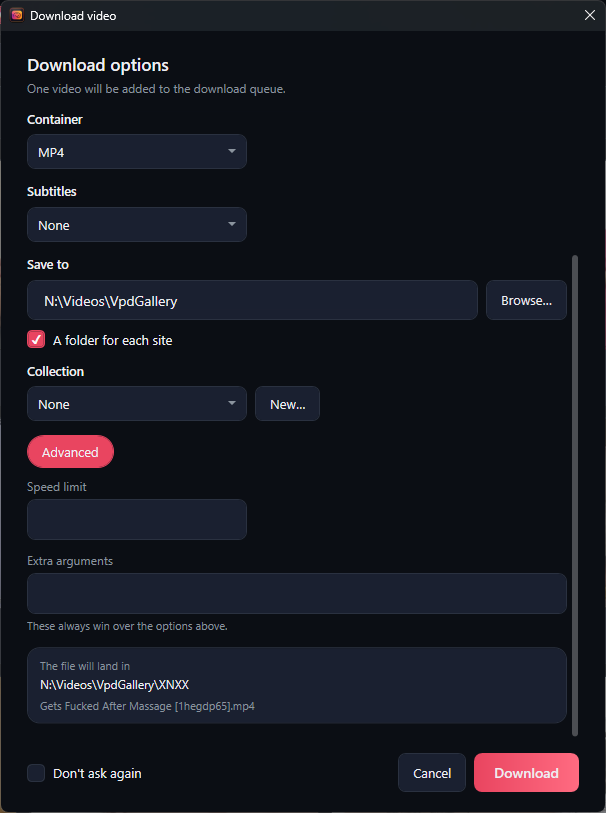
- Advanced — a Speed limit such as 500K or 2M, and Extra arguments for experts, which override everything above.
The file will land in previews the folder and file name. Don't ask again turns on Quick download: later downloads start at once with the defaults from Settings › Video downloads. Press Download to queue it, or Cancel.
If you already have the video, a banner says You have already downloaded this video. with Play and Download again.
Downloading with PixeoaiVD
If you already use PixeoaiVD, VPD Gallery can pass videos to it. Set Preferred downloader to PixeoaiVD and every Download action — card menu, side panel, player, Download Selected — hands the video's address to PixeoaiVD instead. The row also tells you whether the app can find it (Found, Found automatically or Not found).

- Install PixeoaiVD from its page on this website, if you have not already.
- Restart VPD Gallery. It looks for PixeoaiVD where its installer puts it; if yours is elsewhere, point Vividl location in Settings › Web videos at its program file with Browse….
- Choose a video and press Download. PixeoaiVD opens with the address filled in, and a notification says Vividl opened - the video will download automatically. Follow the download in PixeoaiVD's own window.
If PixeoaiVD is chosen but cannot be found, a Download action shows Vividl Not Found instead (Vividl is the name of PixeoaiVD's program file). It asks one question: Vividl is not installed on your device. Would you like to download it now?
- Download opens PixeoaiVD's download page on this website in your browser.
- Not now closes the window and downloads nothing. To download with the app itself instead, set Preferred downloader back to Built-in.
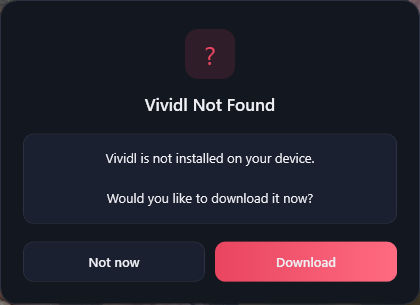
Once PixeoaiVD is installed, extra buttons appear whatever your preferred downloader: Download with PixeoaiVD in the web card menu, a PixeoaiVD button in the top bar and in the player, and Selected with PixeoaiVD in selection mode. The Web Videos page checks for PixeoaiVD once per session, so restart the app after installing it.
Keep Built-in if you want downloads in your Library, playable in the app, marked In library on their cards and never downloaded twice. Choose PixeoaiVD if you already manage your videos there and want them all in one place.
Library
The Library is your own collection of downloaded videos. Every video the app's built-in downloader finishes lands here automatically, with its poster, length, quality and where it came from. Videos reach it from Web Videos or from an address you paste on the Downloads page; catalogue videos cannot be downloaded, and videos handed to PixeoaiVD stay in PixeoaiVD. The heading counts your videos and the space they use, and how many files are missing. While the Library is empty it says Nothing downloaded yet and offers Browse web videos, which opens Web Videos.
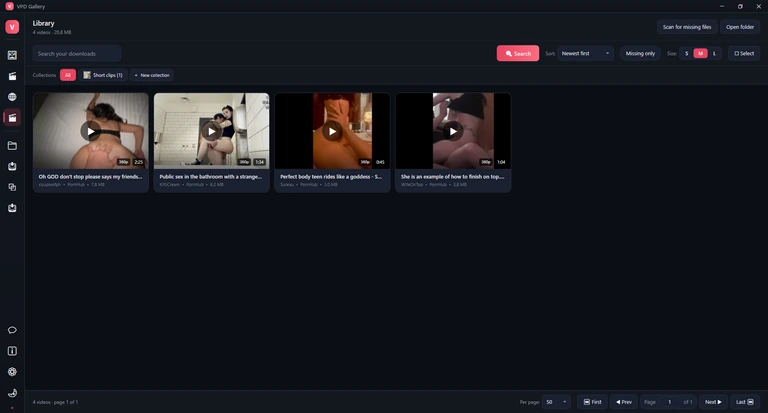

Scan for missing files checks that every file is still on disk and marks moved or deleted ones File missing (it also runs by itself the first time you open the Library after starting the app). Open folder opens the download folder, normally Videos\VpdGallery. The search box looks in titles, channel names and file names; press Search or Enter. Sort offers Newest first, Oldest first, Title, Longest first, Largest first and Last played. Missing only shows only the missing ones, S, M and L set the card size, and Select starts selection mode, as on the Images page. Its bar offers Select All, Deselect All, Add to collection, Remove from collection (while a collection is open), Remove from library and Delete files.
Collections
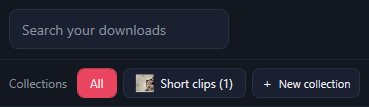
Collections are named groups of library videos. + New collection asks for a name (Create); videos you have ticked in selection mode go straight into it. Click a collection to show only its videos — Rename and Delete then appear beside it, and both work on the page itself: Rename opens a name box with Cancel, and Delete asks Delete this collection? The videos stay in your library. with Delete or Cancel. Deleting a collection never deletes videos. All shows everything again.
Cards show the quality and length, Resume when you stopped part-way through, and File missing when the file is gone; under the title are the channel, the site and the file size. Double-click a card, click its ▶, or press Enter to play it.
The library card menu
Right-click a library card. Most items act on that card. In selection mode, Add to collection, Remove from collection and Delete files act on every ticked video instead. Remove from library acts only on ticked videos: press Select, tick them, then use it — with nothing ticked it does nothing.
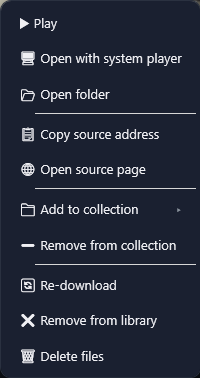
| Menu item | What it does |
|---|---|
| Play | Plays the video in the Library player. |
| Open with system player | Opens the file in Windows' default video player. |
| Open folder | Opens File Explorer with the file selected. |
| Copy source address | Copies the web address the video was downloaded from. |
| Open source page | Opens that page in your browser. |
| Add to collection | Files the video into a collection, or a new one. |
| Remove from collection | Shown only while a collection is open: takes the video out of it. |
| Re-download | Queues the video again straight away, without the options window — handy when the file went missing. The entry keeps its play count and collections. |
| Remove from library | Forgets the ticked videos but leaves their files where they are. Works only on videos ticked in selection mode. Asks first. |
| Delete files | Sends the file to the Recycle Bin and removes it from the library — the right-clicked video, or every ticked one in selection mode. Asks first. |
Remove or delete: the confirmation
Both removals ask first. Remove from library asks whether to remove the ticked videos, with No or Yes; the files themselves stay on disk. Delete files asks Delete the files? with Keep them or Delete.
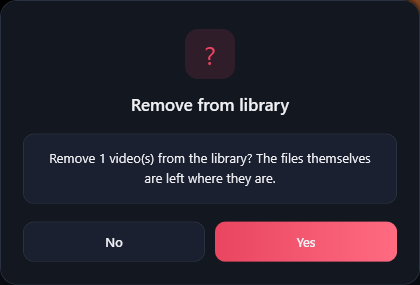
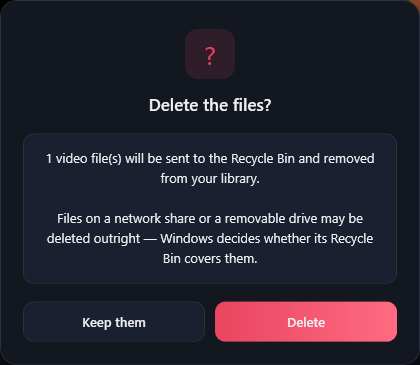
Deleted files go to the Recycle Bin, where Windows can restore them — except on a network share or a removable drive, where Windows may delete them outright. Either way the video leaves your Library; to have it there again, download it again.
The Library player
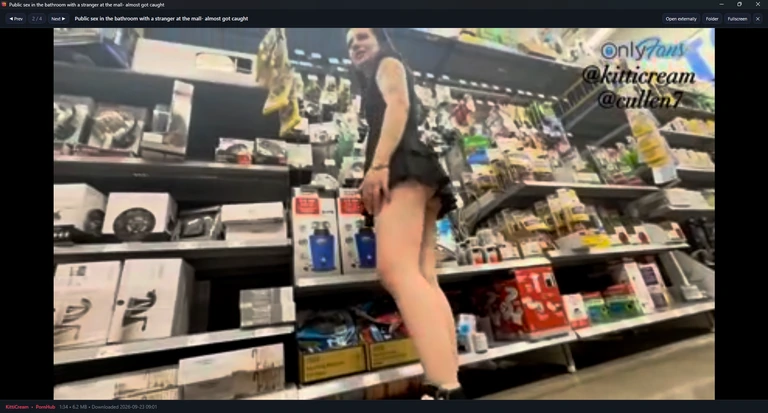

The Library player plays files from your disk, so it needs no internet, and you can keep using the main window while it is open. It resumes where you stopped and remembers your place as you go. The top bar has Prev, a counter and Next for the videos of the current page, the title, then Open externally (Windows' default player), Folder, Fullscreen and ✕. The bottom line shows the channel and site, length, size and download date. ← and → change video, F11 toggles full screen and Esc leaves full screen or closes the player; once you click into the video, Space and the arrow keys control playback.
If a file has moved, the player says This file is no longer where your library says it is. — use Re-download from the card menu, or Scan for missing files after putting it back.
Albums
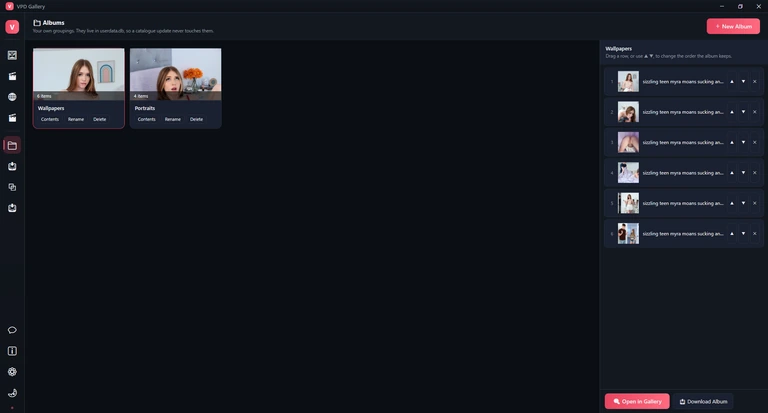
Albums are your own named groups of pictures, in the order you choose. They are kept on your computer apart from the catalogue, so downloading a new catalogue never touches them. An album remembers pictures, not files: it lists catalogue pictures, and you download them whenever you like.
Make and fill an album
- Press + New Album: a name box opens on the page. Type a name and press Create (or Enter); Cancel (or Esc) closes the box. A name you already used simply selects that album.
- Go to Images and add pictures: right-click a card › Add to Album, or tick several in selection mode and use Add to Album on the bar. A notification confirms how many were added (and how many were already there).
- Back on Albums, press Contents on the album's card to see and reorder it.
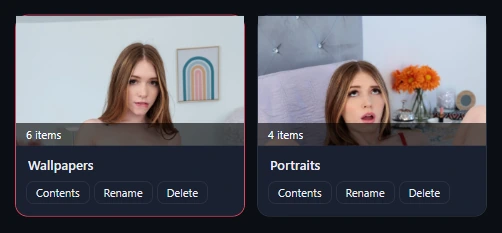
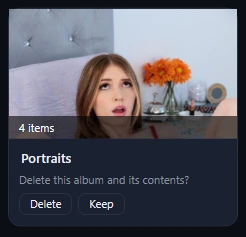
Each card shows the album's first picture and how many items it holds; click the picture to open the album in the Images gallery. Rename edits the name in place (confirm with ✓ or Enter). Delete asks on the card itself before anything happens — see Deleting an album.
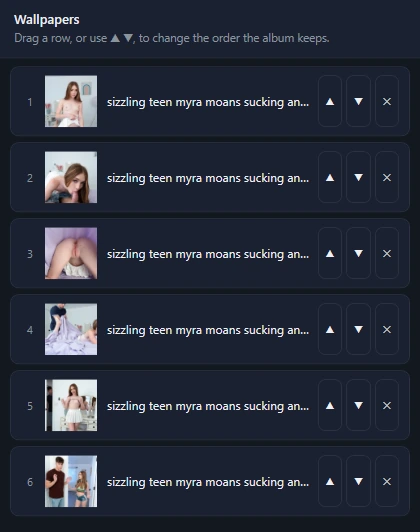
The Album contents panel lists the pictures in order. Drag a row, or use ▲ and ▼, to change the order; ✕ takes a picture off this album only. At the bottom, Open in Gallery shows the album on the Images page (in the gallery's own sort order — your custom order shows only here), and Download Album opens the Download options window for the whole album.

Deleting an album
Press Delete on an album's card and the card itself asks Delete this album and its contents?, with Delete and Keep — no separate window opens. Delete removes the album and its list only; no picture file on your disk is touched. Keep leaves everything as it was. There is no undo.
The Download options window (pictures)
Before pictures are downloaded — from an album, or with Download Selected — this window says how many will be queued and asks how:
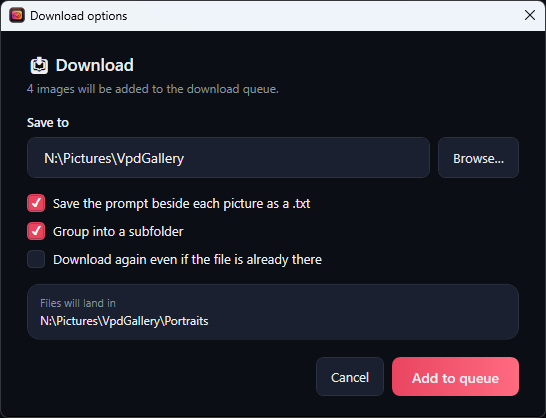
- Save to — the folder; Browse… picks another. It starts as your Download folder from Settings (normally Pictures\VpdGallery).
- Save the prompt beside each picture as a .txt — writes a small text file with the picture's prompt (its descriptive tags) next to it, under the same name. On by default.
- Group into a subfolder — puts an album's pictures into a folder named after the album, and other pictures into folders named after their titles. On by default.
- Download again even if the file is already there — off by default, so pictures you already have are skipped and marked Already there.
Files will land in shows the resulting folder. Add to queue starts; the window closes and the pictures download on the Downloads page while you keep browsing. Your choices are remembered for next time.
Downloads
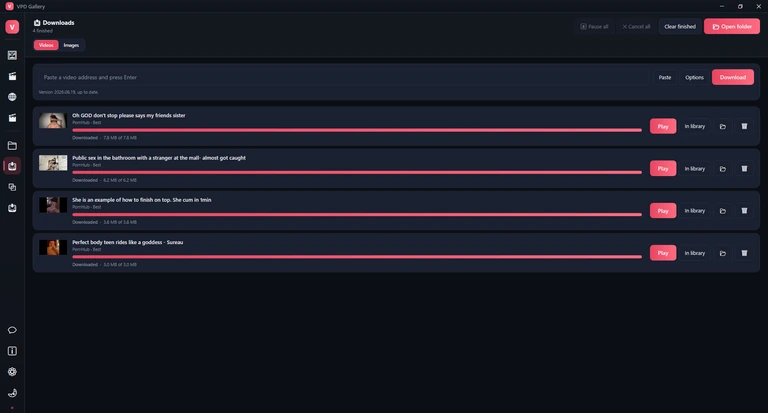
The Downloads page shows both download queues: Videos (the tab that opens first) and Images. Video downloads come from addresses you paste here or from Web Videos; picture downloads come from the Images and Albums pages. The line under the heading sums up how many are in progress, finished and failed. Downloads carry on while you use the rest of the app, and the number on the rail's Downloads icon (the sixth) counts what is still unfinished.
Download a video from a web address
- Copy the address of a video page in your browser.
- On the Videos tab press Paste — or just press CtrlV anywhere on the tab. The app takes the address from the clipboard and starts.
- Unless Quick download is on, the Download video window opens: check the quality and folder and press Download. To choose options even with Quick download on, press Options instead.
- Follow the row's progress. When it finishes, a notification offers Show in library.
Any address that starts with http:// or https:// is accepted; whether it downloads depends on the site. Playlists are not supported — open a single video. A video already in your library is not downloaded twice: the app offers Play instead.
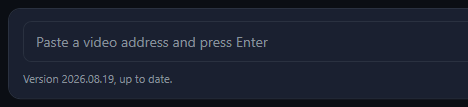
Under the address box, a status line tells you about the download tool: Version …, up to date., Installing yt-dlp…, or Version … is available. with an Update yt-dlp button when there is something to do.
Reading a download row
Each row shows the poster and title, the site and quality, a progress bar and a status: Waiting, Reading the page…, Downloading (with size, speed and time left), Finishing (merging video and audio, writing the details, saving the poster), Downloaded, Paused, Cancelled or Failed with the reason in red.
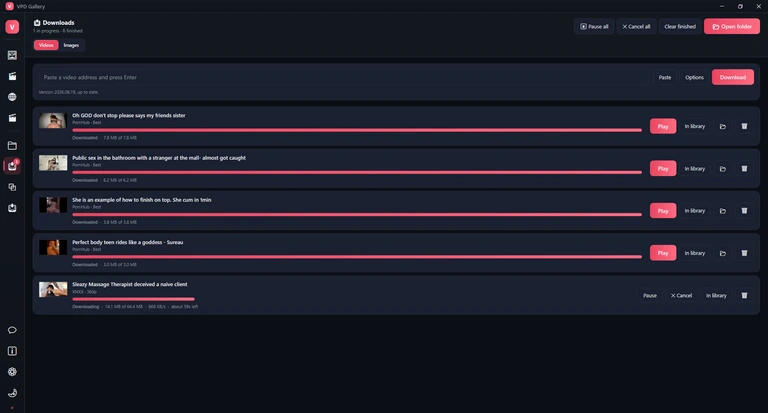




Row buttons: Pause keeps what has arrived and Resume carries on from there; Retry starts a failed or cancelled download again; Cancel stops it and deletes the partial file; Play plays a finished video; In library jumps to it in the Library; the folder button opens its folder; the bin takes the row off the list — it never deletes a finished file.

The toolbar acts on the whole tab: Pause all (then Resume all), Cancel all, Clear finished (removes finished, failed and cancelled rows from the list) and Open folder.
Running video downloads are paused, not lost. Next time you start the app a notification such as One video download was left unfinished offers Resume. Finished rows are not kept between sessions — the files are, of course, and so are the videos in your Library.
The Images tab
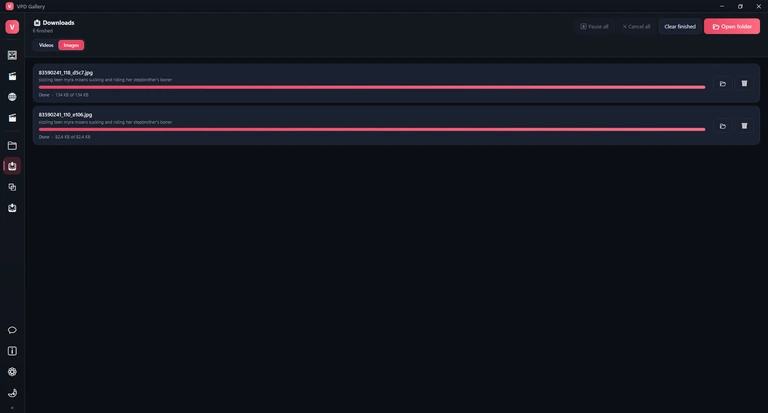
Pictures from Save Image, Download Selected and Download Album download here, three at a time by default. Each row shows the file name, the subfolder, progress and a status: Waiting, Downloading, Done, Already there (the file existed and was skipped), Failed or Cancelled. A failed row offers Retry; finished rows have the folder and remove buttons. When a batch finishes, a notification offers Open folder.

Duplicates
The same picture often appears in the catalogue more than once, sometimes slightly resized or re-saved. The Duplicates page finds such near-copies by comparing a small fingerprint of each thumbnail. The catalogue is far too big to check in full, so a scan looks at a chosen set of pictures. Nothing is ever deleted: a scan only groups the copies and marks one of each to keep, which the Images page can then use to hide the rest.
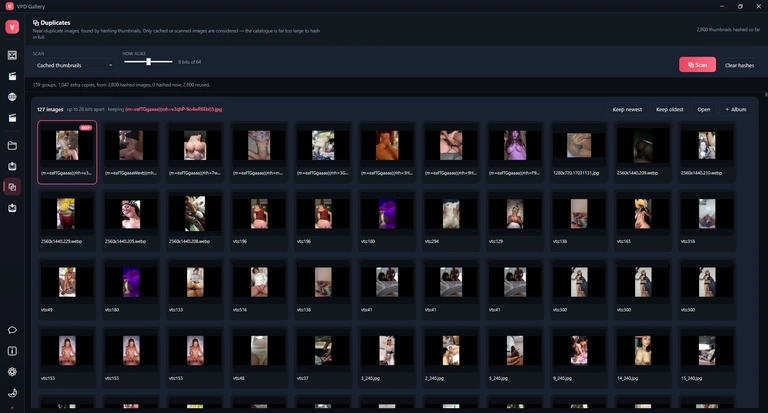
Run a scan
- Under Scan, choose what to check: Cached thumbnails (every thumbnail already on your disk — costs no downloads), Current gallery page, Album (then pick the album) or Recently viewed (what you opened in the viewer).
- Set How alike: how many of the fingerprint's 64 bits two pictures may differ by and still count as copies. 0 means identical thumbnails only; the default is 8 and the maximum 16. Raise it to catch more, lower it if unrelated pictures get grouped.
- Press Scan. Missing thumbnails are downloaded as needed; Cancel stops the scan and keeps what was done. Fingerprints are remembered, so scanning the same pictures again is almost instant; Clear hashes forgets them all.

Reading the results
The summary says how many groups and extra copies were found among how many pictures. Each group card says how many pictures it holds, how far apart they are, and which one is kept; the kept picture has a coloured border and a KEEP badge. By default the newest copy is kept.


Keep newest and Keep oldest change which copy is kept — they only move the mark. Open opens the kept picture in your browser. + Album adds the whole group to the album chosen under Scan › Album (choose one there first).
To use the result, turn on Hide Dupes on the Images page: every copy except the kept one disappears from the gallery. Results live only until the app closes — scan again after a restart. Scan page on the Images page is a shortcut that scans the page you are looking at. The How alike value is also in Settings › Duplicates.
Database
The catalogue — the list of every picture and video the galleries show — is one large file that the app downloads from the internet. The Database page is where you get it. It opens by itself at the first start; after that, open it from the rail (the last icon of the top group) whenever you want to download the catalogue again. The app never offers a new picture catalogue by itself. The list on the Videos page is different: the app brings it up to date from the video site each time it starts.
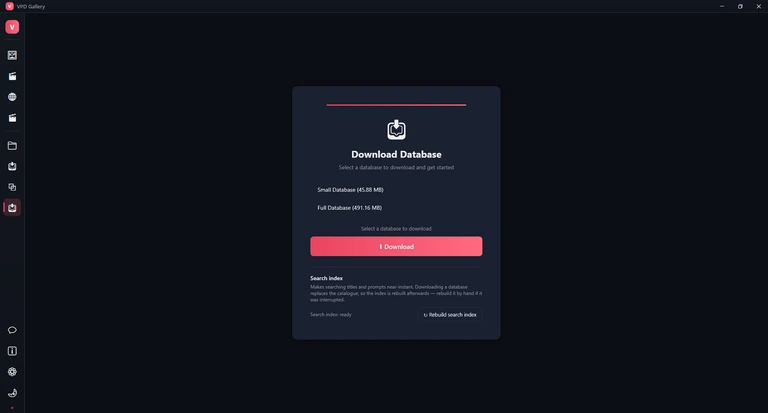
Two catalogues are offered, with their download size next to each: Small Database (roughly 46 MB), quick to fetch, for trying the app; and Full Database (roughly 491 MB), the whole collection. The two names stay in English even when the app is in Arabic. Select one and press Download. The page shows how much has arrived, then unpacks and checks the new catalogue; only when it is sound does it replace the old one, so a failed download leaves your current catalogue untouched. The galleries reload by themselves when it is done — no restart needed.
Under the catalogue, Search index shows the index's state — building with a percentage, ready, out of date or not built. Rebuild search index throws it away and builds it again from scratch; use it if searching behaves oddly or a build was interrupted. It needs free disk space of roughly twice the index's size — the index for the full catalogue takes about 2.2 GB.
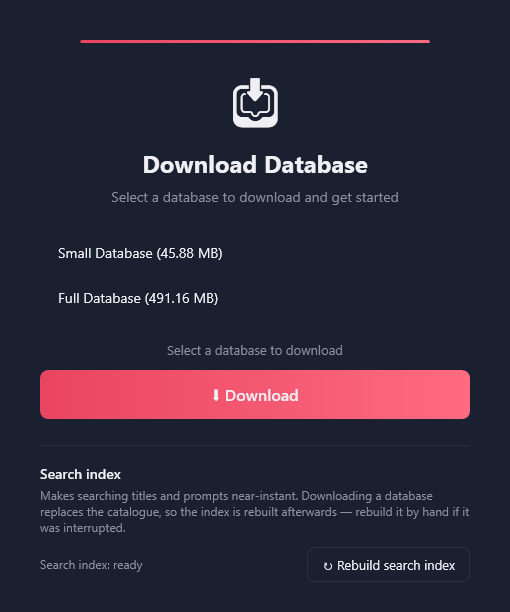
Downloading a catalogue replaces only the catalogue. Favourites (web-video favourites included), ratings, tags, albums, history and your Library are stored separately and survive. The search index is rebuilt afterwards, in the background.
Send Feedback
Report a problem, suggest an idea or rate the app without leaving it. Open the page from the speech-bubble icon at the bottom of the rail, or with Send Feedback on the About page. Sending needs an internet connection.
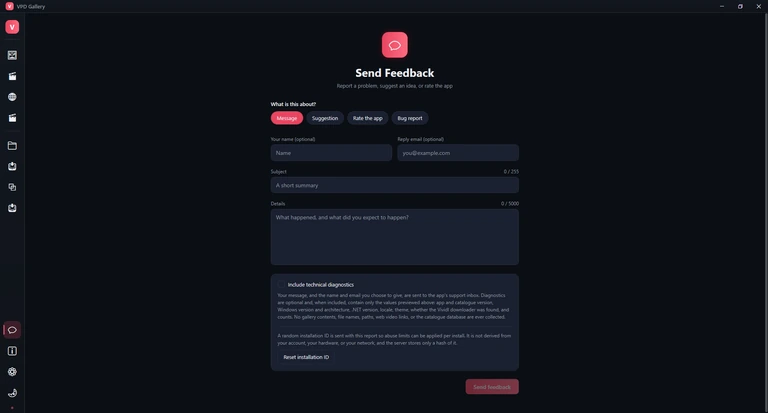
- Under What is this about? pick Message, Suggestion, Rate the app or Bug report. Rate the app adds a row of five stars to choose from.
- Optionally give Your name and a Reply email if you would like an answer.
- Write a Subject (at least 3 characters, up to 255) and the Details (at least 10, up to 5,000); the counters show how much you have used.
- Tick Include technical diagnostics if the report is about a problem. Show exactly what will be sent lists it: the app and Windows versions, language and theme, whether a catalogue is installed and how big it is, how many favourites and web-video favourites you have — as counts only — and whether PixeoaiVD was found on your computer.
- Press Send feedback. It stays greyed out until the form is complete. On success you get a receipt number you can keep; if sending fails, your text is kept so you can try again.
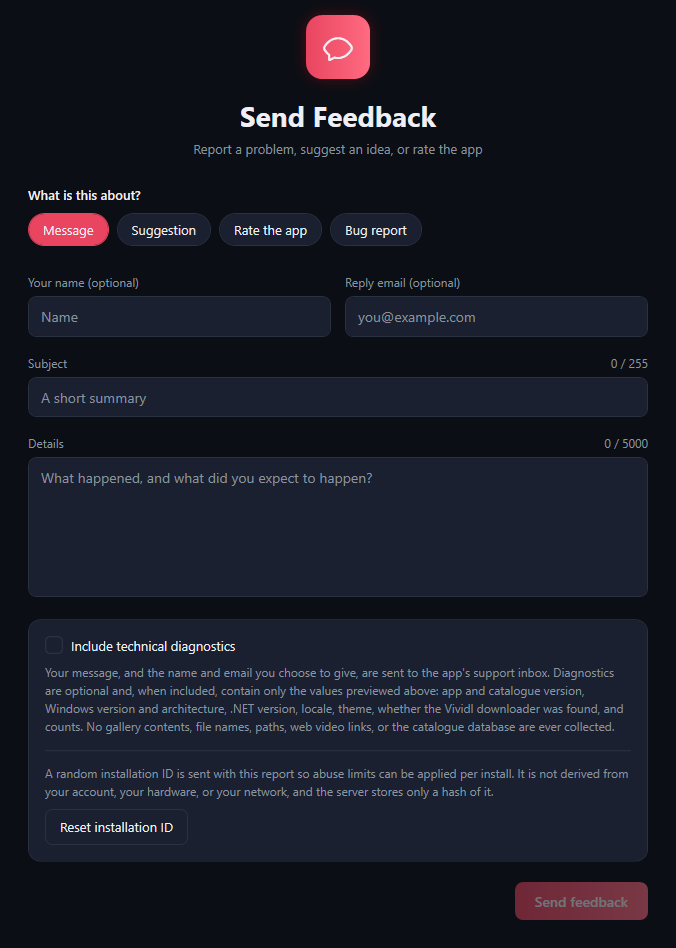
Your message goes to the app's support inbox together with the app version, Windows version, language and a random installation ID used only to limit abuse (the server stores just a scrambled form of it). No gallery contents, file names, folder paths, web video links or catalogue are ever sent. Reset installation ID starts a new ID for the next report.
About
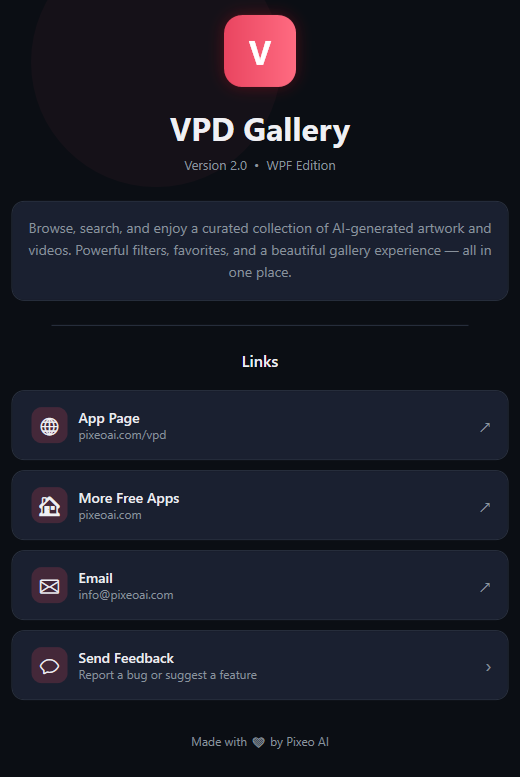
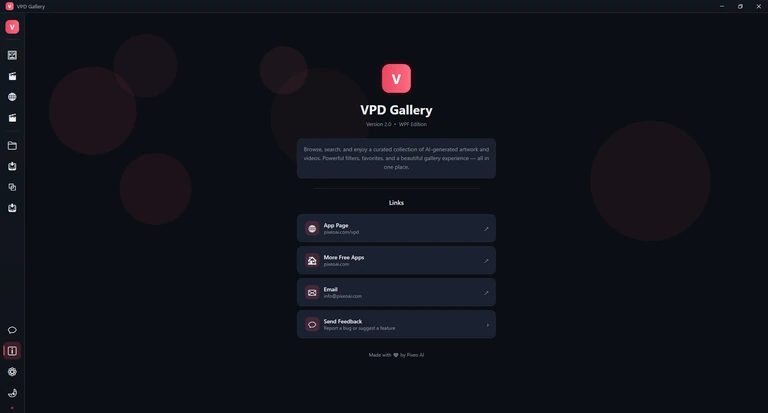
The About page (the i icon at the bottom of the rail) shows the name VPD Gallery, an edition line and a short description, and four links: App Page opens the VPD Gallery page of this website, More Free Apps opens the site's home page, Email starts a message to info@pixeoai.com in your mail program, and Send Feedback opens the feedback page. The edition line is the same in every copy, so it does not tell you which update you have.
Settings
Open Settings from the gear near the bottom of the rail, or with Ctrl,. There is no Save button: every change takes effect the moment you make it. The page is a column of cards, described below in the order they appear: Appearance, Behaviour, Thumbnail cache, Downloads, Video downloads, Tools, Search index, Duplicates, Web videos, Privacy and Where your data lives. Scroll to reach them all.
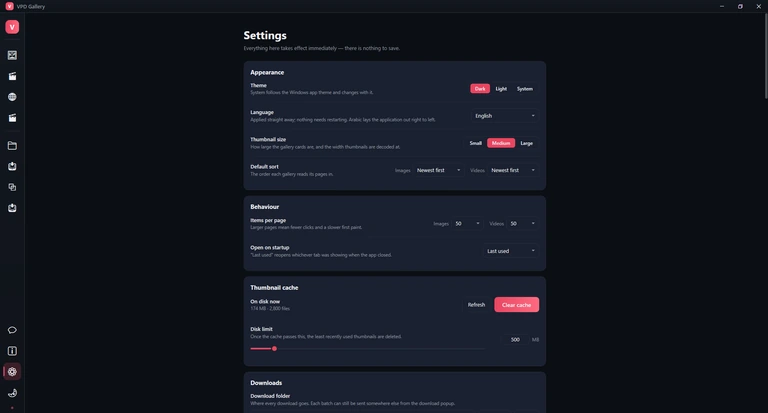
Switches in Settings are labelled On or Enabled and are highlighted when active. A few switches carry their own name instead, such as Captions, Folder per site or Advanced; they too are highlighted when on.
Appearance
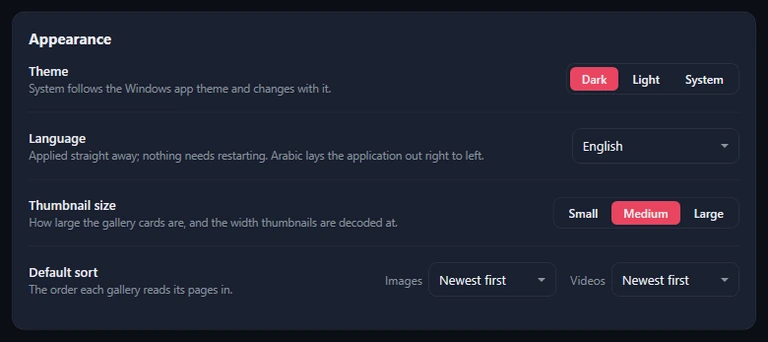
| Option | What it does | Default | When to change it |
|---|---|---|---|
| Theme | Dark, Light or System, which follows Windows' light or dark app mode and switches when Windows does. The sun-and-moon button at the bottom of the rail switches between Dark and Light. | Dark | You prefer a light window, or want it to follow Windows. |
| Language | Same as Windows (Arabic if Windows is in Arabic, otherwise English), English or العربية. Applies at once, without restarting; Arabic lays the whole app out right to left. | Same as Windows | You want the app in a different language from Windows. |
| Thumbnail size | Small, Medium or Large cards in the Images and Videos galleries, on the Web Videos page and in the Library. The S, M and L buttons on those pages change this same setting. | Medium | More cards on screen, or bigger previews. |
| Default sort | Separate choices for Images and Videos: Newest first, Oldest first, Title A–Z or Title Z–A. The open gallery re-sorts at once. Web Videos results are not affected. | Newest first | You always browse by title, or from the oldest. |
Behaviour
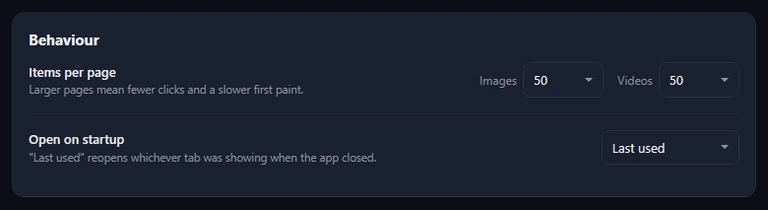
| Option | What it does | Default | When to change it |
|---|---|---|---|
| Items per page | How many cards each page holds, separately for Images and Videos: 25, 50, 100, 200 or 500. Same as Per page: at the bottom of each gallery. | 50 | Larger pages mean fewer clicks but a slower first display. |
| Open on startup | Last used reopens whichever page, Images, Videos or Web Videos, was showing when you closed the app; or always start on Images, Videos or Web Videos. Takes effect at the next start. | Last used | You always want to land on the same page. |
Thumbnail cache
Thumbnails downloaded while you browse are kept on disk, so pages you come back to appear without downloading again.
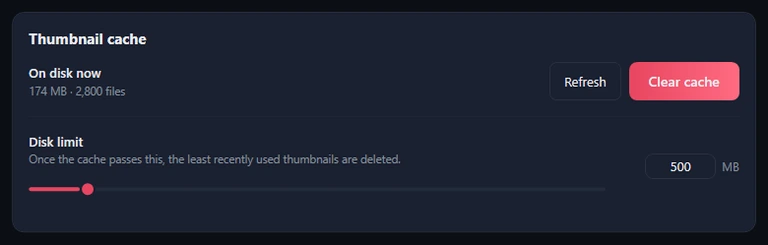
| Option | What it does | Default | When to change it |
|---|---|---|---|
| On disk now | The cache's current size and number of files. Refresh measures it again. | — | Check it before clearing or changing the limit. |
| Clear cache | Deletes every cached thumbnail from disk and memory, after asking. Your catalogue and favourites are untouched; thumbnails download again as you browse. | — | To free space at once, or if thumbnails look wrong. |
| Disk limit | The most space the cache may use, from 50 to 5,000 MB in steps of 50: drag the slider or type the number. When it is exceeded, the least recently used thumbnails are deleted until it is back under 90 % of the limit. | 500 MB | Lower it if disk space is short; raise it so more pages load instantly. |
Downloads
How pictures are downloaded. The Download options window shows these same choices before each batch, and what you pick there is saved back here.
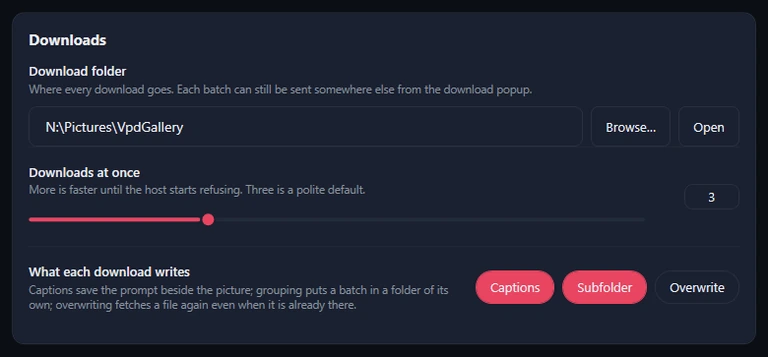
| Option | What it does | Default | When to change it |
|---|---|---|---|
| Download folder | Where pictures go. Browse… chooses another folder; Open opens it in File Explorer. A single batch can still be sent elsewhere from the Download options window. | Pictures › VpdGallery | To keep pictures on another drive or in a synced folder. |
| Downloads at once | How many pictures download at the same time, 1 to 8. Applies from the next batch. | 3 | Raise it for speed; lower it if a site starts refusing downloads. |
| Captions | Writes a text file next to each picture, with the same name, holding the picture's prompt (in VPD Gallery, its list of descriptive tags). | On | Turn off if you want the pictures only. |
| Subfolder | Puts pictures into subfolders: named after the album when you download an album, otherwise after each picture's title. | On | Turn off to put everything straight into the download folder. |
| Overwrite | Off: a file that already exists is skipped (Already there). On: it is downloaded again and replaced. | Off | Turn on only to replace damaged or older copies. |
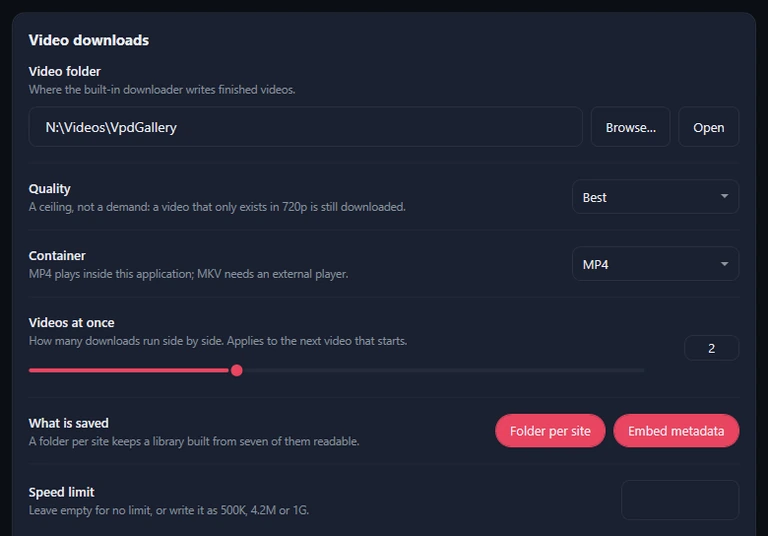
Video downloads
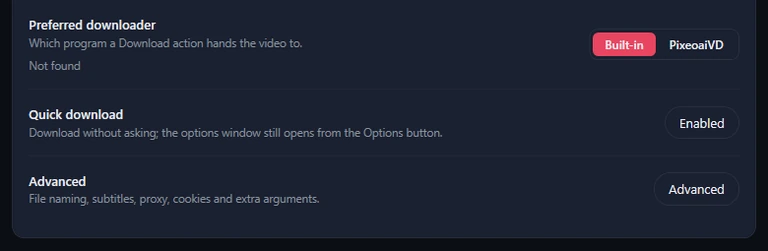
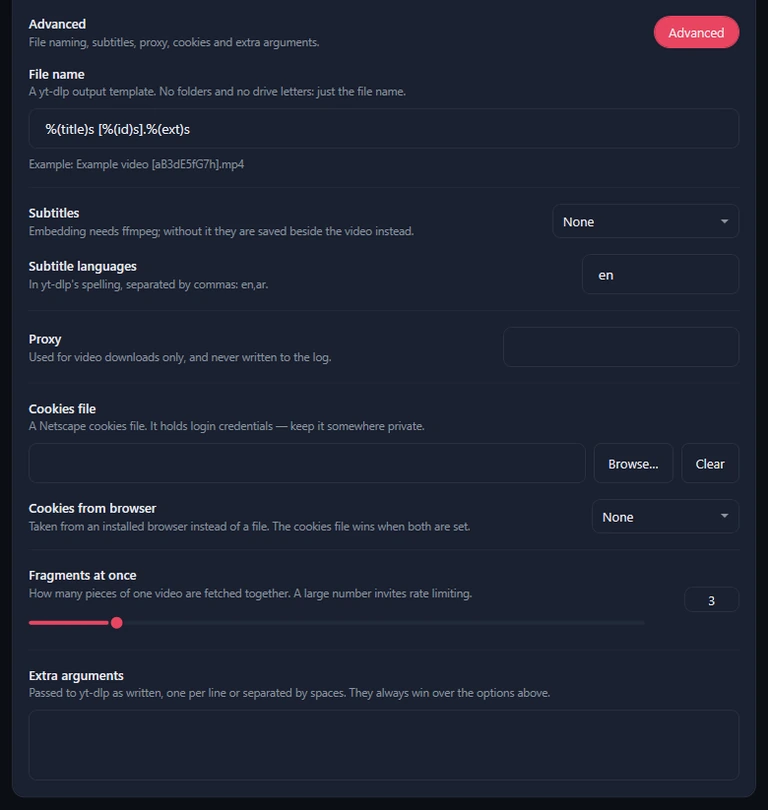
The defaults for every video the built-in downloader fetches, whether it comes from Web Videos or from an address pasted on the Downloads page, and for Quick download. The card is long, so it is shown in three screenshots: its upper part, its lower part, and the options that Advanced reveals. The Download video window can change most of them for one download.
| Option | What it does | Default | When to change it |
|---|---|---|---|
| Video folder | Where the built-in downloader puts finished videos, with Browse… and Open. | Videos › VpdGallery | Videos are large: point this at a roomy drive. |
| Quality | Best, 2160p (4K), 1440p, 1080p, 720p, 480p, 360p, Audio (m4a) or Audio (mp3). A ceiling, not a demand: the best version at or below it is taken, so a video that only exists in 720p is still downloaded. | Best | Lower it to save space and time; choose audio for sound only. |
| Container | MP4 plays inside the app; MKV needs another player; Whatever the site serves keeps the original. | MP4 | Keep MP4 unless another program needs MKV. |
| Videos at once | How many videos download at the same time, 1 to 4. Applies to the next video that starts. | 2 | Raise it on a fast connection. |
| Folder per site | Puts each video in a subfolder named after the website it came from, so videos from the seven sites stay apart. It sits under What is saved. | On | Turn off for one flat folder. |
| Embed metadata | Writes the title, uploader and date into the video file itself. Skipped quietly when ffmpeg is not installed (see Tools). | On | Rarely; it helps media players show proper titles. |
| Speed limit | Caps each download's speed: a number, optionally followed by K, M or G, such as 500K, 4.2M or 1G (per second). Empty means no limit. | Empty (no limit) | When downloads slow down everything else on your connection. |
| Preferred downloader | Which program a Download action hands the video to: Built-in (the app itself, into your Library) or PixeoaiVD. The status beside it says whether PixeoaiVD was found. See Downloading with PixeoaiVD. | Built-in | When you prefer to manage every download in PixeoaiVD. |
| Quick download | Downloads from Web Videos, and addresses pasted on the Downloads page, start straight away with these settings, without the Download video window. Don't ask again in that window turns this on; Options on the Downloads page still opens the window. | Off | When you are happy with the defaults and download often. |
| Advanced | Shows or hides the options below. It changes nothing by itself. | Hidden | To reach the options below. |
| File name | A pattern for the file name, such as %(title)s [%(id)s].%(ext)s; an Example: line underneath previews the result. Names only — no folders and no drive letters. Clear the box to go back to the default. | Title [ID] — the video's title, then the site's own video ID in brackets | To add the date or channel to file names. |
| Subtitles | None fetches no subtitles. Save beside the video writes each subtitle as a separate file next to the video, named after it; Embed in the video puts them inside the video file so a player can switch them on (without ffmpeg they are saved beside it instead). Only subtitles the site offers, in the languages set below, are fetched. | None | When videos come with subtitles you want. |
| Subtitle languages | Language codes separated by commas, such as en,ar. | en | To get subtitles in other languages. |
| Proxy | A proxy for video downloads only, such as http://host:port or socks5://host:port. | Empty | Only if your network requires one. |
| Cookies file | A cookies text file (Netscape format) exported from your browser, for sites that need you to be signed in. Browse… picks it, Clear removes it. It wins over Cookies from browser when both are set. | None | When a site says it needs a sign-in. |
| Cookies from browser | Reads your sign-in from an installed Chrome, Edge, Firefox, Brave, Opera, Vivaldi or Chromium instead of a file. | None | The easier way to download from a site you are signed in to. |
| Fragments at once | How many pieces of one video download in parallel, 1 to 16. | 3 | Raise carefully: large numbers make sites slow you down. |
| Extra arguments | Extra instructions for the yt-dlp download tool, for experienced users, one per line or separated by spaces. They always override the options above. | Empty | Only if you know the tool's options. |
A cookies file or your browser's cookies hold your sign-ins. Anyone who gets the file can use your accounts: never share it, keep it somewhere private, and clear it here when you no longer need it.
Tools
The built-in video downloader relies on two free tools that the app installs and updates for you: yt-dlp, which does the downloading, and ffmpeg, which merges video and sound, converts and writes posters (without it, videos still download, at lower quality). They live in a tools folder inside the app's local folder (see Where your data lives).
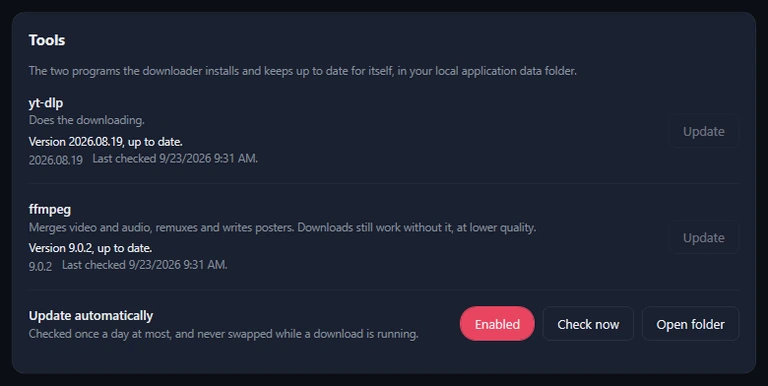
| Option | What it does | Default | When to change it |
|---|---|---|---|
| yt-dlp, ffmpeg | Each row shows the tool's state, version and when it was last checked. Its button reads Install when the tool is missing and Update once it is installed; it can be pressed only when there is something to do — the tool is missing, a newer version exists, or the last install or check failed — and is greyed out otherwise. | Installed with the first video download | Press Install if a download says the tool is missing. |
| Update automatically | Checks for new versions at most once a day and installs them, never while a video is downloading. | Enabled | Leave it on: sites change often and old versions stop working. |
| Check now | Checks both tools for updates immediately, without waiting for the daily check. | — | When a site that used to work suddenly fails. |
| Open folder | Opens the folder where the tools are kept. | — | If your antivirus asks about these files. |
Search index
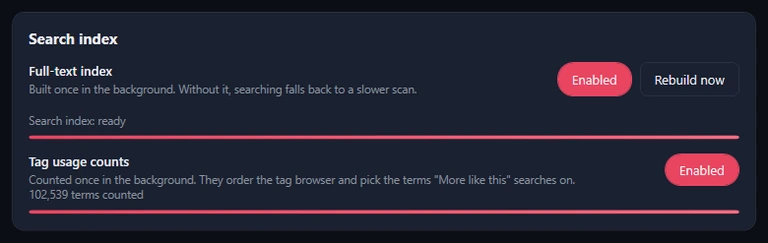
| Option | What it does | Default | When to change it |
|---|---|---|---|
| Full-text index | Makes searching titles and prompts near-instant in Images and Videos. Built once in the background (it can take about 2.2 GB for the full catalogue); the line under it shows Search index: ready, building, out of date or not built. Rebuild now builds it again from scratch; it works only while the index is on. Off: searches fall back to a slower scan. | Enabled | Turn off only if disk space is very tight; rebuild if searches miss things they should find. |
| Tag usage counts | Counts, once in the background, how often each tag, category, channel and model is used. The Filter Browser uses the counts for its numbers and popularity order, and More Like This for picking the rarest terms. Off: the Filter Browser lists items alphabetically, without numbers. | Enabled | Rarely worth turning off. |
Duplicates
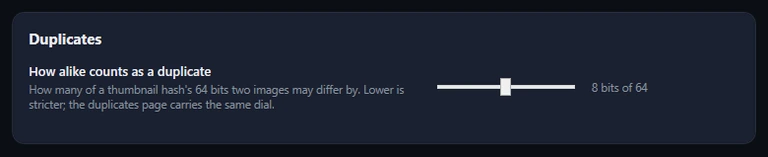
| Option | What it does | Default | When to change it |
|---|---|---|---|
| How alike counts as a duplicate | The same How alike value as on the Duplicates page, from 0 (identical thumbnails only) to 16 bits of 64: how many bits of their thumbnails' fingerprints two pictures may differ by. Lower is stricter. A Duplicates page already open picks up a change made here after the app restarts. | 8 bits of 64 | Lower it if unrelated pictures are grouped; raise it to catch more copies. |
Web videos
How the Web Videos page searches and plays.
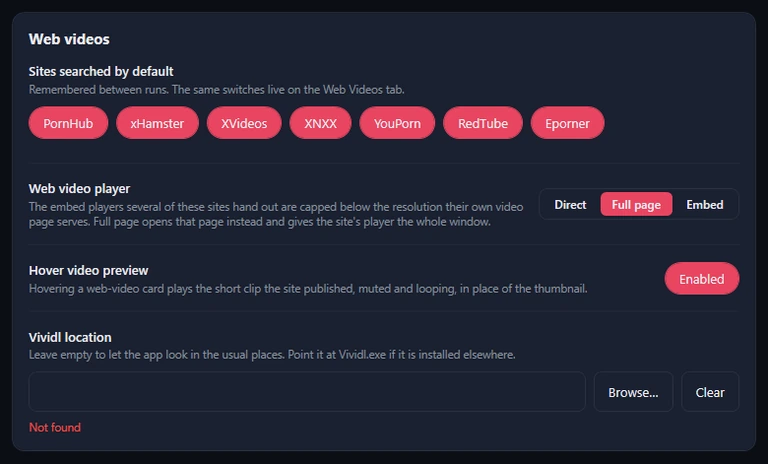
| Option | What it does | Default | When to change it |
|---|---|---|---|
| Sites searched by default | One switch each for PornHub, xHamster, XVideos, XNXX, YouPorn, RedTube and Eporner. They are the same switches as the Sites row on the Web Videos page, and are remembered between runs. | All seven on | Turn off a site you never want, or one that keeps failing where you live. |
| Web video player | The mode a new player window starts in: Direct, Full page or Embed — compared in Three ways to play. The side panel follows it too, except that it never plays Direct. | Full page | Choose Direct for advert-free playback, Embed for a light player on a slow connection. |
| Hover video preview | Plays a card's short, muted preview clip when the pointer rests on it. See Hover previews. | Enabled | Turn off to keep every card a still picture, or to save data. |
| Vividl location | Where PixeoaiVD's program file (Vividl.exe) is. Leave it empty and the app looks in the usual places; Browse… picks the file, Clear empties the box. The status reads Found, Found automatically, Not found or Not found at that path. | Empty (search the usual places) | Only if PixeoaiVD is installed somewhere unusual. |
Privacy
Everything here is off until you turn it on. The PIN hides the galleries from someone at your keyboard; it does not encrypt anything on disk. How the lock and the panic shortcut feel in use is described in Privacy and the PIN lock.
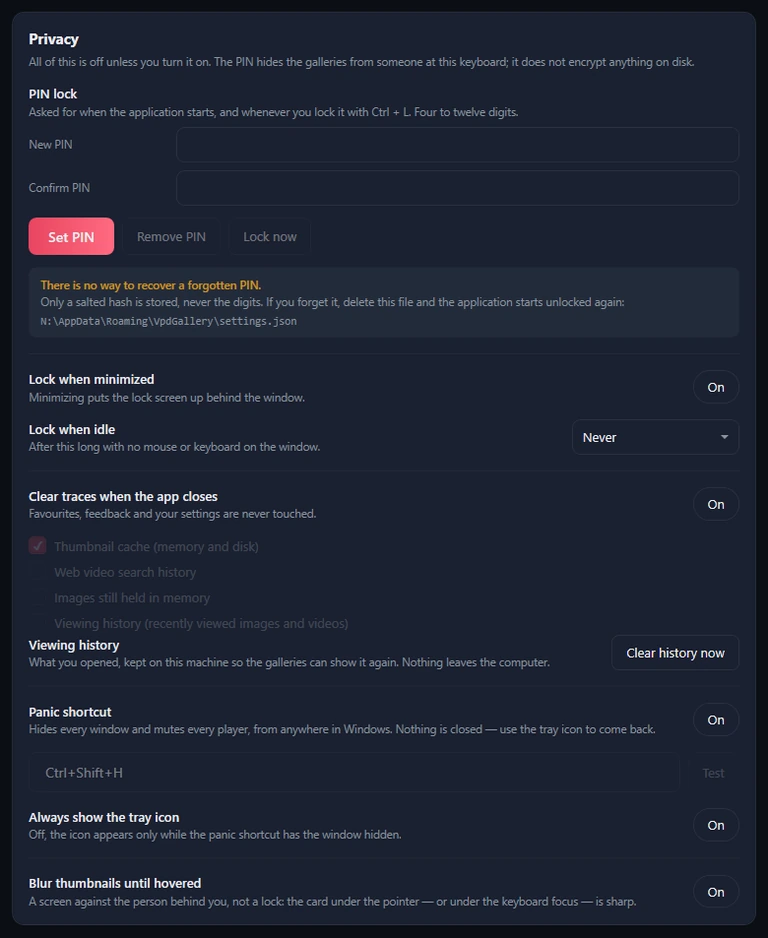
| Option | What it does | Default | When to change it |
|---|---|---|---|
| PIN lock | Type a PIN of 4 to 12 digits in New PIN and Confirm PIN, then Set PIN. The app then asks for it at every start and whenever it locks. Afterwards the button reads Change PIN; Remove PIN and changes need the Current PIN. Lock now (CtrlL) locks at once. There is no way to recover a forgotten PIN: the note under the buttons names the settings file to delete, after which the app starts unlocked. | No PIN | When others use your computer. |
| Lock when minimized | Locks the app whenever you minimise it. Works only once a PIN is set. | Off | If you often minimise to step away. |
| Lock when idle | Locks after the app has had no mouse or keyboard use for the time you choose: After 1 minute, After 5 minutes, After 15 minutes, After 30 minutes or After 1 hour. Works only once a PIN is set. | Never | If you forget to lock before stepping away. |
| Clear traces when the app closes | When the app closes, erases what you tick (the tick boxes can be changed only while the switch is on): Thumbnail cache (memory and disk); Web video search history — your search words are never stored, so this only resets the suggestion list under the Web Videos search box; Images still held in memory; and Viewing history (recently viewed images and videos), which also covers web videos. Favourites, feedback and settings are never touched, and neither is the built-in browser's own data (the video sites' cookies and page cache — see Privacy and the PIN lock). | Off (only the cache ticked) | To clear what you viewed each time you close the app. |
| Viewing history | The list of pictures, videos and web videos you opened, used by the History filter in Images and Videos, Recently Viewed on the Web Videos page and the Duplicates page. It never leaves your computer. Clear history now erases all of it, after asking. | Kept (newest 5,000) | Clear it when you want a fresh start. |
| Panic shortcut | A key combination that works anywhere in Windows: it mutes every player of the app and hides all its windows at once. Nothing is closed; the tray icon brings the app back. Type the keys as Ctrl+Shift+H; Test tells you whether Windows lets the app use them. | Off (Ctrl+Shift+H) | When you need to hide the app in a hurry. |
| Always show the tray icon | Keeps a VPD Gallery icon in the notification area with Open, Lock and Exit. Off, the icon appears only while the panic shortcut has hidden the app. | Off | If you like reaching the app from the notification area. |
| Blur thumbnails until hovered | Blurs every gallery thumbnail except the one under the mouse or the keyboard highlight. A screen against onlookers, not a lock. | Off | When someone might glance at your screen. |
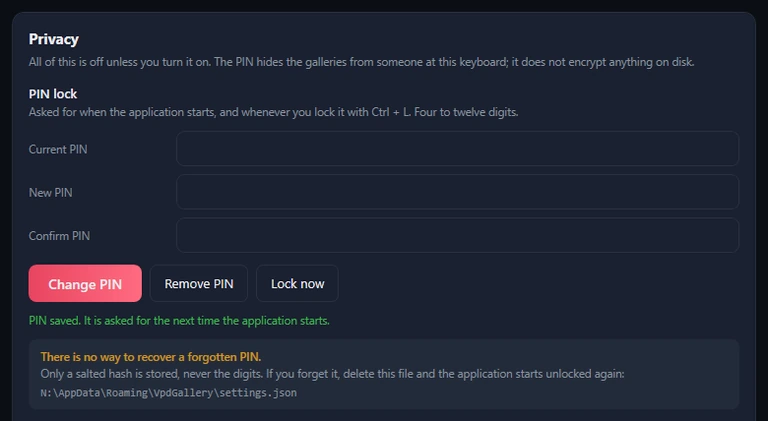
Where your data lives
The last card shows where the app keeps things and backs up what matters. The paths in the screenshot are demonstration folders; on your computer they are inside your user profile, as the table says.
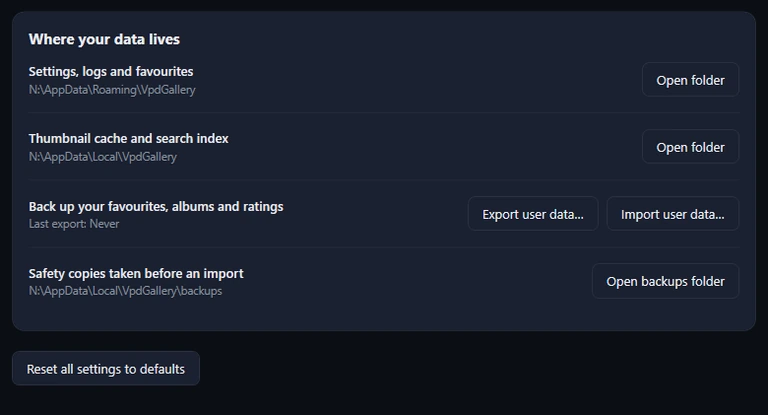
| Option | What it does | Default | When to change it |
|---|---|---|---|
| Settings, logs and favourites | Open folder opens it. It holds your settings (with the PIN in scrambled form), your favourites of every kind, web videos included, and the app's logs. | C:\Users\‹you›\AppData\Roaming\VpdGallery | To look at the logs when reporting a problem. |
| Thumbnail cache and search index | Open folder opens its thumbnail folder. Besides the cache and the search index, this folder also holds your albums, ratings, own tags, viewing history and Library records, the download tools, the backups folder and the built-in browser's data for the video sites (a WebView2 folder with their cookies and page cache, which can grow large). | C:\Users\‹you›\AppData\Local\VpdGallery | To see how much space the app uses. |
| Back up your favourites, albums and ratings | Export user data… saves one backup file; Import user data… brings one back, with Merge or Replace. Last export shows when you last backed up. See Back up and restore. | Never exported | Regularly, and before moving to a new computer. |
| Safety copies taken before an import | Before any import the app saves a copy of your current data here. Open backups folder shows them. | The backups folder in the local folder above | To undo an import you regret. |
| Reset all settings to defaults | After asking, puts appearance, sorting, page sizes, the startup page, the cache limit, search index, duplicates, all picture and video download settings (including the preferred downloader and Quick download) and the web-video choices (player, hover preview, Vividl location, and all seven sites switched back on) back as the app ships. It keeps your language and everything under Privacy (so it cannot remove a PIN), and never touches favourites, albums, ratings, history, the Library or the catalogue. | — | When settings are in a muddle and you want a clean slate. |
Settings that ask first
Four settings could lose something, so they ask in a sheet over the page: Clear cache, Reset all settings to defaults, Remove PIN and Clear history now. Yes, continue goes ahead; Cancel leaves everything as it was.
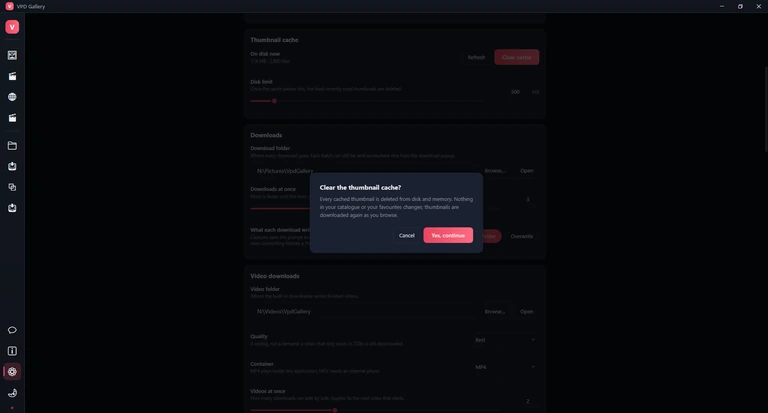
Privacy and the PIN lock
VPD Gallery can keep what you browse to yourself: a PIN that hides the galleries, automatic locking, a panic shortcut, blurred thumbnails and a clean-up when the app closes. All of it is set up under Settings › Privacy and is off until you turn it on. The PIN hides the app from someone at your keyboard; it does not encrypt files on disk.
Set up the PIN lock
- Open Settings (Ctrl,) and scroll to Privacy.
- Type a PIN of 4 to 12 digits in New PIN, the same again in Confirm PIN, and press Set PIN. To change it later, fill in Current PIN as well and press Change PIN; Remove PIN turns the lock off.
- Optionally turn on Lock when minimized and choose a time under Lock when idle (from After 1 minute to After 1 hour; Never is the default). Idle means no mouse or keyboard on the main window.
- Press Lock now (or CtrlL) to try it.
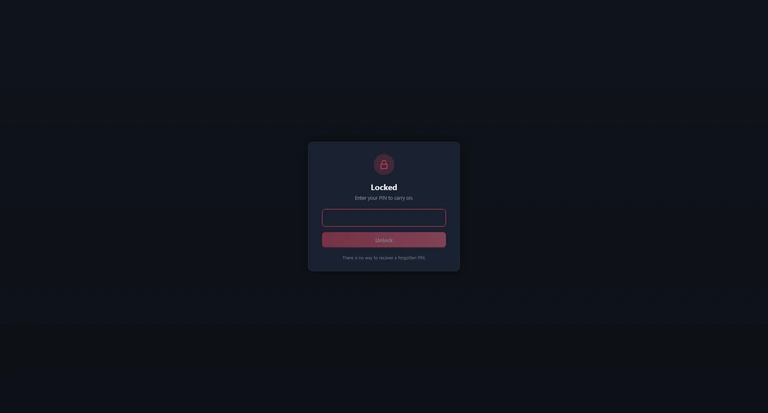
When the app is locked, a Locked screen covers the main window, and the Library player closes if it is open. Type the PIN and press Unlock (or Enter). The first five wrong PINs only show That PIN is not right; after that, each wrong try makes you wait before the next one — 5 seconds, then 10, 20 and so on, up to five minutes — and the card counts down. The lock appears at every start, on CtrlL, with Lock in the tray menu, when the idle or minimise lock is on, and when you bring the app back after the panic shortcut. The image viewer and the catalogue and web video players are separate windows that the lock does not close, so close them yourself before you step away.
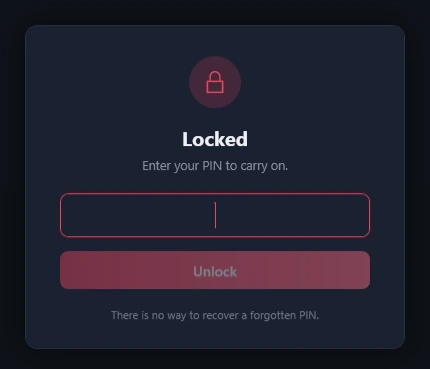
A forgotten PIN cannot be recovered — the app stores only a scrambled form of it, never the digits. The only way back in is to reset the app's settings: close the app, open the VpdGallery folder in your user profile's roaming application-data folder (C:\Users\‹you›\AppData\Roaming\VpdGallery) in File Explorer, and delete the file settings.json in it (Windows shows it as “settings” when file extensions are hidden) — the same file the Privacy card in Settings names under the PIN boxes. The app then starts unlocked, but with all its settings back at their defaults; favourites, albums, ratings, history and your Library are kept.
The panic shortcut
With Panic shortcut on, pressing its keys — CtrlShiftH unless you changed them — anywhere in Windows instantly mutes the app's players and hides every one of its windows, players and viewer included. Nothing is closed. Pressing the keys again does not bring it back: use the tray icon, which appears while the app is hidden — double-click it or choose Open. If a PIN is set, the lock screen comes first, and the sound returns only after you unlock. If another program already uses those keys, the app tells you and switches the option off; press Test to check keys before relying on them.
The tray icon
The VPD Gallery icon sits in the notification area at the end of the taskbar (it may be under the ^ “Show hidden icons” arrow); pointing at it shows VPD Gallery. It appears while the panic shortcut has hidden the app, or all the time if Always show the tray icon is on. Right-click it for Open, Lock and Exit. Lock is greyed out until a PIN is set; it locks the app and brings its window back. Exit closes the app completely. Double-clicking the icon is the same as Open. The menu follows the app's language.
More ways to stay private
- Blur thumbnails until hovered blurs the cards on Images, Videos, Web Videos and the Library, except the card under your mouse or the keyboard focus.
- Clear traces when the app closes erases, each time you quit, whichever you tick of Thumbnail cache (memory and disk), Web video search history, Images still held in memory and Viewing history (recently viewed images and videos). When you first turn it on, only the thumbnail cache is ticked. Favourites, feedback and your settings are never touched. It also leaves the built-in browser's data alone: the cookies, sign-ins, age confirmations and page cache of the video sites you watched, kept in a WebView2 folder inside the local VpdGallery folder (see Where your data lives). To remove them, close the app and delete that WebView2 folder; the sites will simply ask again next time.
- Clear history now empties the viewing history behind the History filter — images, videos and web videos — after asking you to confirm.
Browsing loads thumbnails, pictures and videos from the sites they come from, and a web search goes only to the seven video sites, and only to those you leave switched on under Web videos in Settings. At every start the app asks the publisher's server whether a newer version exists and, once the catalogue is installed, asks the service that hosts the catalogue's videos for newly added ones. The catalogue is downloaded only when you start it on the Database page, and the download tools only when you install them, from their own publishers; once installed, the tools check for a newer version at most once a day. Feedback and problem reports are sent only when you press send. Your favourites, albums, ratings, tags, history and Library stay on your computer.
Keyboard shortcuts
Press F1 — or ? when you are not typing — to see this list inside the app; F1 again, Esc, the ✕ or a click outside closes it. Key names stay in English in the Arabic app too. The gallery shortcuts work on Images, Videos, Web Videos and the Library, but not while the cursor is in a text box. The Web Videos rows and the last group below are not on the in-app list.
| Keys | What it does |
|---|---|
| Global | |
| CtrlF | Search the current gallery |
| Esc | Close the panel, clear the search, or leave selection mode |
| Ctrl1 | Images |
| Ctrl2 | Videos |
| Ctrl3 | Web Videos |
| Ctrl, | Settings |
| F11 | Full screen |
| CtrlL | Lock now (needs a PIN in Settings) |
| F5 | Reload the current page |
| Page Up | Previous page |
| Page Down | Next page |
| Home | First page |
| End | Last page |
| F1 | This shortcut list |
| ? | This shortcut list (not while typing) |
| Gallery | |
| ← → | Move the focus ring one card |
| ↑ ↓ | Move the focus ring one row |
| Enter | Open the focused card |
| Space | Preview the focused card, or tick it in selection mode |
| F | Favourite the focused card |
| CtrlA | Select every card on the page (selection mode) |
| Web Videos | |
| Enter | Open the highlighted video in the player window |
| Page Down | Load more results (also End); Home or F5 starts the search again |
| Image viewer | |
| ← → | Previous / next image |
| Home End | First / last loaded image |
| Wheel | Previous / next image, or zoom once magnified |
| Ctrl + Wheel | Zoom around the pointer |
| + - | Zoom in / out |
| 0 | Fit the whole image |
| Double-click | Switch between fit and 1:1 |
| Drag | Pan a magnified image |
| R | Rotate right (Shift + R rotates left) |
| I | Show or hide the image details |
| Space | Start or stop the slideshow |
| CtrlS | Save the image |
| Esc | Close the viewer |
| Video players (Videos, Web Videos and Library) | |
| ← → | Previous / next video |
| F11 | Full screen |
| Esc | Leave full screen, or close the player |
| Also useful | |
| CtrlV | Downloads page, Videos tab: paste a video address from the clipboard and start downloading it (not in the list inside the app) |
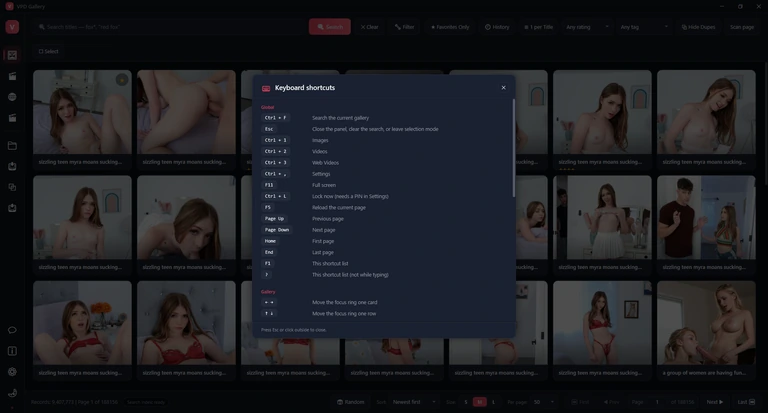
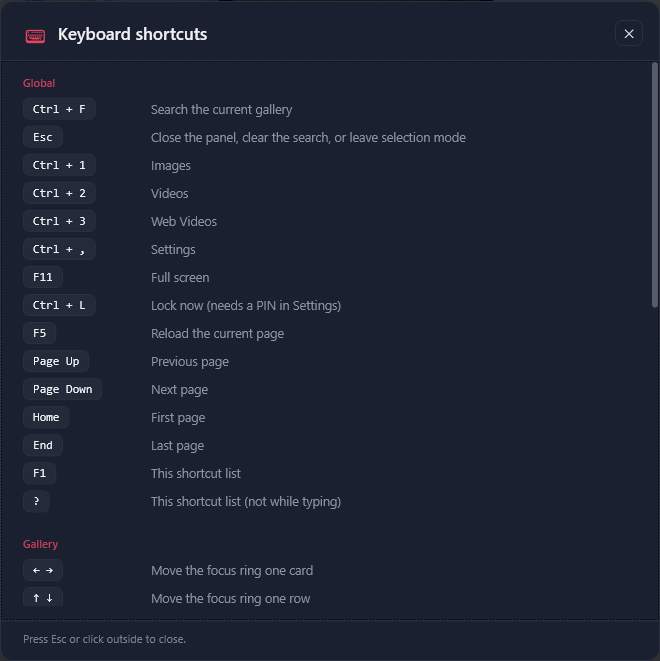
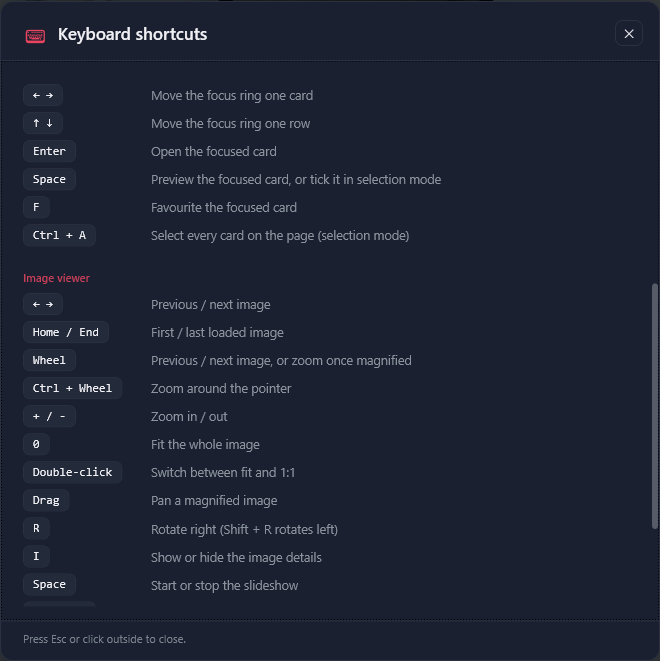
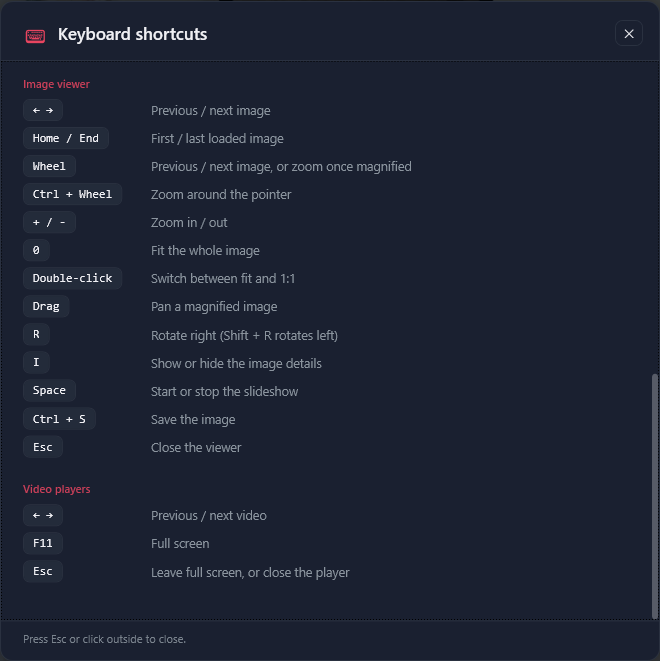
Back up and restore
Your favourites (pictures, videos and web videos), albums, ratings, tags, viewing history and Library records exist only on your computer. One backup file keeps them safe — for a new computer, a reinstall, or simply peace of mind.
Make a backup
- Open Settings › Where your data lives.
- Press Export user data…, choose where to save and keep the suggested name (such as VpdGallery-userdata-2026-09-23.zip).
- Copy the file somewhere safe — a USB stick or cloud storage. Last export now shows today's date.
The backup holds your settings (without the PIN), your picture, video and web-video favourites, albums, ratings, own tags, viewing history, Library records and the picture download list. It does not hold the catalogue, thumbnails, the search index, logs, the download tools, or the downloaded pictures and videos themselves — copy those folders separately if you want them.
Restore a backup
- Open Settings › Where your data lives and press Import user data….
- Pick the backup file. A summary lists what it contains — favourites (web videos included), albums, ratings and tags, history, library videos, and whether settings are included.
- Choose Merge to add the backup to what you have: nothing is deleted, and where both have the same item the newer or higher value wins; your current settings are kept. Or choose Replace to make this computer match the backup exactly, settings included (your PIN stays if the backup has none). Cancel does nothing.
- Restart the app when it tells you to, to see everything.
Before importing, the app saves a copy of your current data in its backups folder; if that copy cannot be made, nothing is imported. To undo an import, press Open backups folder and import the newest safety copy with Replace.
Moving to a new computer
Export on the old computer, install VPD Gallery on the new one and download a catalogue, then import with Replace. Copy your Pictures › VpdGallery and Videos › VpdGallery folders across too; if the Library then shows files as missing, press Scan for missing files.
Keeping it up to date
Three things can be updated: the app itself, the catalogue and the download tools.
The app
Each time it starts, the app checks quietly whether a newer version exists. If so, an Update Available window shows your version and the new one, and What's new: with the release notes. Download opens the download page in your browser — install the new version over the old one; your data stays. Later closes the window until the next start. An app update is also what brings back a Web Videos site that has changed its pages.
The catalogue
The pictures do not update themselves, and the app never offers a new catalogue: if a newer one is published, download a catalogue again on the Database page; your favourites, albums and Library are kept. The video list, however, keeps itself current: at each start the app asks the video host for new videos and says so in a notification such as 5 new videos added, and every 7 days it reloads the whole list.
The download tools
With Update automatically on (the default), yt-dlp and ffmpeg are checked at most once a day and updated when no video is downloading. When downloads from a video site suddenly start failing, Check now in Settings › Tools usually fixes it. A site whose search results fail on Web Videos needs an app update instead.
Troubleshooting
Most problems have a quick fix. Find what you see in the first column. For a Web Videos site that returns nothing, see also When a site returns nothing.
| What you see | Why | What to do |
|---|---|---|
| The app opens on the Database page instead of the galleries | No catalogue is installed yet. | Choose Small Database or Full Database and press Download. |
| Thumbnails say Couldn't load | No internet, or the site is slow or has removed the picture. | Check your connection and press Retry on the card, or F5 to reload the page. |
| Searching pictures is slow, or quotes find nothing | The search index is still building, is out of date, or is switched off. | Wait for Search index: ready in the Images footer. If it never comes, press Rebuild search index on the Database page and check Settings › Search index. |
| The Videos panel or player shows a red page saying the site has been reported as unsafe | Microsoft Defender SmartScreen is blocking the site that hosts the catalogue videos. The app cannot change that. | Double-click the video to open the player, then press Open in browser on its bar to watch it in your web browser. |
| A site in the Web Videos status strip shows failed (a red ✕) or no results | The site is down or blocked where you live, took too long to answer, found nothing for your words, or has changed its pages. | Search again (F5), try other words and open the site in your browser. If one site keeps failing, untick it and check for an app update. |
| Web Videos says Nothing matches these filters | Videos were found, but your Min length or Min views filter hides all of them. | Press Clear filters, or set Min length back to Any length and Min views to Any views. |
| In Direct mode the player shows the site's page instead, with This site publishes no direct video links… or The direct stream would not play… | xHamster never publishes direct links, and on other sites a stream sometimes refuses to play. | Nothing is broken: watch it on the page, or press Embed. The next video is tried in Direct again. |
| Web video cards play clips when the pointer rests on them, and you do not want that | Hover video preview is on, and each clip is fetched from the site, which uses data. | Switch off Hover video preview in Settings › Web videos. It takes effect at once. |
| Download with PixeoaiVD is missing, or a Vividl Not Found window appears | PixeoaiVD is not installed, or the app cannot find it. The app looks for it once per session. | Install PixeoaiVD and restart the app, or set Vividl location in Settings › Web videos. To download with the app itself, set Preferred downloader to Built-in. |
| A video download fails with The page could not be read | The video was removed, the site wants a sign-in, or the download tool is out of date. | Press Check now in Settings › Tools, then Retry. For sign-in sites, set Cookies from browser under Video downloads › Advanced. |
| yt-dlp could not be started, or ffmpeg is not available | The tool was removed or quarantined, often by antivirus software. Without ffmpeg, videos download at lower quality. | Press Install next to the tool in Settings › Tools, and allow the tools folder in your antivirus if needed. |
| A downloaded video will not play in the app | MKV files, and some other formats, do not play inside the app. | Use Open externally, or choose MP4 as the Container for future downloads. |
| Library cards say File missing | The file was moved, renamed or deleted outside the app. | Put it back and press Scan for missing files, or use Re-download. |
| Remove from library does nothing | It acts only on ticked videos, even when you choose it from a card's menu. | Press Select, tick the videos, then choose Remove from library. |
| The app was hidden and pressing the shortcut again does not bring it back | The panic shortcut only hides. | Double-click the VPD Gallery icon in the notification area (look under the ^ arrow). |
| Some names and notices stay in English in the Arabic app | Small Database, Full Database, key names and the feedback notices are English by design, and a few texts are built when the app starts. | Restart the app after changing the language; the rest is expected. |
When the app reports a problem
After an unexpected error, a window titled VPD Gallery — Problem Report explains what happened — the app either carries on or has to close — and a report is saved on your computer. You can describe what you were doing (optional) and open Review details to see exactly what would be sent; nothing is sent unless you choose to. Send report sends it, Send on next start keeps it and offers it again when the app next starts, Not now declines, Copy details copies it, and Open error log shows the technical details. Names and folder paths are removed from reports before sending.
Use Send Feedback with Bug report and tick Include technical diagnostics, or write to info@pixeoai.com.
Questions and answers
Is VPD Gallery free?
Yes. The app, the catalogue and the download tools cost nothing, and there is no account to create.
Do I need the internet?
Yes, to browse: thumbnails, pictures, catalogue videos and every Web Videos search come from the web, and the video list is refreshed at each start. Your Library videos and downloaded pictures play and open offline.
Which websites can I search and download from?
Web Videos searches seven sites — PornHub, xHamster, XVideos, XNXX, YouPorn, RedTube and Eporner — and you choose which in its Sites: row. Other sites cannot be added there, but you can paste a video's address on the Downloads page: many video sites work; playlists do not. Only download what you are allowed to.
Which player mode should I use for web videos?
Direct gives a clean picture without adverts on every site except xHamster; Full page shows everything the site offers and works everywhere; Embed is the lightest, for a slow connection. Set the starting mode in Settings › Web videos and switch in any player window — see Three ways to play.
Do the videos I download from Web Videos go into my Library?
Yes, with the Built-in downloader (the default): they appear on the Downloads page, join your Library and get an In library badge. With PixeoaiVD as your Preferred downloader, the video is handed to PixeoaiVD and stays in its own window, not in your Library. See Downloading web videos.
Where do my downloads go?
Pictures to Pictures › VpdGallery and videos to Videos › VpdGallery, unless you changed the folders in Settings. Open folder on the Downloads page takes you there.
Will downloading a new catalogue erase my favourites or albums?
No. Favourites, ratings, tags, albums, history and the Library are stored separately and are kept. The automatic refresh of the video list at each start does not touch them either.
Does deleting an album or a collection delete files?
No. Deleting an album removes only its list; deleting a Library collection leaves the videos in your Library. Only Delete files in the Library removes files, and it sends them to the Recycle Bin.
Can I use the app in Arabic?
Yes. Choose العربية under Settings › Appearance › Language; the whole app switches to right-to-left at once. The Arabic version of this manual shows the Arabic screens.
Can two copies of the app run at once?
Yes, but they share the same settings and data, so it is best to use one at a time.
Ready to explore?
Download VPD Gallery for free and keep this manual at hand — every chapter is a click away in the contents.